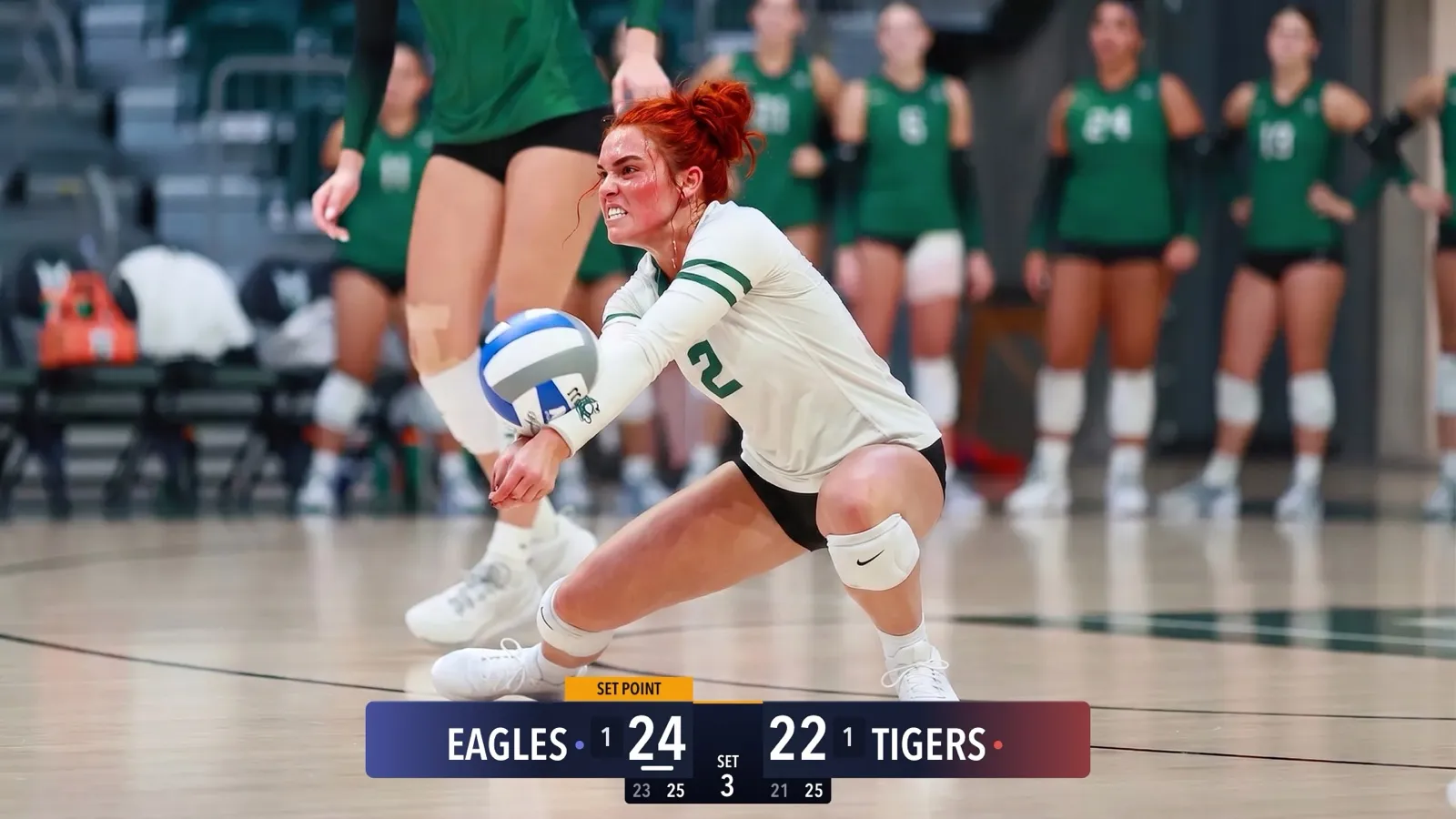
Running the iPad as Your Scoring Console
CineSportCam 2.0 runs on iPad as a full landscape broadcast and scoring console. Two ways to set it up at a game, and when each one makes sense.
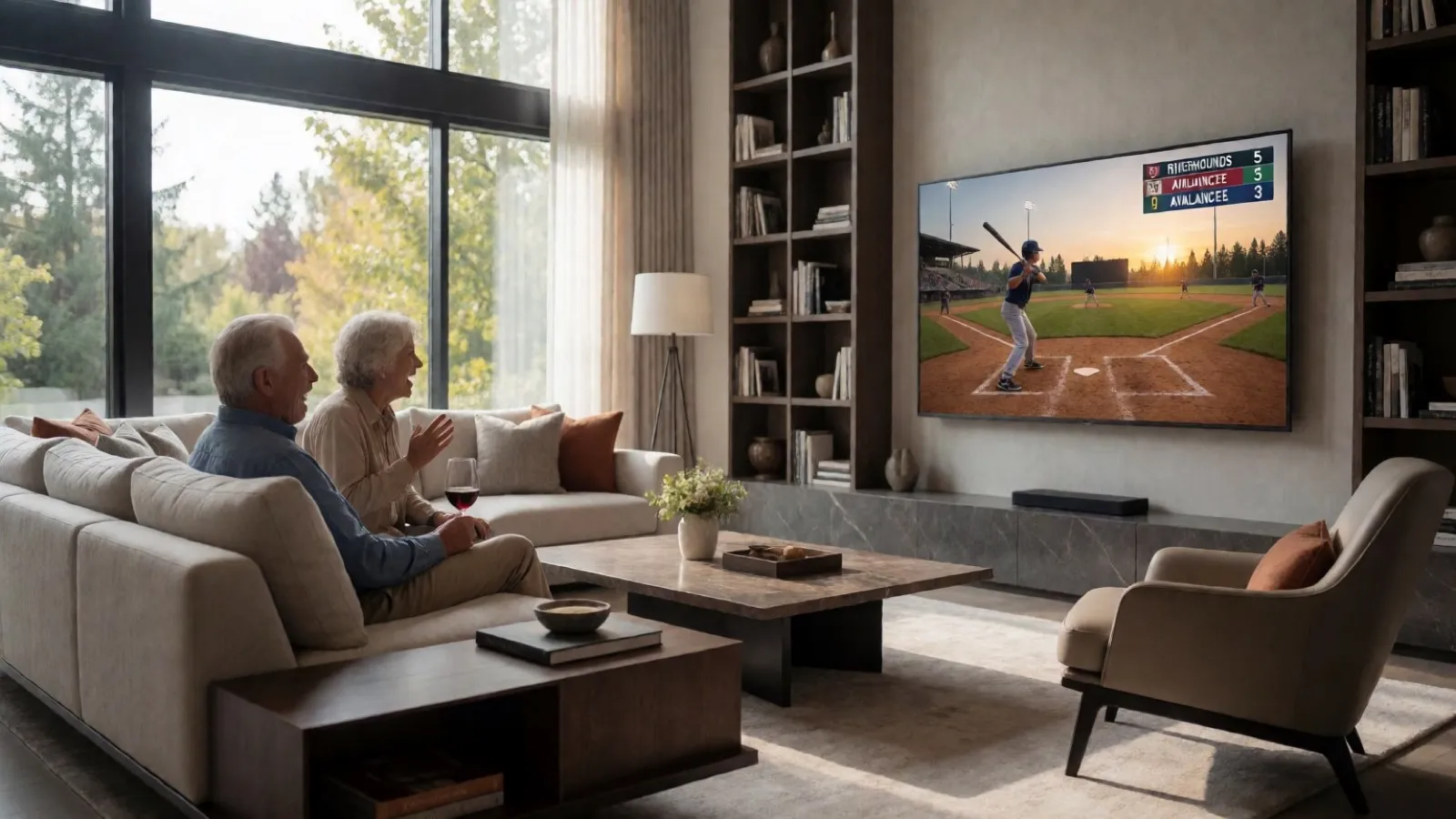
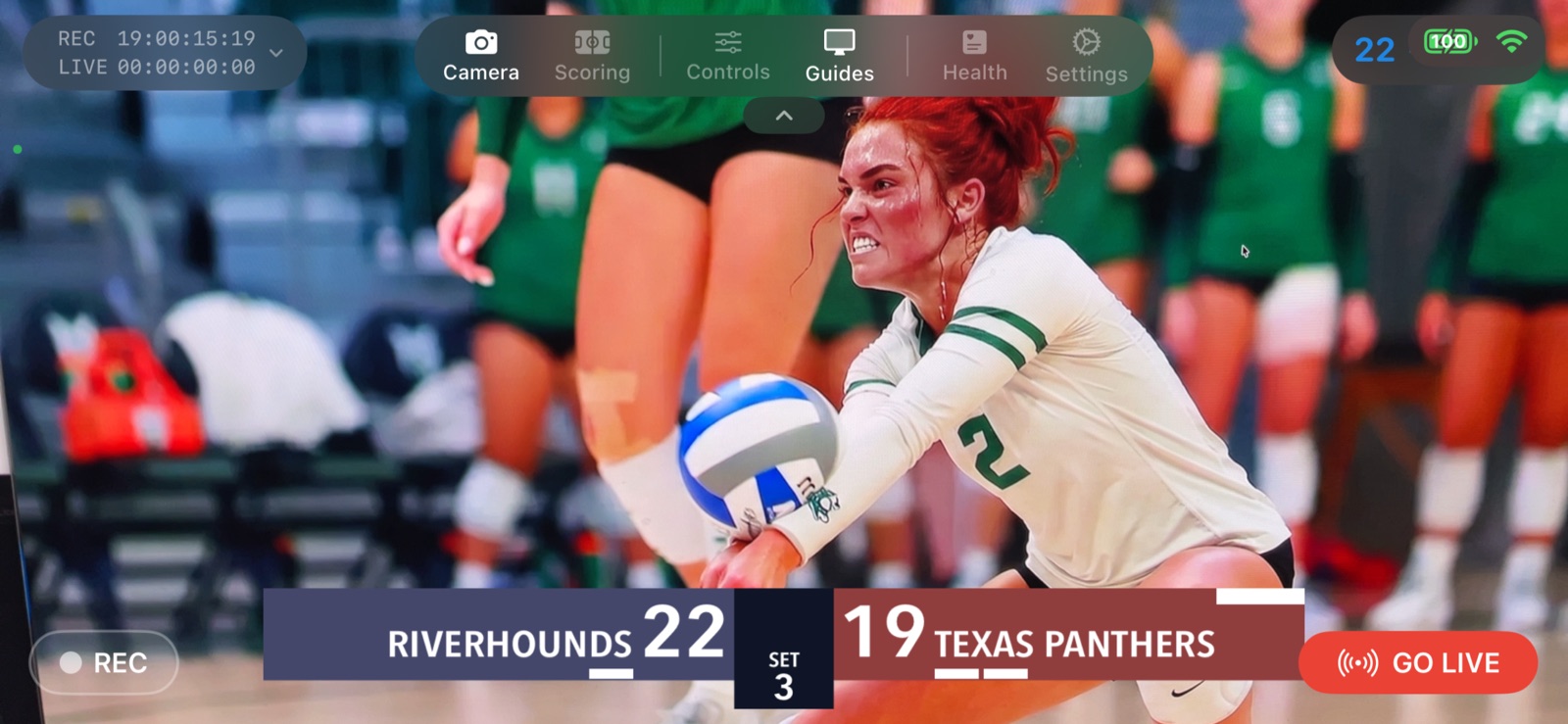
With 2.0, CineSportCam is a universal app. The same download runs on iPhone and iPad, and on iPad it becomes a full landscape console with the preview letterboxed to the broadcast frame.
Two setups
iPad as the camera
- One device does everything
- The big preview makes framing easy
- Best on a tripod at the top of the bleachers
iPad as the scorer
- An iPhone on the tripod streams
- The iPad runs the remote scorer in Safari, with big targets
- Best for a dedicated scorer at the table
Setting up the scorer table
-
Start the stream on the iPhone
Mount it, pick the sport, tap Go Live. The scoreboard is on the broadcast from the first second.
-
Open remote scoring
In Scoring mode, tap Remote to show the QR code and the five-character session code.
-
Scan it with the iPad
Open the iPad camera, point it at the QR, and the remote scorer opens in Safari. Prop the iPad on the table in landscape. Every tap shows up on the broadcast.
If your club has a spare iPad, this is the setup that makes a volunteer look like a broadcast crew.