Your First Live Stream: A Step-by-Step Walkthrough
A screen-by-screen guide to going live with CineSportCam 2.0, from opening the app to sharing the link and stopping the stream.
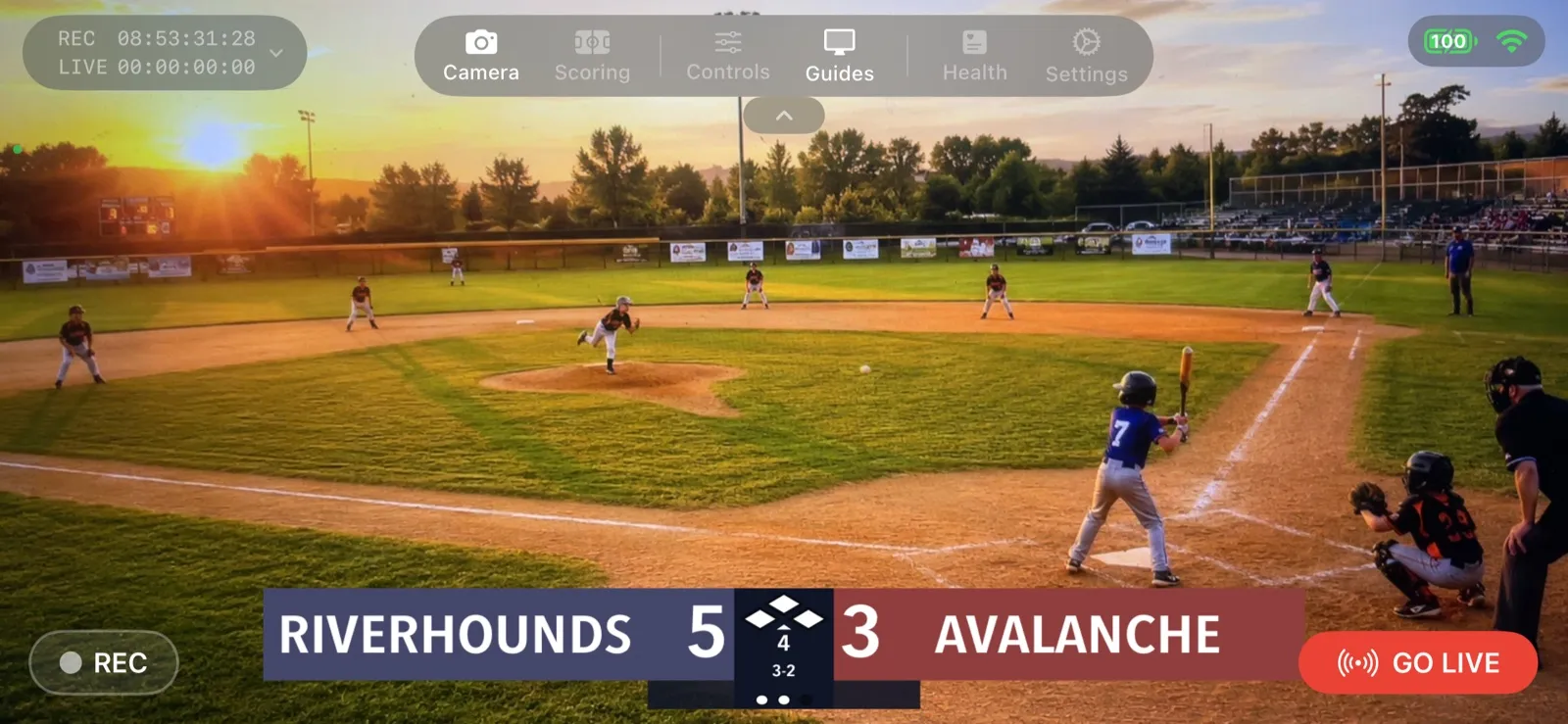
You volunteered to film the game. Now you are standing on the sideline wondering how to actually go live. CineSportCam handles the hard parts. This walkthrough takes you through every tap, screen by screen, until you are broadcasting.
If you want the short version, read How to Livestream Your Kid’s Game in 5 Minutes. This is the detailed one. Follow along with your phone in hand.
Before you start
- An iPhone or iPad on iOS 17 or later.
- A tripod, or something stable to lean the phone on.
- CineSportCam installed. The free plan streams to YouTube; Facebook, Twitch, and custom RTMP are Pro, and every install starts with 14 days of Pro.
The walkthrough
-
Open CineSportCam
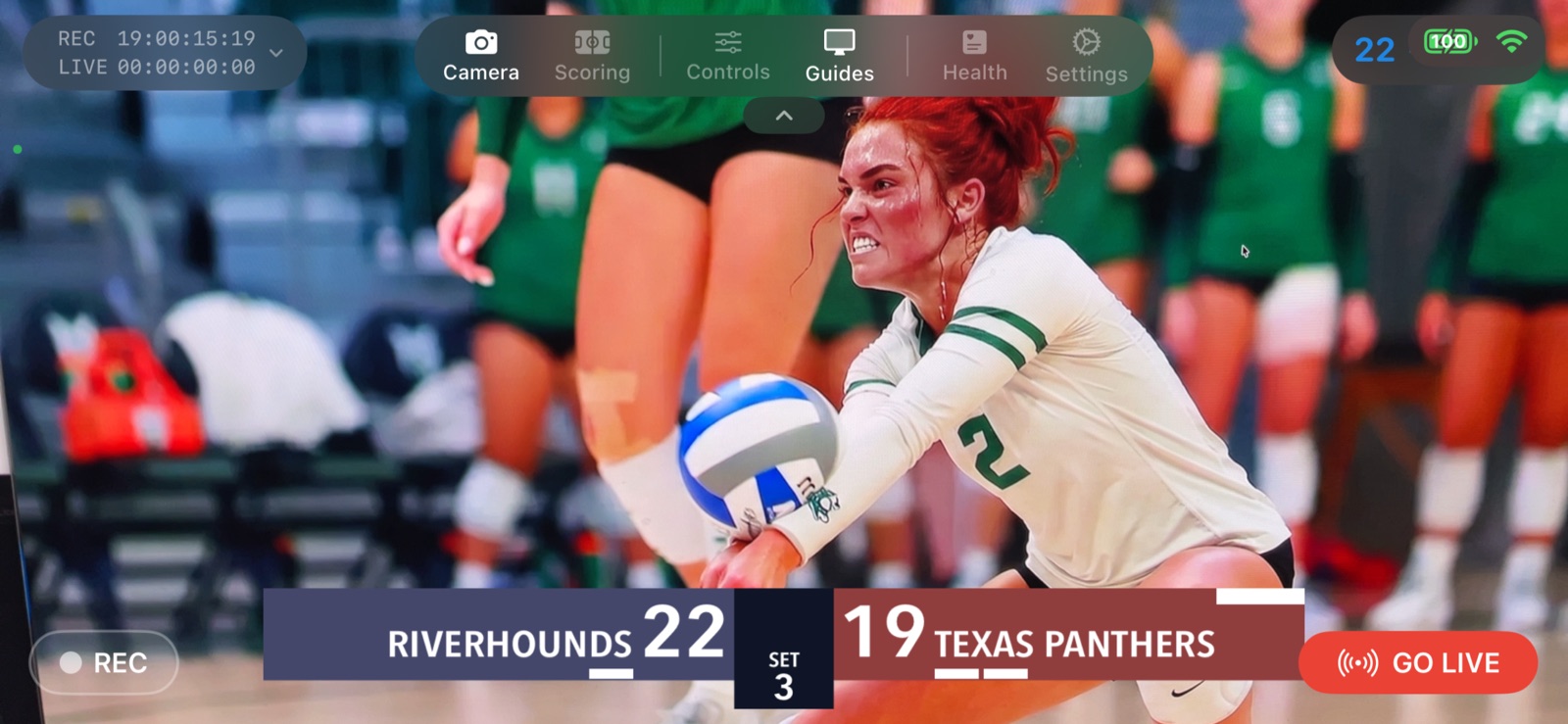
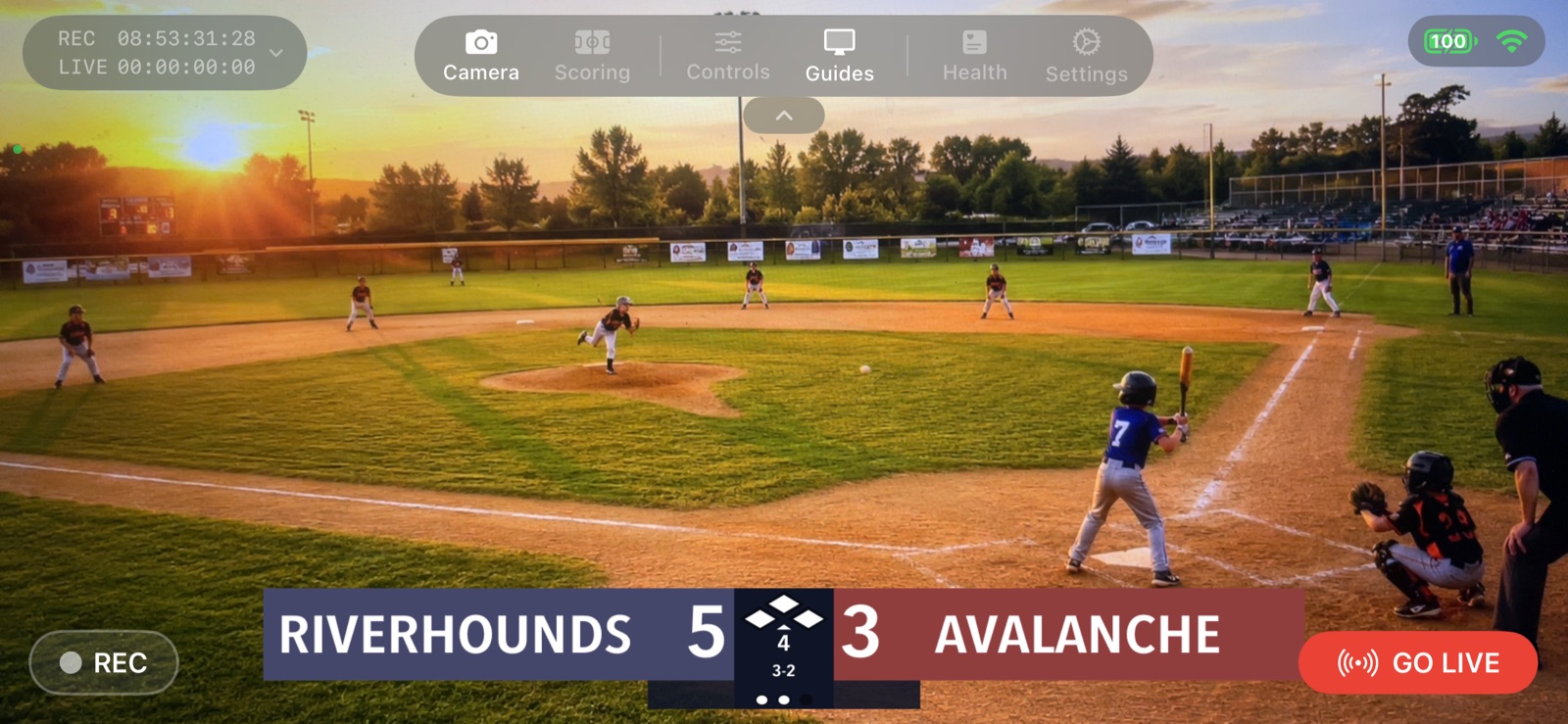
The app opens in landscape on the Camera screen. The scoreboard is already on the preview, and what you see is what viewers will see. The first time you open the app, a short tour points out the four things that matter: Scoring mode, the sport picker, remote scoring, and Go Live.
-
Tap Go Live and pick a destination
Tap Go Live. A sheet lists your destinations. Tap YouTube and sign in with the Google account that owns your channel. CineSportCam remembers you after this.

-
Choose a quality preset
Four presets, from Low to Ultra. Start with Medium on cellular and High on solid Wi-Fi. You can always change it next game once you know how the signal holds up at that venue.

-
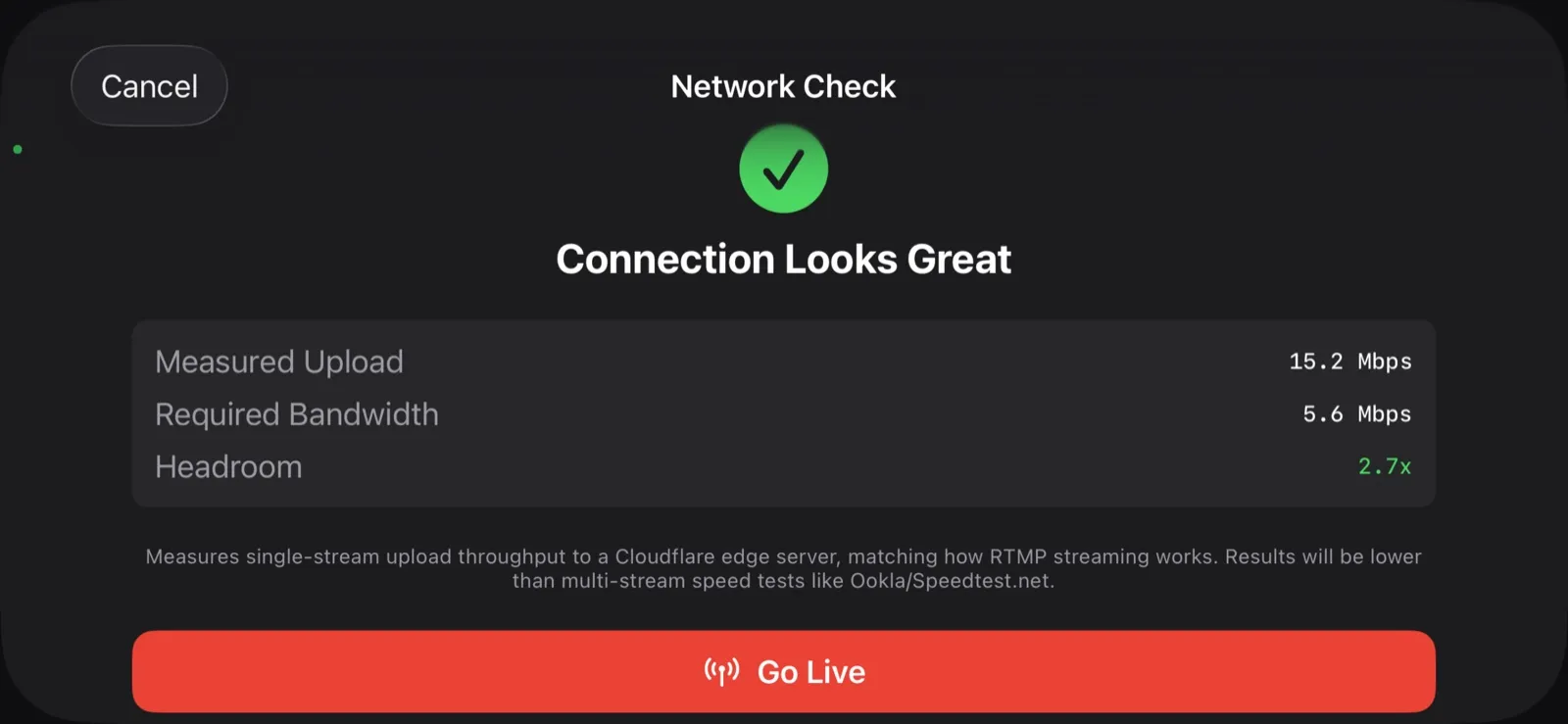
Run the network check
CineSportCam measures your upload speed before you go live. If the preset is too ambitious for the connection, tap Apply and Go Live to take the safer suggestion. If you know better, Go Live Anyway.

-
You are live
It takes a few seconds to connect. When the red LIVE badge appears, you are broadcasting. The phone also starts recording a local copy at the same time, so the game is safe even if the network drops.
-
Share the link
Tap share to open your phone’s share sheet. Text the link, email it, or drop it in the team chat. If you chose Unlisted on YouTube, the link is the only way people can find the stream, so make sure it goes out.
The share sheet with the stream link
-
Stop the stream
Game over? Tap Stop, then confirm. YouTube keeps the stream as a video on your channel for anyone who missed it, and the local recording is in the Files app under Cine Sport Cam.
Stop stream confirmation
| Preset | Resolution | Frame rate | Best for |
|---|---|---|---|
| Low | 720p | 30 | Weak cellular, packed gyms |
| Medium | 1080p | 30 | Most games on cellular |
| High | 1080p | 60 | Solid Wi-Fi or 5G |
| Ultra | 4K | 60 | Highlight reels on great Wi-Fi (Pro) |
You did it
You just broadcast a live game to anyone with a link. Next time, hand off scoring to someone in the stands with the remote scorer. A parent in the bleachers or a kid on the bench can update the score from their own phone, and you can actually watch the game.