Getting Started
What is CineSportCam?
CineSportCam is a professional-grade iOS camera and streaming app built for youth sports. It replaces the complicated mix of capture cards, laptop encoders, and separate scoring apps that traditional broadcast setups require. One iPhone on a tripod can stream to YouTube, Twitch, or Facebook with a clean scoreboard overlay — and a parent or volunteer on the other side of the gym can control the score from their own phone's browser.
It's designed for sports parents, volunteer scorekeepers, school athletics programs, and content creators who want broadcast-quality results without broadcast-level complexity.
System Requirements
- iOS 17.0 or later
- iPhone 12 or newer, iPad Pro (2020+), iPad Air (2022+), iPad (2022+)
- WiFi or cellular data connection for streaming
- A tripod or stable mount is strongly recommended
Quick Start (60-Second Setup)
- Mount your iPhone on a tripod at the sideline or baseline
- Open CineSportCam and frame the court
- Tap Settings and sign into your streaming platform (YouTube, Twitch, or Facebook)
- Tap GO LIVE — recording starts automatically alongside the stream
- Share the QR code or session code with your scorer and share the stream link with family
Pricing & Trial
CineSportCam includes a 14-day fully unlocked trial — the full Pro experience with every feature, no restrictions, no watermarks, and no nag screens. Use the trial to test streaming, scoring, NDI, and recording exactly as they work in the paid version.
After the trial, the app moves to the free tier:
- Resolution limited to 720p
- Frame rate limited to 30fps (no high frame rate option)
- Streaming limited to YouTube only
- A small watermark appears on the broadcast, in a corner the scoreboard doesn't cover
- In-app live support is not available on the free tier
- Everything else remains available: recording, scoring, remote web scoring, NDI output, the Classic scoreboard for every sport, and the full camera control set. The other scoreboard looks and boards, team colors and the automatic next set are Pro.
Upgrade to Pro to remove all restrictions:
- Pro Monthly — $6.99/month
- Pro Annual — $49.99/year (save 40%)
Camera Controls
Basic Operation
The main camera view is a full-screen live preview. All local overlays (grid, battery, level indicator) are visible only to you — they never appear in the broadcast or recording output.
- Pinch-to-zoom — Smooth digital zoom up to 5x. On multi-lens devices, the app switches between lenses as you zoom.
- Tap to focus — Tap anywhere on the preview to set a focus point. A yellow ring animates briefly to confirm.
- Zoom slider — Bottom of screen, precise control across 0.5x, 1x, and 3x+ ranges.
- Lens picker — Quickly jump between ultra-wide (0.5x), wide (1x), and telephoto (3x) if your device supports them.
Camera Settings
Access the camera controls panel from the toolbar. These settings affect the broadcast output.
- White Balance — Auto (recommended for most gyms), Daylight, Tungsten (warm gym lights), Fluorescent, Cloudy. If colors look orange under gym lights, try Tungsten or Fluorescent.
- Exposure Compensation — Slider to brighten or darken the image. Useful when the court is brighter than the stands.
- Lens Selection — Switch between available lenses. Wide (1x) works well for most volleyball courts from the baseline.
- Orientation Lock — Locks to landscape to prevent accidental rotation during the match.
On-Screen Indicators
These overlays are local only — they help the camera operator but do not appear in the stream or recording.
- Rule-of-thirds grid — Helps frame the court with the action centered
- Safe frame — Shows the broadcast-safe area accounting for platform UI overlays
- Crosshair — Center point reference for aligning the court
- Aspect ratio guide — Shows crop lines for cinematic aspect ratios (2.39:1)
- Level indicator — Digital bubble level using device motion. Green when level, helping you get a straight horizon on the tripod.
- Battery indicator — Shows charge percentage and charging state with color coding
Audio
- Microphone input — Uses the device's built-in microphone. Captures crowd ambiance and game sounds.
- Mute toggle — One-tap mute in the controls panel. Visual indicator confirms mute state.
- Gain slider — Adjust microphone sensitivity. Lower gain reduces crowd noise; higher gain picks up more ambient sound.
- Audio is captured in both the stream and local recording independently.
Framing Tips for Sports
- Volleyball (indoor) — Position at the baseline or sideline corner. Wide angle (1x) usually captures the full court from the stands. Avoid zooming in too much — you'll lose the ability to follow rallies.
- Small gyms — Use 0.5x ultra-wide if available. The slight distortion is worth capturing both sidelines.
- Large gyms / outdoor — 1x or slight zoom. Use the level indicator to keep the horizon straight.
- Tripod height — Above the heads of seated spectators if possible. A raised position gives a cleaner angle on the court.
Recording
Recording in CineSportCam is completely independent from streaming. It runs on its own pipeline, so a dropped stream connection never affects your local recording. Think of it as an automatic backup that's always running.
How It Works
- Recording starts automatically when you begin a session
- Uses segmented writes (2-minute chunks) — if the app crashes or the phone dies, you lose at most the last 2 minutes, not the entire file
- Continues recording even if all stream connections fail
- Files saved to Camera Roll or Files app
Settings
- Codec — H.264 (maximum compatibility) or H.265/HEVC (roughly 40% smaller files at the same quality)
- Resolution — Matches your broadcast resolution setting. Recording and streaming share the same resolution but operate independently.
Storage Estimates
Approximate file sizes per hour of recording at Medium (4.5 Mbps) bandwidth:
- 720p H.264 — ~1.5 GB/hour
- 1080p H.264 — ~2 GB/hour
- 1080p H.265 — ~1.2 GB/hour
- 2160p H.265 — ~3.5 GB/hour
Streaming Setup
Pre-Stream Settings
Configure these in Settings before going live.
- Resolution — 720p, 1080p (default, recommended), 1440p, 2160p
- Frame Rate — 30fps (default, recommended for most sports) or 60fps (smoother motion, higher bandwidth)
- Bandwidth Preset:
- Low (2.5 Mbps) — For cellular or weak WiFi
- Medium (4.5 Mbps) — Standard quality, good for most WiFi networks
- High (8 Mbps) — High quality, requires strong WiFi
- Ultra (20 Mbps) — Professional quality, requires excellent network
- Custom — Set your own bitrate
YouTube Live
- Go to Settings > Streaming > YouTube
- Sign in with your Google account (OAuth2 — your credentials are never stored by Cinecraft)
- Choose an existing scheduled broadcast or tap Create New
- Set the title, description, and privacy level (Public or Unlisted)
- Optionally assign to a YouTube playlist
- The app creates and binds the live stream automatically
- Back on the main screen, tap GO LIVE
- Share the watch URL (youtube.com/watch?v=...) with family and friends
Twitch
- Go to Settings > Streaming > Twitch
- Sign in with your Twitch account
- Your stream key is fetched automatically from the Twitch API
- Edit your stream title if needed
- Tap GO LIVE on the main screen
Facebook Live
- Go to Settings > Streaming > Facebook
- Sign in with your Facebook account
- Choose your broadcast destination: Personal Profile or a Managed Page
- Set the title, description, and privacy (Public, Friends, Only Me)
- The app retrieves the RTMP URL and stream key automatically
- Tap GO LIVE
Custom RTMP
For platforms not directly integrated (e.g., Restream, Castr, or a private media server).
- Go to Settings > Streaming > Custom RTMP
- Enter the RTMP URL (e.g.,
rtmp://live.example.com/app) - Paste the stream key
- Credentials are stored in the iOS Keychain (encrypted, never leaves the device)
- Tap GO LIVE
Multi-Destination Streaming
CineSportCam can stream to multiple platforms simultaneously. For example, you can stream to YouTube and Twitch at the same time.
- Configure each destination in Settings
- Enable the destinations you want before going live
- The Health Dashboard shows per-destination status so you can monitor each independently
- If one destination drops, the others continue unaffected
Stream Monitoring
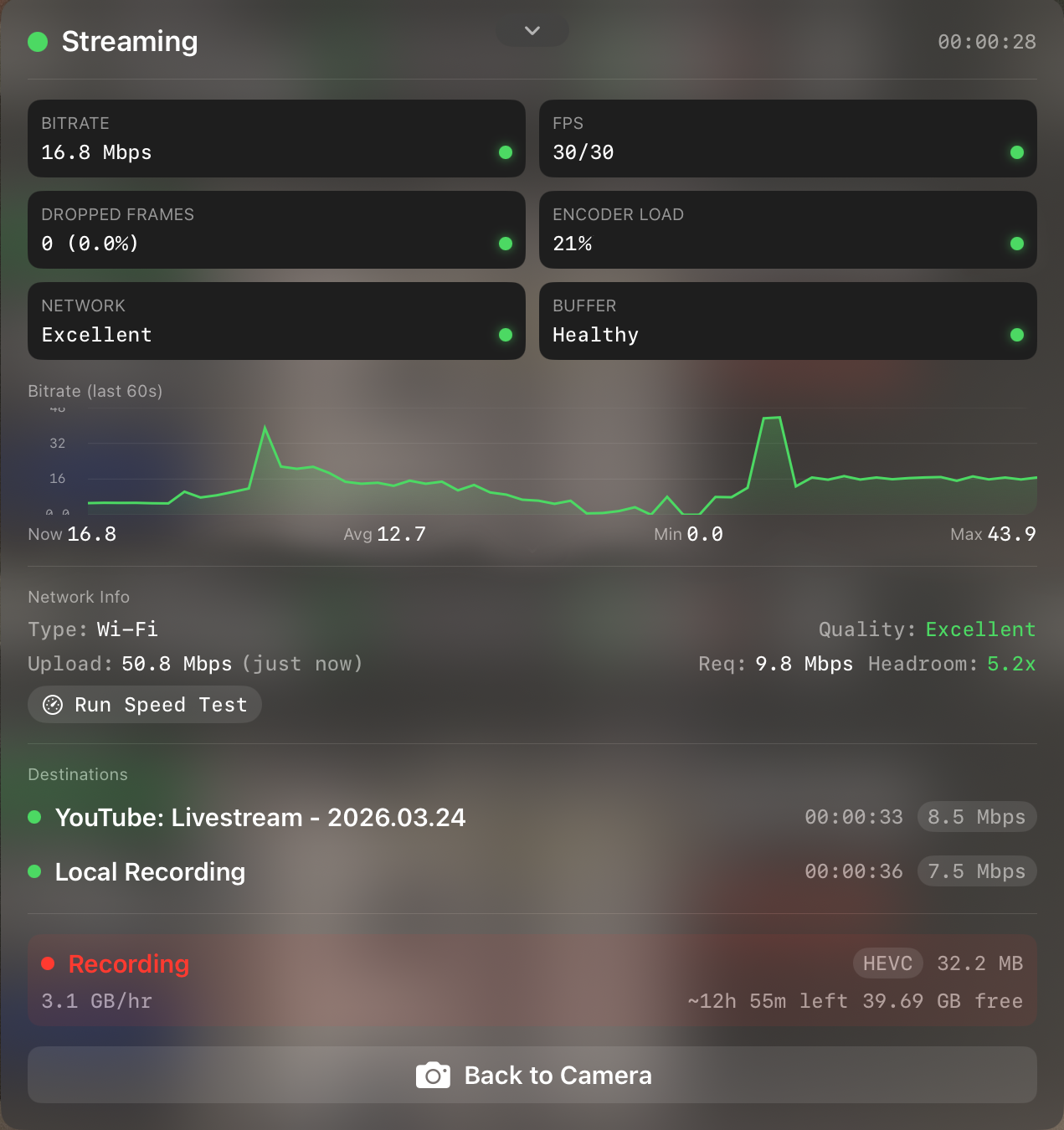
The Health Dashboard appears automatically when streaming or recording. It shows real-time metrics to help you catch problems before they affect the broadcast.
Metrics Explained
- Bitrate — Current upload speed in Mbps. Should stay close to your preset. Fluctuations are normal; sustained drops indicate network congestion.
- FPS — Frames per second being encoded. Should match your target (30 or 60). Drops below target mean the device is struggling.
- Dropped Frames — Frames that couldn't be sent to the platform. 0-5% is normal under load. Above 10% is a problem — reduce resolution or bitrate.
- Encoder Load — CPU/GPU utilization for encoding. Above 80% means the device is working hard. Consider lowering resolution or FPS.
- Temperature — Device temperature. iPhones throttle performance above ~40°C. Keep the device out of direct sunlight and remove any case if it gets warm.
- Buffer Health — Shows how much encoded data is queued for sending. Healthy (green), Warning (yellow), Critical (red).
- Per-destination status — Individual connection state for each streaming platform.
Color Indicators
- Green — Healthy, no action needed
- Yellow — Warning, monitor closely
- Red — Critical, intervention recommended
Auto-Reconnection
If the network drops briefly, CineSportCam auto-reconnects to all active stream destinations. Recording continues uninterrupted during reconnection attempts. The app can survive being backgrounded for up to 5 minutes.
Scoreboard & Overlays
CineSportCam draws the scoreboard straight into the broadcast and the recording on your phone. Every sport has boards in four looks (Classic, Broadcast, Studio and Slim) and up to three styles: Horizontal along the top or bottom, Vertical in a corner, and Compact. Many sports also have an Advanced board that shows more of the game, like past set scores, fouls or the game clock.
- Free: the Classic Standard board for every sport.
- Pro: the Broadcast, Studio and Slim looks, Advanced, Compact and Vertical boards, team colors, and the automatic next set in set sports.
Choose and place your board in Settings → Display → Scoreboard, or with the Sport button while scoring.
Overlay Controls
- Overlay: shows or hides the scoreboard on the broadcast. Hide it during warmups, halftime or breaks for a clean feed.
- Dim: darkens the camera picture behind the scoring controls so they're easier to see.
- Stream View: shows exactly what your viewers see, with no controls in the way. Tap anywhere to get the controls back.
What Appears in the Broadcast vs. What Doesn't
- In broadcast: the scoreboard overlay, and the watermark on the free tier (it moves to the corner the scoreboard doesn't cover, and Pro removes it)
- Local only: Grid, Safe Frame, 2.39:1 Guide, Crosshair, Level, battery indicator, tally border, health dashboard
On-Device Scoring
For single-operator workflows where the same person runs the camera and keeps score. The scoring interface takes over most of the screen with large, thumb-friendly buttons.
Entering Scoring Mode
Tap Scoring in the menu bar. The camera dims automatically so the scoring controls are easy to see.
Controls
Each team has its own +1 and −1 (some sports add more, like +2 and +3 in basketball). The action bar reads, left to right:
- Overlay: show or hide the scoreboard on the broadcast
- Dim: toggle camera dimming
- Your sport's own button: Serve in the set sports (pickleball adds Side Out), Pos in American football, Clear in baseball
- Teams: edit team names and colors (or tap a team's name)
- Reset: Reset Score keeps the team names; Reset Game resets everything and ends the remote-scoring session
- Sport: open the Scoreboard picker to change sport or board
- Remote: start a remote-scoring session and show its QR code
- Undo: reverse the last change, up to 20 steps
Automated Scoring
In volleyball, beach volleyball, badminton, table tennis and pickleball, CineSportCam tracks the sets or games and the serve for you. When a set is won, the board waits: on Standard boards you tap Next Set (Next Game in badminton, table tennis and pickleball), and on Advanced and Vertical boards (and volleyball's Compact board) the next set starts by itself after the delay set in the sport's Rules page. Each sport's scoreboard guide has the details.
Remote Web Scoring
CineSportCam's remote scoring lets another parent or volunteer keep score from their own phone's browser: no app install, no login, no account required. The camera operator puts the phone on a tripod and focuses on the match while the scorer taps buttons from anywhere with internet access.
Setup (Camera Operator)
- In scoring mode, tap Remote to create a scoring session
- A 5-character alphanumeric code is generated (e.g., "GYM7K")
- A QR code is also generated encoding the scorer URL + session code
- Share the code or QR via text message, AirDrop, or show it on screen for the scorer to scan
Joining a Session (Remote Scorer)
Two ways to join:
- QR Code: scan the QR code from the camera operator's screen. This auto-fills the session code and connects immediately.
- Manual Code: open the scorer URL in any browser, type the 5-character code, and tap Connect.
Works on any modern browser (Chrome, Safari, Firefox) on any device: phone, tablet, or laptop.
Scorer Interface
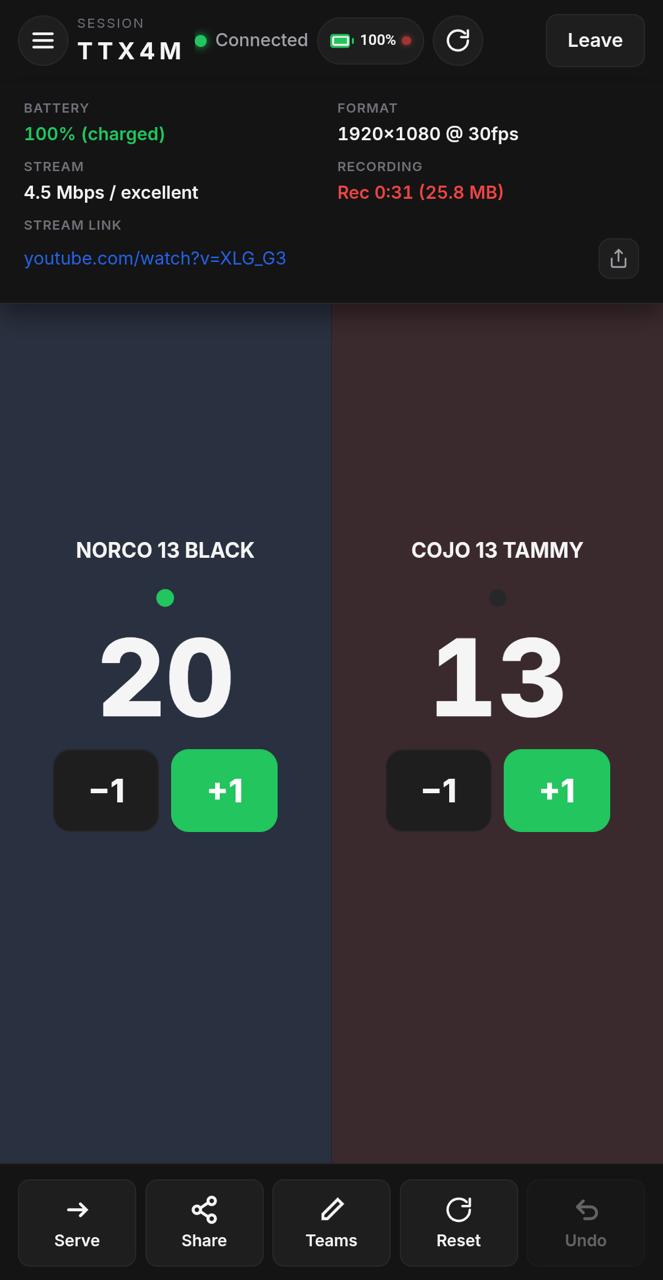
The web scorer interface is a clean, mobile-first scoring app with:
- Header: session code, connection status (green dot = connected), camera dashboard toggle, refresh, and leave buttons
- Score display: two side-by-side team sections, each with team name, serve indicator, large score number, and score buttons
- Sport controls: the set, clock, foul, timeout or down controls your sport uses. Controls for something your board doesn't show are greyed out with a PRO or ADVANCED label.
All scoring rules (set thresholds, serve rotation, match completion) are automated. The scorer just taps +1 for whichever team scores.
Camera Dashboard
The remote scorer can monitor the camera device by tapping the battery icon in the header. The dashboard shows:
- Battery: camera device battery level and charging state
- Format: current video resolution and frame rate
- Stream: connection status and bitrate
- Recording: recording status, duration, and file size
- Viewers: live viewer count (platform-dependent)
- Stream Link: shareable URL with copy/share button
This lets the scorer alert the camera operator if the battery is low, the stream drops, or viewers can't connect, all without walking across the gym.
Rules and Settings
The web scorer has no settings menu of its own. Rules like the match format and the delay before the next set are set on the phone, in Settings → Display → Sport Rules, and the web scorer follows them.
Disconnection & Recovery
- If the scorer loses internet, actions are queued locally and sent when reconnected
- The connection status indicator turns yellow (reconnecting) or red (disconnected)
- Sessions persist through brief disconnections and auto-reconnect
- Sessions expire after 24 hours of inactivity
- Multiple users can join the same session code
- Reset Game on the phone ends the session, so remote scorers need the new code
Volleyball Scoring Rules
CineSportCam follows standard volleyball scoring so the scorer can watch the match instead of doing mental math.
- Sets go to 25 and must be won by 2, with no cap. The deciding set (the 5th, or the 3rd in best of 3) goes to 15.
- Match Format is Best of 5 or Best of 3, in Settings → Display → Volleyball Rules.
- The serve goes to the team that scores, and the team that lost a set serves first in the next one.
- When a set is won, tap Next Set on Standard boards; Advanced, Vertical and Compact boards start the next set by themselves.
- The match-winning point ends the match straight away, and the final score stays on the board.
Beach volleyball has its own rules: best of 3, sets to 21 (the third to 15), with a reminder to switch sides. The volleyball scoreboard guide covers every board and the scoring screen.
NDI Output
CineSportCam can function as a named NDI source on your local network, turning any iPhone or iPad into a professional camera for production switchers like OBS, vMix, TriCaster, and Wirecast.
Use Cases
- Multi-camera production — Add multiple iPhones as NDI sources to your switcher for different camera angles
- Remote monitoring — View the camera feed on a production laptop without a capture card
- Backup recording — Record the NDI feed on your switcher as a secondary backup
Setup
- Go to Settings > NDI and enable NDI output
- Set a descriptive source name (e.g., "Court 1 — Baseline", "Court 2 — Side")
- Ensure both the iPhone and your production computer are on the same local network
- In your production switcher, search for NDI sources — the iPhone will appear by its configured name
Tally Light Support
CineSportCam responds to NDI tally signals from your production switcher:
- Program (red border) — This camera is live on air
- Preview (green border) — This camera is queued next
- Off — No border, camera is not in use
The tally border appears around the entire viewfinder on the iPhone — visible to the camera operator but not in the NDI output.
Clean vs. Overlay Output
- NDI output includes the scoreboard overlay (if enabled) and watermark (free tier only)
- NDI output does not include local overlays (grid, safe frame, battery, tally border, health dashboard)
- To get a clean feed without scoreboard for your switcher, disable the scoreboard overlay in the app
NDI Metadata
The NDI stream includes metadata that production switchers can display:
- Device battery level
- WiFi/network connection quality
- Useful for monitoring multiple cameras from a single production desk
Settings Reference
Camera
- White Balance — Default: Auto. Options: Auto, Daylight, Tungsten, Fluorescent, Cloudy.
- Lens — Default: Wide (1x). Options depend on device hardware.
- Orientation Lock — Default: Off. Recommended: On (landscape) during broadcasts.
Streaming
- Resolution — Default: 1080p. Options: 720p, 1080p, 1440p, 2160p.
- Frame Rate — Default: 30fps. Options: 30fps, 60fps.
- Bandwidth — Default: Medium (4.5 Mbps). Options: Low, Medium, High, Ultra, Custom.
- Destinations — YouTube, Twitch, Facebook, Custom RTMP. Multiple can be enabled simultaneously.
Recording
- Codec — Default: H.264. Options: H.264 (compatible), H.265/HEVC (efficient).
- Resolution — Follows the broadcast resolution setting.
Scoreboard
- Overlay visible — Default: On. Toggle on/off during broadcast.
- Team names — Default: "HOME" / "AWAY". Editable, max 20 characters.
- Sport: new installs start on Generic. Choose your sport and board in Settings → Display → Scoreboard.
- Session code — Generated when creating a remote scoring session. 5-character alphanumeric.
NDI
- Enabled — Default: Off.
- Source name — Default: device name. User-configurable.
Account
- Trial status — Shows remaining trial days or whether the trial has expired
- Subscription — Current plan (Free or Pro) and renewal date
- Restore Purchases — Re-validates your Pro subscription with the App Store
- Free tier details — 720p, 30fps, YouTube only, watermark, no in-app live support. All other features available.
Game-Day Checklist
Before the Match
- Charge your iPhone to 100% (or bring a power bank)
- Test the WiFi at the venue — run a speed test to confirm upload bandwidth
- Set up the tripod and frame the court
- Open CineSportCam and verify your streaming account is signed in
- Do a 30-second test stream to confirm video and audio quality
- Create a scoring session and share the code/QR with your scorer
- Share the stream link with family and team chats
- Enable orientation lock
During the Match
- Monitor the Health Dashboard periodically for dropped frames or bitrate issues
- Check that the remote scorer is connected (green dot in their web app)
- If using on-device scoring, switch to scoring mode for easy thumb access
- If the phone gets warm, remove the case — avoid direct sunlight on the device
After the Match
- Stop the stream and verify recording saved successfully
- Check the recording file in Camera Roll or Files
- Use CineTransfer to move large files to your computer if needed
- End the scoring session (expires automatically after 24 hours)
Troubleshooting
Stream won't connect
- Verify internet connection — try loading a webpage on the same device
- Check stream key is correct (especially for custom RTMP)
- Confirm your streaming account is active and livestreaming is enabled on the platform
- For YouTube: new accounts may need 24 hours after enabling livestreaming
- Restart the app and try again
Poor stream quality / buffering
- Reduce bandwidth preset (try Medium or Low)
- Reduce resolution to 720p
- Switch from 60fps to 30fps
- Move closer to the WiFi access point if possible
- Disable multi-destination streaming if only one platform is needed
Recording stops unexpectedly
- Check device storage space — recording writes until disk is full
- After trial expiration: free tier limits apply (720p, 30fps, YouTube only, watermark)
- Ensure microphone permission is granted in iOS Settings > Privacy > Microphone
Remote scorer can't connect
- Verify the 5-character code is entered correctly (case-insensitive)
- Confirm both devices have internet access (not just local WiFi)
- Try refreshing the web scorer page
- Check that the scoring session is still active in the app
- Ensure no VPN or firewall is blocking WebSocket connections
Scoreboard doesn't update from web
- Confirm the scoring session is active (Settings > Scoreboard shows the code)
- Verify the web scorer entered the correct code
- Both devices need internet (scoring sync uses a cloud relay, not local network)
- Try having the web scorer refresh their browser page
NDI source not appearing in switcher
- Confirm NDI is enabled in Settings > NDI
- Both devices must be on the same local network (same WiFi, same subnet)
- Check that your switcher software is searching for NDI sources
- Some corporate/school networks block mDNS discovery — contact IT if in a managed environment
Phone overheating
- Remove the phone case to improve heat dissipation
- Keep the phone out of direct sunlight
- Reduce resolution and FPS — 1080p/30fps generates significantly less heat than 2160p/60fps
- A small clip-on fan pointed at the back of the phone can help during long matches
Battery draining fast
- Streaming + recording uses significant power — a 3-hour match will drain most iPhones
- Use a power bank connected during the match
- Reduce screen brightness (the preview is the biggest battery consumer after encoding)
- Disable unnecessary features (NDI, multi-destination) if not needed
Subscription not recognized
- Go to Settings > Account > Restore Purchases
- Ensure the same Apple ID is used that purchased the subscription
- Verify internet connection for App Store receipt validation
- If restoring from a new device, sign into the same Apple ID first