How to Livestream Your Kid's Game in 5 Minutes
The quick version: go live on YouTube, Facebook, or Twitch from the sideline with one iPhone. No extra gear, no logins for viewers.
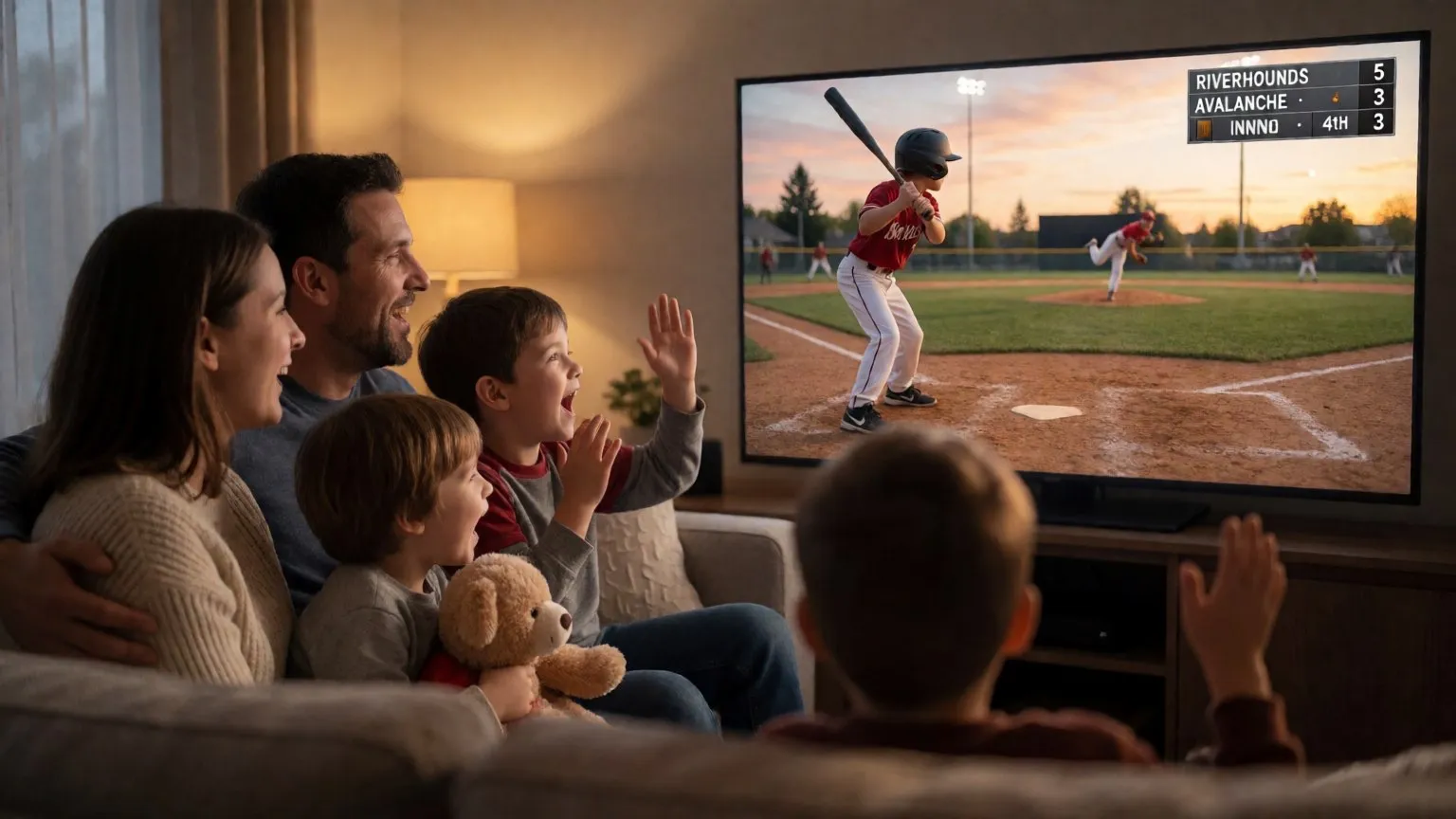
You just found out you are the one filming this weekend. The grandparents want to watch from home. Here is how to go from zero to live in about five minutes.
What you need
- An iPhone or iPad on iOS 17 or later
- A tripod, or something stable to prop the phone on
- A YouTube, Facebook, or Twitch account
- CineSportCam installed
No capture cards, no laptops, no encoder software, no stream keys to copy and paste. CineSportCam signs in to the platform for you.
-
Enable streaming, once
YouTube needs live streaming turned on for your channel, and Google can take up to 24 hours. Do it the day before. Facebook and Twitch work right away.
-
Mount the phone
Behind the baseline or along the sideline. Frame the whole court or field so you never have to move the camera.
-
Pick your sport
Open Scoring mode and tap the Sport button. The right scoreboard appears on the broadcast.
-
Tap Go Live
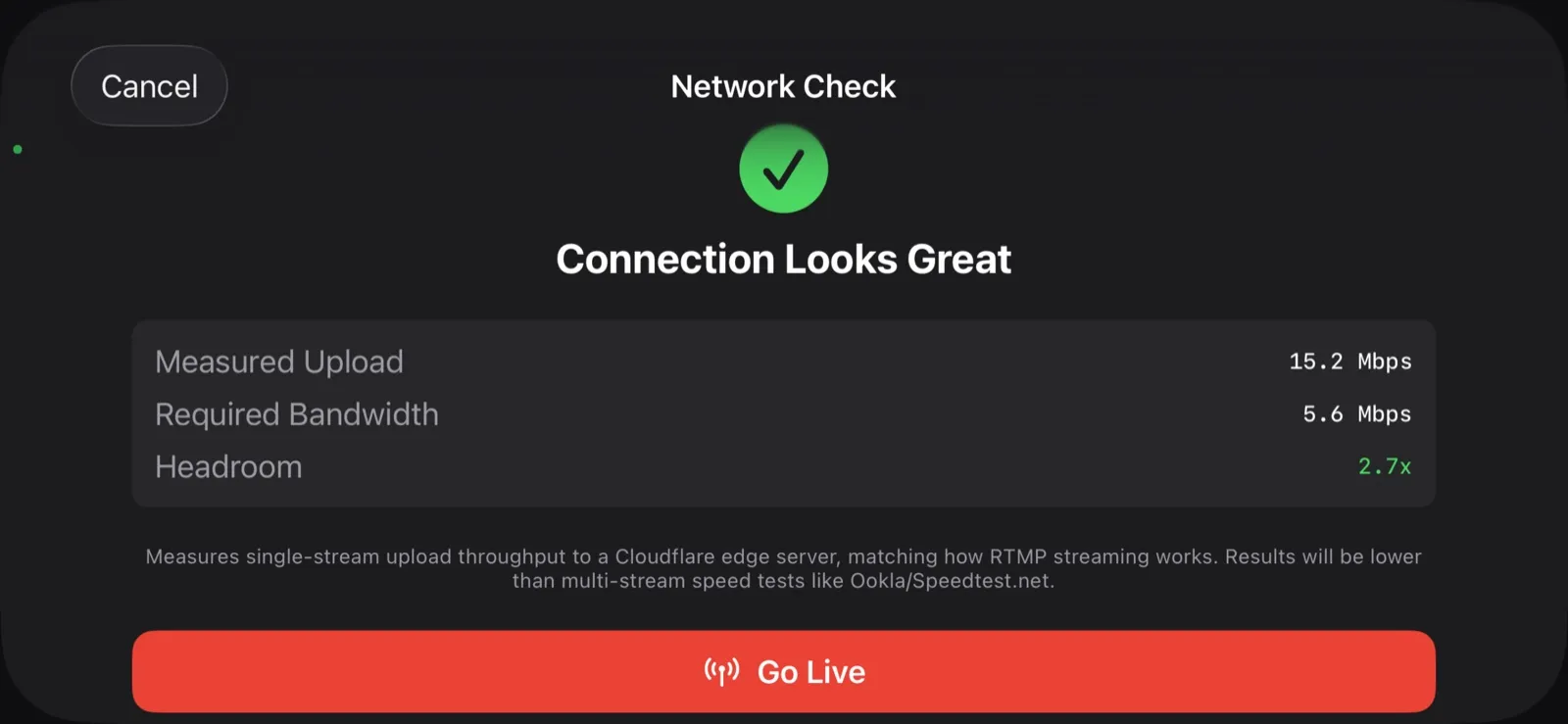
Choose the platform, keep the suggested quality, and you are live in a few seconds.
-
Share the link
Send it to the group chat. Everyone taps it and watches in their browser. No app, no account.
Which platform?
YouTube
- Included on the free plan
- No subscriber minimum for mobile streaming through CineSportCam
- Unlisted links keep the stream private to people you share with
Facebook, Twitch, or your own RTMP
- Facebook reaches the people already in your team group
- Twitch starts instantly, no activation wait
- Custom RTMP for a club website or a switcher
Bonus: put the score on the stream
CineSportCam draws a real animated scoreboard on the broadcast. Someone else can keep it updated from their own phone, from the bleachers or from their couch, by scanning a QR code. That is the remote scorer, and it is the part parents talk about afterward.
Five minutes of setup, and everyone who could not be there gets to watch. The phone records a copy the whole time, so you have the game afterward too.