Basketball scoreboard guide
Every CineSportCam basketball board, the league presets, the game clock, fouls and timeouts on the Advanced board, and what viewers see.
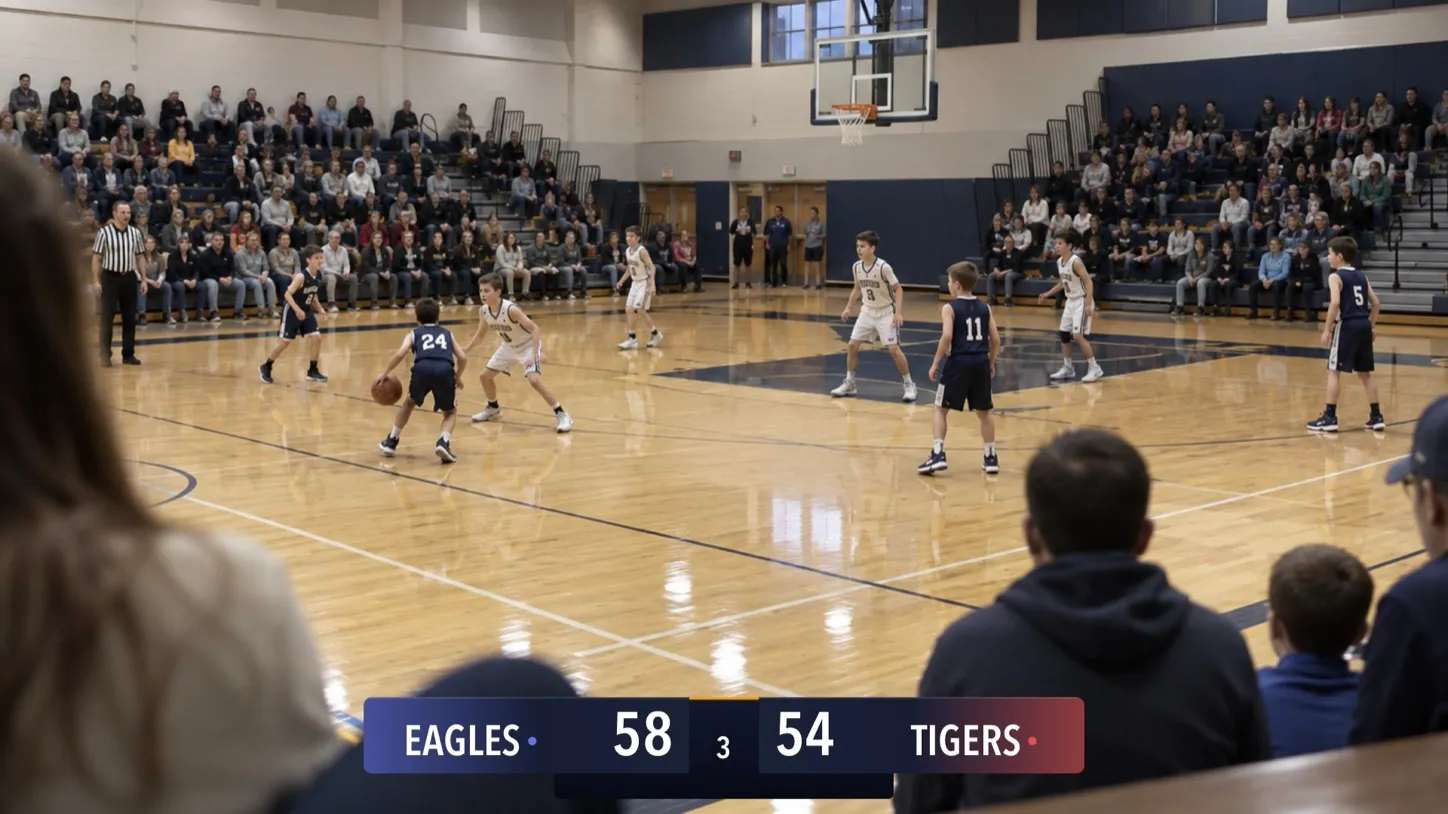
For parents, coaches and volunteers streaming basketball, from rec leagues to high school. The free board keeps the score and the quarter; the Advanced board adds the game clock, fouls and timeouts. New to the scoreboard? Start with How to set up your scoreboard.
Pick your board
Basketball has 14 boards on 10 cards in the picker: four looks along the top or bottom (each with Standard and Advanced), two Vertical sizes for a corner, and four Compact looks.
Horizontal
Standard

Advanced

Standard

Advanced

Standard

Advanced

Standard

Advanced

Vertical
Compact


| Board | Free or Pro | What viewers see |
|---|---|---|
| Classic · Standard | Free | Team names, scores and the quarter. |
| Broadcast, Studio or Slim · Standard | Pro | The same, in that look and in your team colors. |
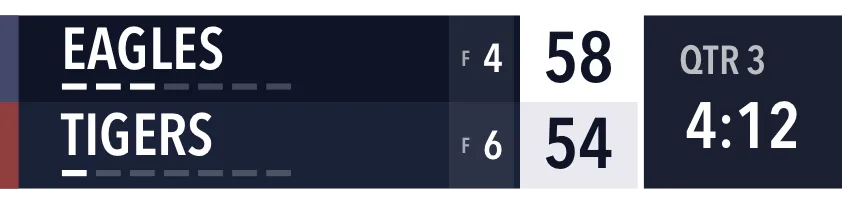
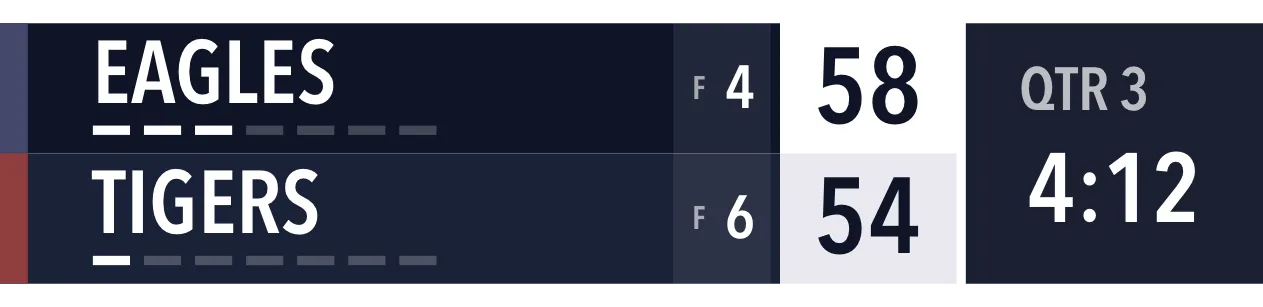
| Advanced, in any look | Pro | Adds the game clock, team fouls (F) and timeouts left. |
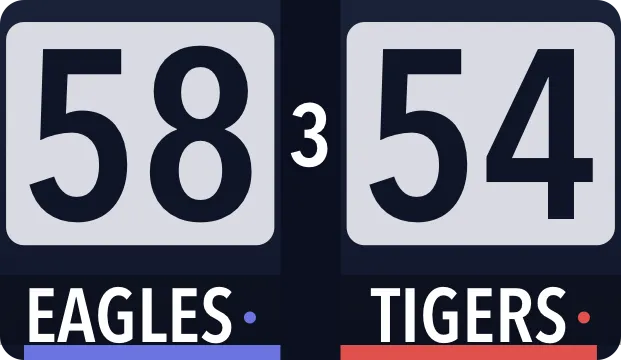
| Compact, in any look | Pro | Big scores, the quarter and the team names. Three-digit scores shrink to fit. |
| Vertical and Vertical Large | Pro | Team names with timeout bars, fouls, scores, the period and the clock. |
Set the rules
Open Settings → Display → Basketball Rules while basketball is selected.
- League → Preset sets the periods, the clock and the timeouts:
| Preset | Periods | Timeouts per team |
|---|---|---|
| NBA (the default) | 4 × 12 min | 7 |
| NCAA Men | 2 × 20 min halves | 4 |
| NCAA Women | 4 × 10 min | 4 |
| High School | 4 × 8 min | 5 |
| FIBA | 4 × 10 min | 5 |
- Show game clock puts the clock on the Advanced and Vertical boards.
The app keeps the game moving for you:
- The clock counts down and stops at 0:00.
- A new quarter resets the fouls, refills the timeouts and resets the clock.
Score a game
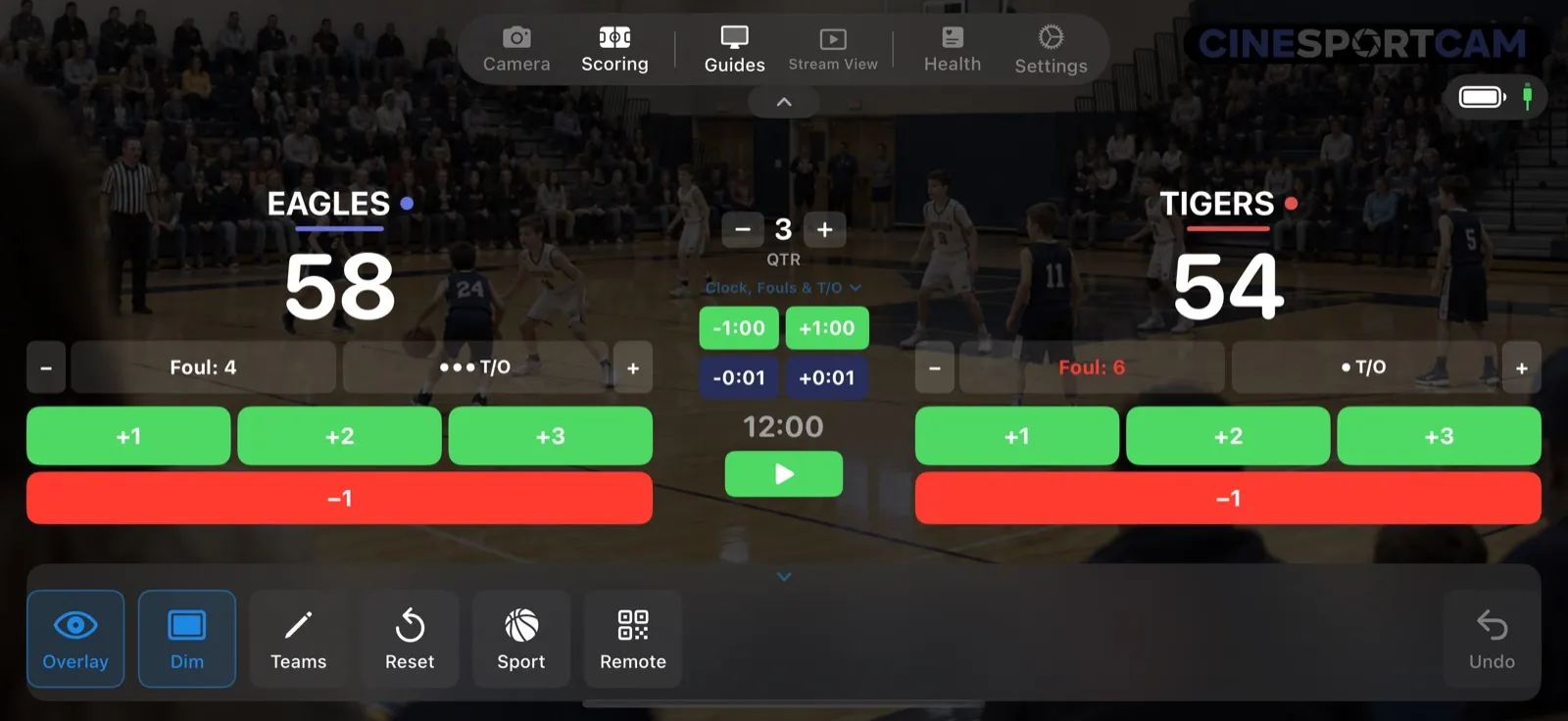
Each team has +1, +2, +3 and −1.
On the Advanced and Vertical boards you also get:
- The quarter, with − and +.
- The game clock. Tap it to type a time, and use the play and pause button to run it.
- Clock, Fouls & T/O: ±1:00 and ±0:01 to nudge the clock, a foul count per team (it turns red at 5), and a T/O button with a dot for each timeout left. The + next to it gives a timeout back.
On the Standard and Compact boards, the Clock, Fouls & T/O section is closed and greyed out, with a PRO label. If you buy Pro from there, the app switches you to the Advanced board.
What viewers see
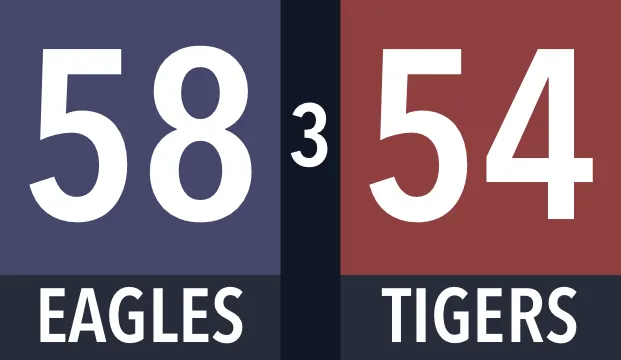
Third quarter, 4:12 left: EAGLES lead TIGERS 58–54. EAGLES have 4 team fouls and 3 timeouts left; TIGERS have 6 fouls and 1 timeout.
When the quarter ends, step the quarter on. The fouls reset, the timeouts refill and the clock goes back to the start of a quarter, on the board and on your phone.
Remote scoring
The web scorer has a big +2 button, with +1, +3 and −1 beside it, plus bars for the clock, fouls and timeouts. If your board doesn’t show the clock, fouls or timeouts, those bars are greyed out. See the remote scoring guide to start a session.
Tips
- Pick your league first. The preset sets the periods, the clock and the timeouts in one go.
- A team’s foul count turns red at 5 on your scoring screen, so it’s easy to spot at a glance.