How to set up your scoreboard
Pick a board, place it, name and color the teams, set the rules and start scoring. Eight steps that work the same for every sport in CineSportCam.
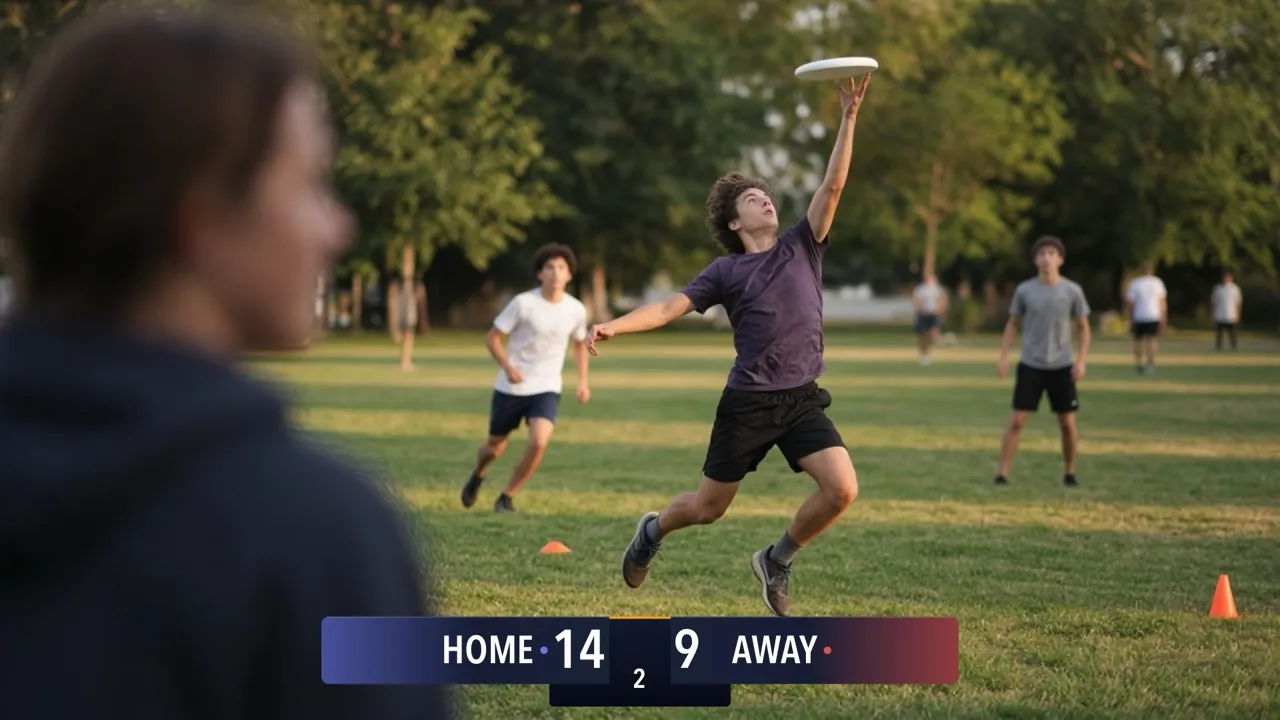
This guide covers what every sport has in common. Once you’re set up, your sport’s own guide explains its boards, rules and scoring buttons.
1. Pick your sport
Open the Scoreboard picker in one of two ways:
- Settings → Display → Scoreboard
- the Sport button in Scoring mode, so you can change boards without leaving the game
The sports run along the top of the picker. Tap yours.
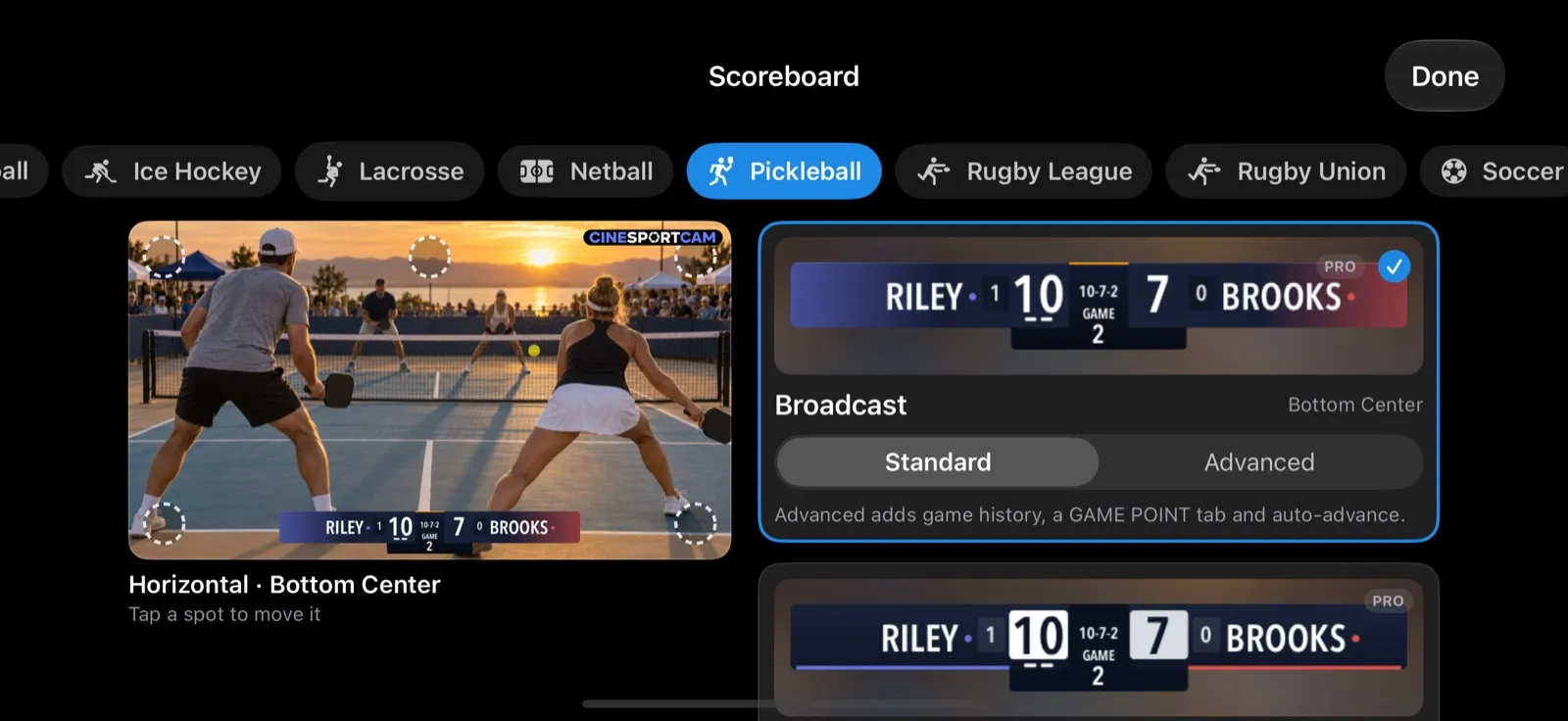
Changing to another board for the same sport mid-game is safe: the score, fouls and clock carry over. Changing the sport asks Switch sport? first, because it starts a new game.
2. Pick a board
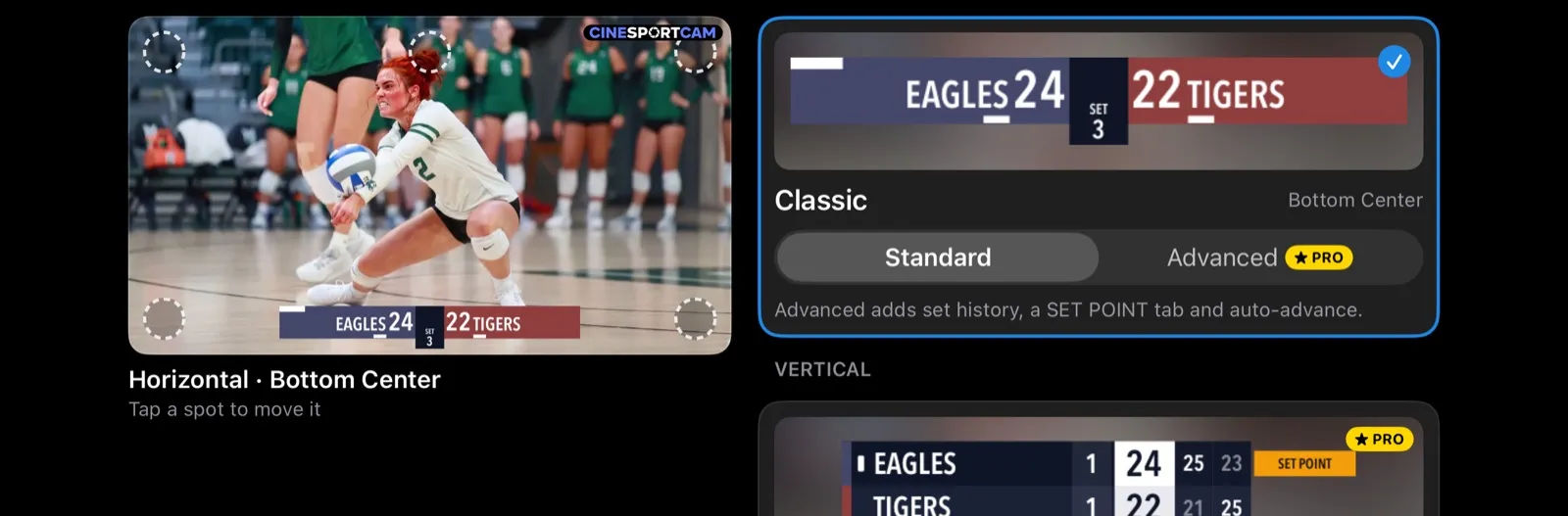
Boards are grouped by style: Horizontal along the top or bottom of the frame, Vertical in a corner, and Compact, a small block, for the sports that have one. Within a style, the cards run through the looks:




- Classic Standard is free on every sport. Classic’s Advanced and Compact boards are Pro.
- Broadcast, Studio and Slim are Pro, and they wear your team colors.
- Vertical cards read Vertical and Vertical Large. Vertical Large is half as big again, for viewers watching on a TV across the room.
When a card has two versions, choose Standard or Advanced on the card. Advanced adds more of the game, like past set scores or the game clock. Pro boards carry a PRO badge.
3. Place it
Tap one of the spots on the preview frame (“Tap a spot to move it”). The spots are along the top and bottom: left, center and right. The board shows on your phone exactly where it will be on air.
Each style remembers its own spot, so a Vertical board can live in a corner while your Horizontal board stays along the bottom. You can also set a spot in Settings → Display, for example Vertical Position.
4. Name and color the teams
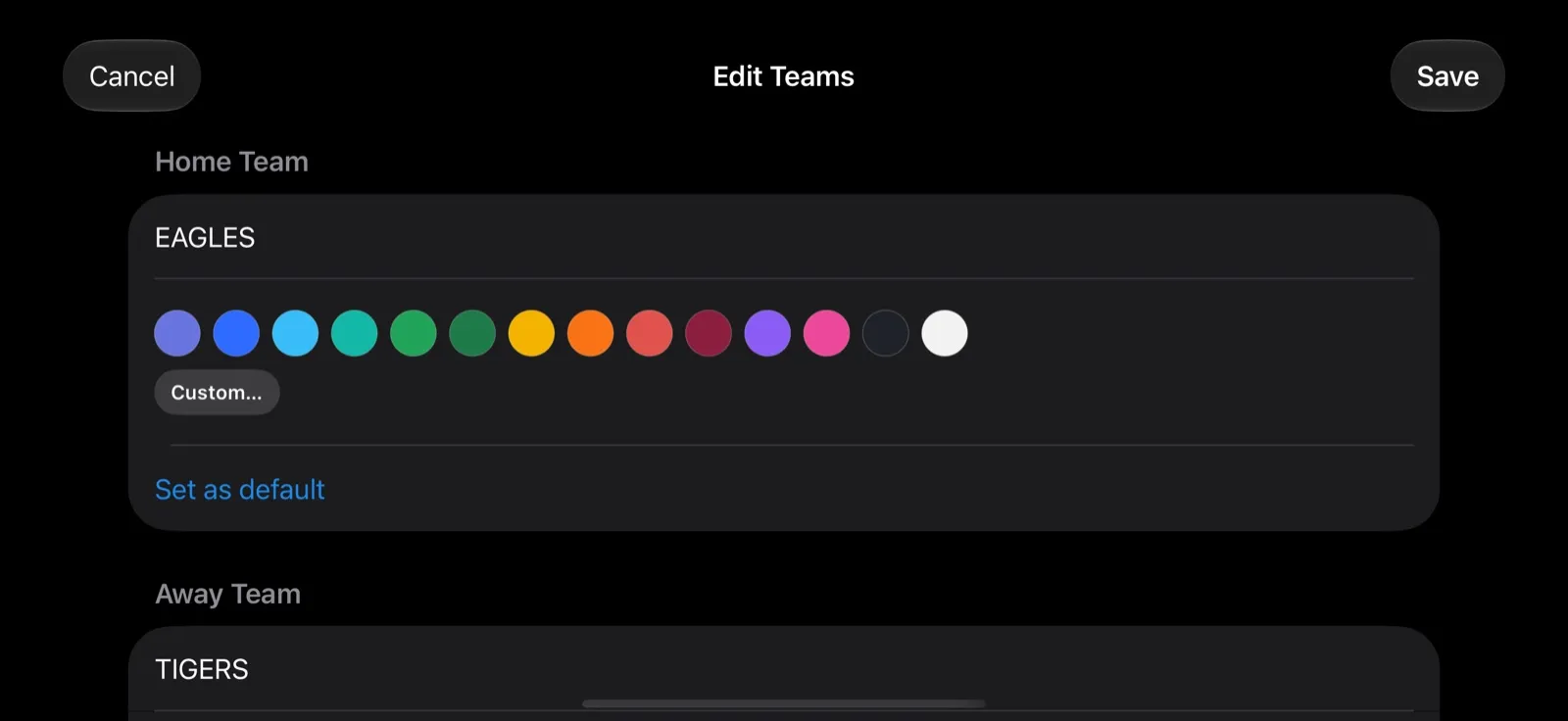
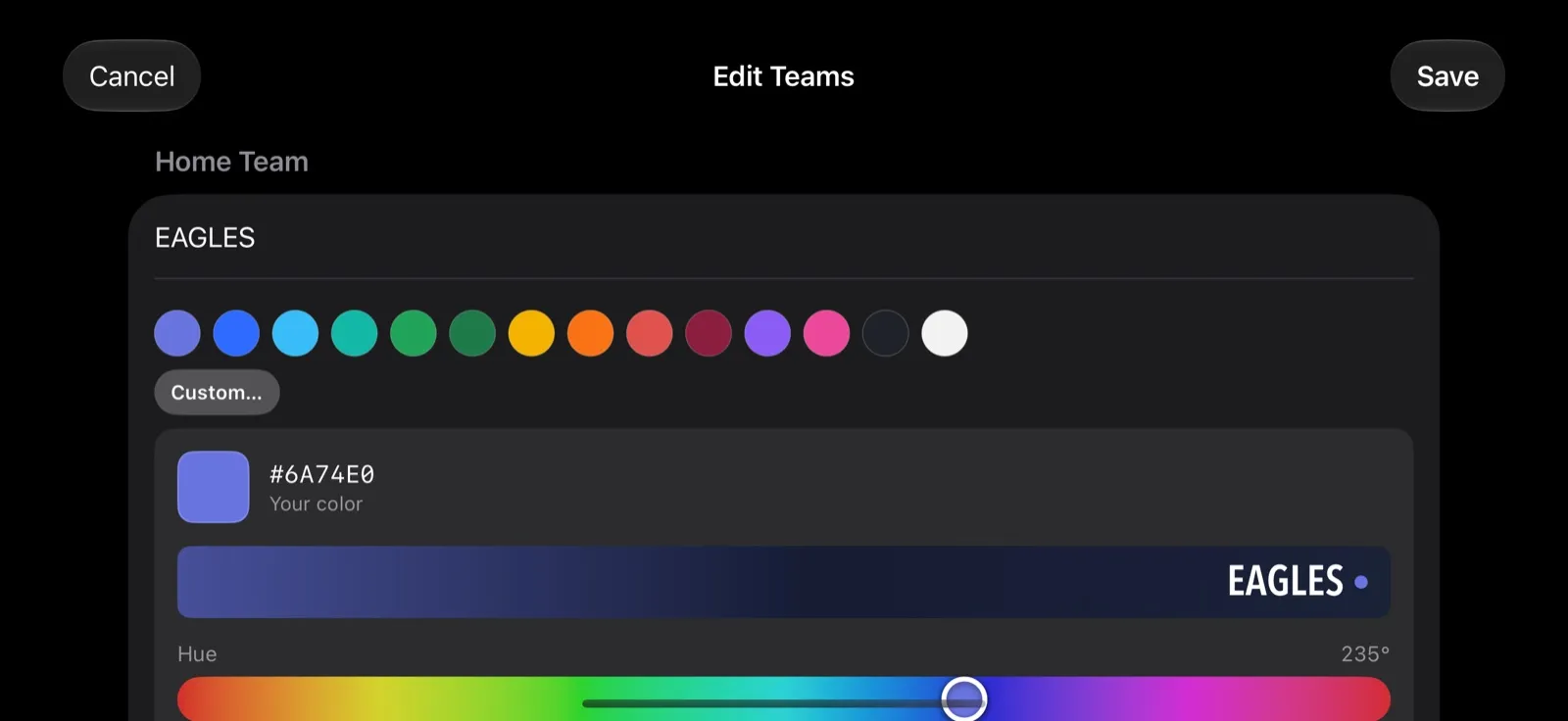
Tap Teams in Scoring mode, or just tap either team’s name, to open Edit Teams.
- Names can be up to 20 characters. The web scorer shows them in capitals.
- Colors (Pro): pick one of the 14 swatches, or tap Custom… to mix your own with the Hue, Strength and Shade sliders. Colors are remembered by team name.
- Set as default makes a team your default Home team. Use it for your own team.
On air, Broadcast, Studio, Slim and Vertical boards use your team colors. Classic keeps its own blue and red.
5. Set the rules
Seven sports have a Rules page: volleyball, beach volleyball, badminton, table tennis, pickleball, basketball and soccer. Find it in Settings → Display → Sport Rules, for example Volleyball Rules. The row appears only while that sport is selected.
- Set sports choose the Match Format and the auto-advance delay: Auto Advance Set - Delay in volleyball and beach volleyball, Auto Advance Game - Delay in badminton, table tennis and pickleball. The options are 5 seconds (the default), 10 seconds, 0 (immediate) and Manual (operator advances). The delay only shows when your board starts the next set by itself.
- Pickleball adds the scoring mode, points per game, and doubles or singles.
- Basketball has a league Preset and Show game clock.
- Soccer has the Period Structure (halves or quarters) and Show match clock.
The other sports use fixed rules, explained in their guides.
The words on the board (like SET or PERIOD) follow Settings → Display → Broadcast Language, which can differ from the app’s own language. Pick the language your viewers read.
6. Score the game
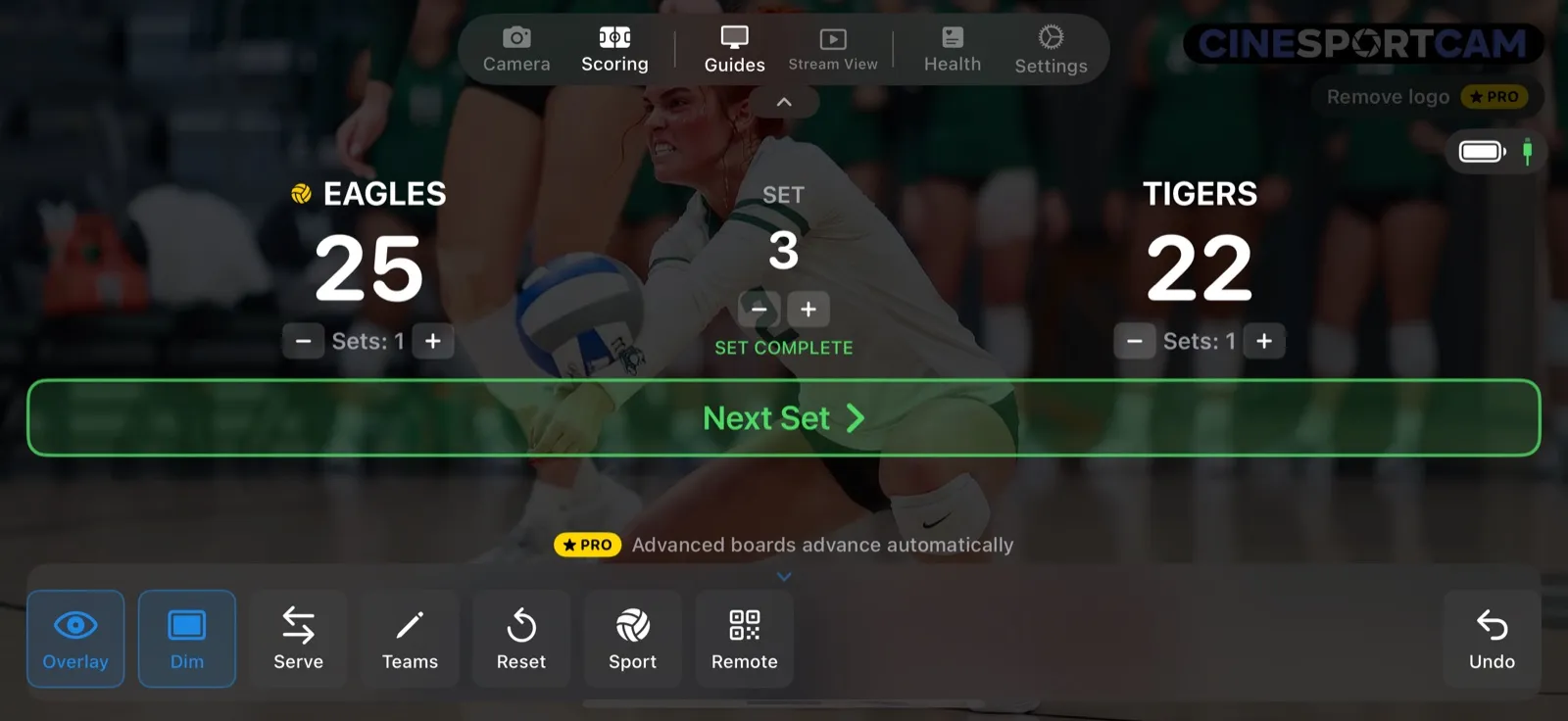
Tap Scoring to switch to Scoring mode. Each team has its own +1 and −1 (some sports add more, like +2 and +3 in basketball). The action bar along the bottom reads, left to right:
| Button | What it does |
|---|---|
| Overlay | Shows or hides the scoreboard on air. |
| Dim | Darkens the camera picture behind the controls. |
| Your sport’s own button | Serve in the set sports (pickleball adds Side Out), Pos in American football, Clear in baseball. |
| Teams | Opens Edit Teams. |
| Reset | Reset Score keeps the team names. Reset Game resets everything and ends the remote-scoring session, so remote scorers need the new code. |
| Sport | Opens the Scoreboard picker. |
| Remote | Starts a remote-scoring session and shows its QR code. Once a session exists, it reads QR. |
| Undo | Takes back the last change, up to 20 steps. |
Undo leaves a running game clock alone, unless the step you undo is a clock or period change.
Only the set sports (volleyball, beach volleyball, badminton, table tennis and pickleball) finish a match and show a winner. In every other sport, you just stop scoring when the game ends.
7. Check what viewers see
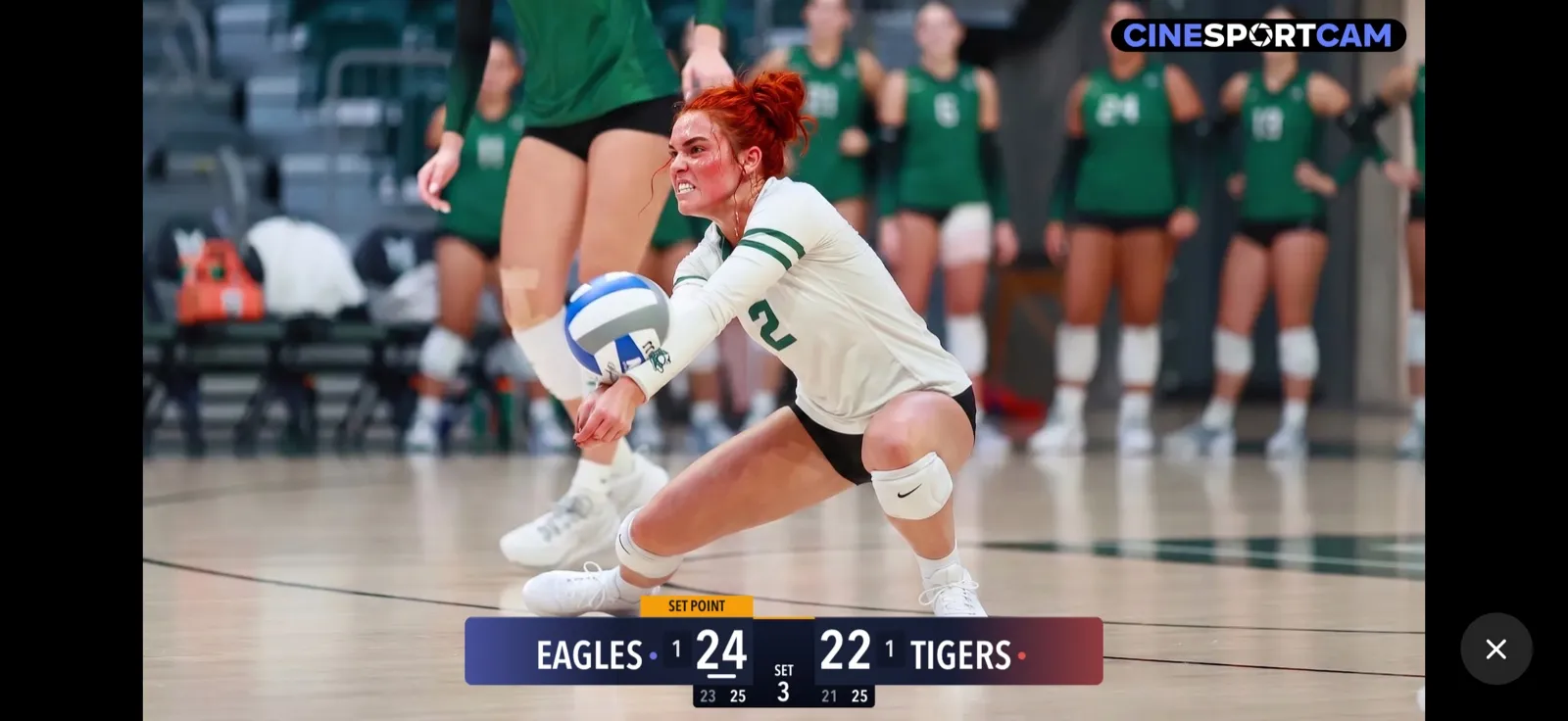
Tap Stream View in the menu bar, in Camera or Scoring mode. It shows exactly what your viewers see, with nothing in the way. Tap anywhere, or the ✕, to get the controls back.
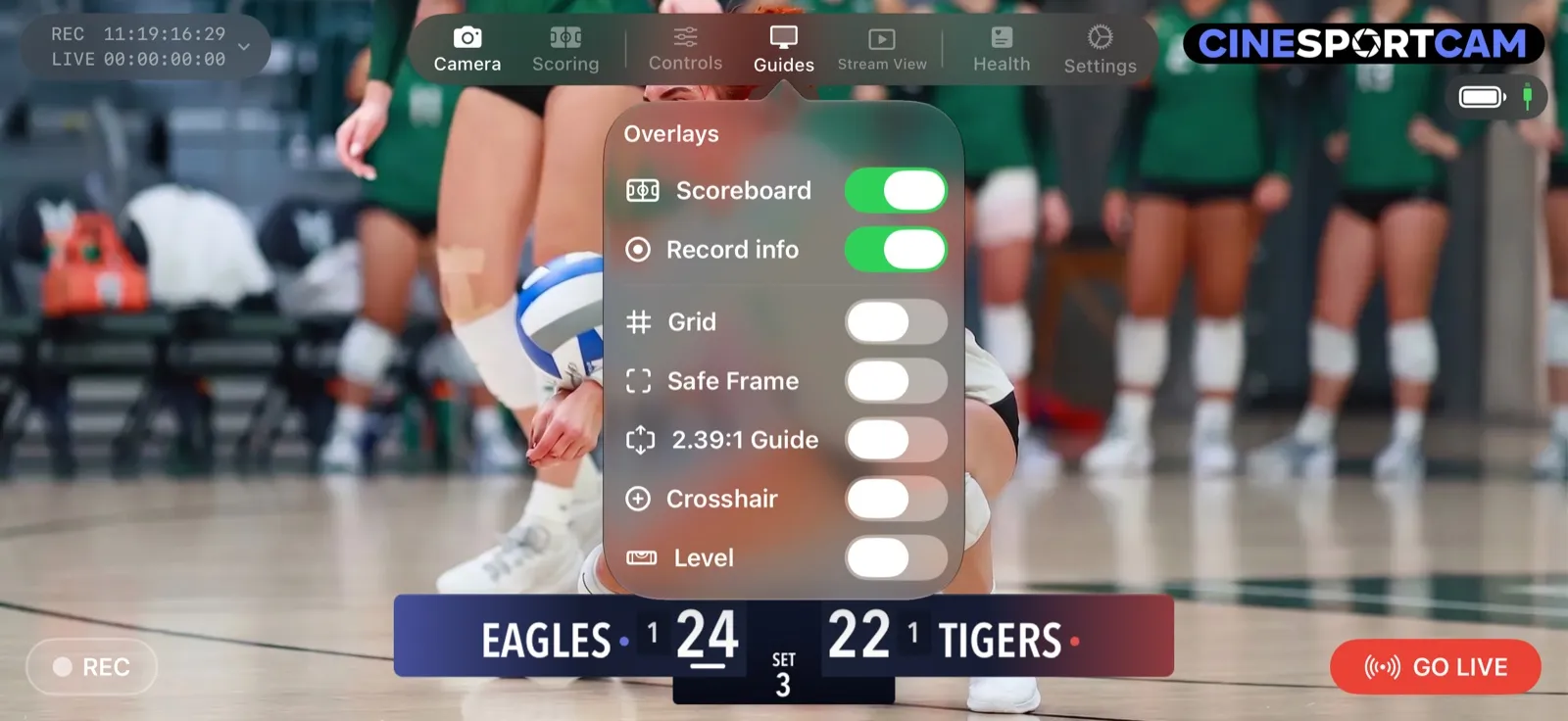
The Guides menu holds Scoreboard, Record info and the framing guides: Grid, Safe Frame, 2.39:1 Guide, Crosshair and Level. The framing guides are only on your screen; viewers never see them. Record info keeps the REC and LIVE timer showing even before you record or go live.
8. Let someone else keep score
Tap Remote to start a session. Anyone with a phone can then score from their browser by scanning the QR code or entering the session code. No app, no account. Your phone stays in charge of the score.
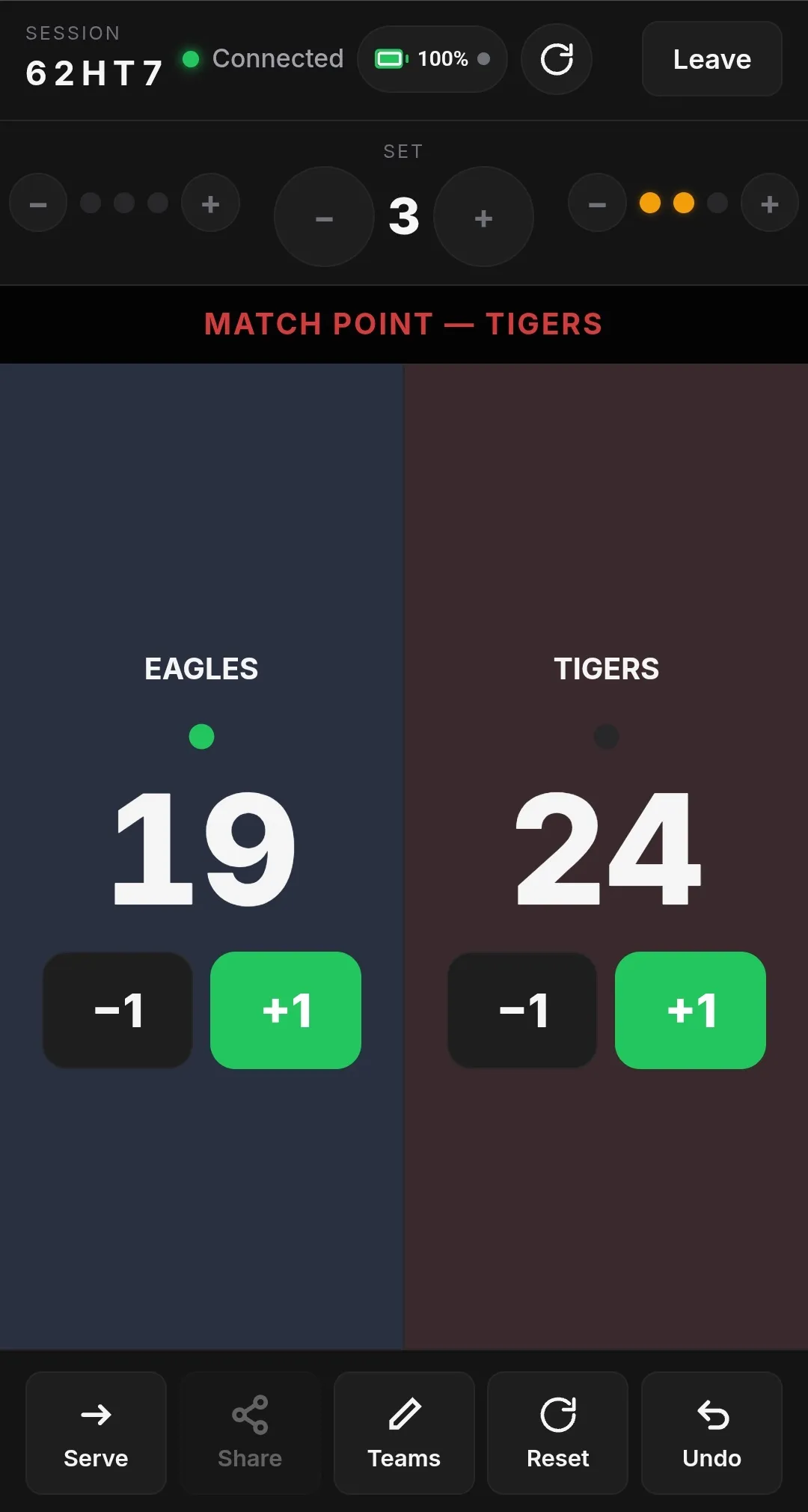
Match point
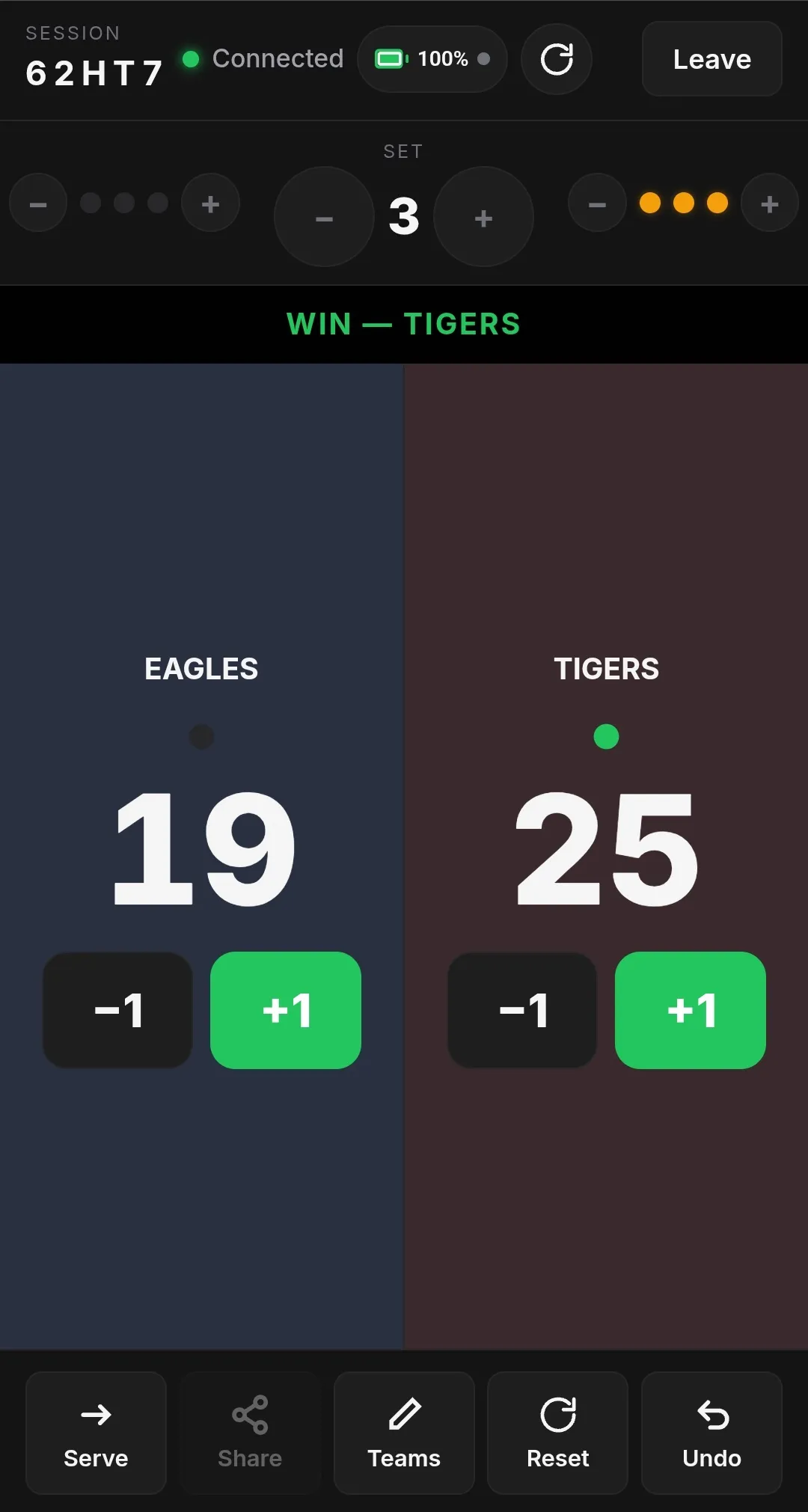
Win
The web scorer has no settings of its own: it follows the rules you set on your phone. If your board doesn’t show something, like the game clock or timeouts, its controls on the web scorer are greyed out with a PRO or ADVANCED label. The remote scoring guide walks through a session step by step.