CineSportCam 2.6.1: NDI for Everyone, Your Logo on Stream, and the Final Score Ready to Share
Send your camera to OBS or vMix over Wi-Fi, put your club's crest on the stream, share the final score as a card, and a Pro preview that's simple to understand.
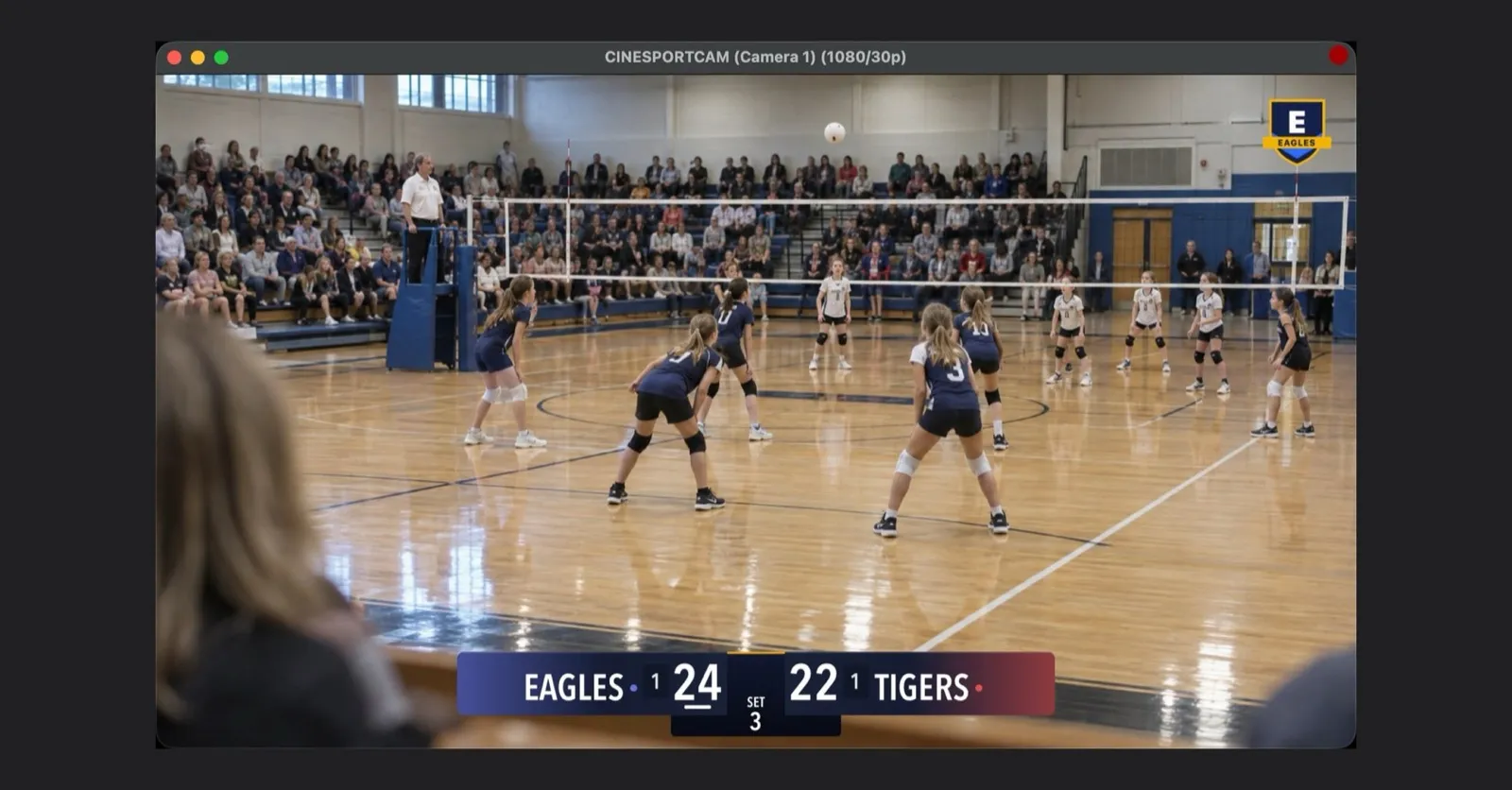
CineSportCam 2.6.1 sends your game to more places and puts more of your team in it. Your iPhone becomes an NDI camera for everyone, Pro streams can carry your own logo, and the final score is ready to share the moment the game ends. Here is everything new.
Your iPhone is an NDI camera
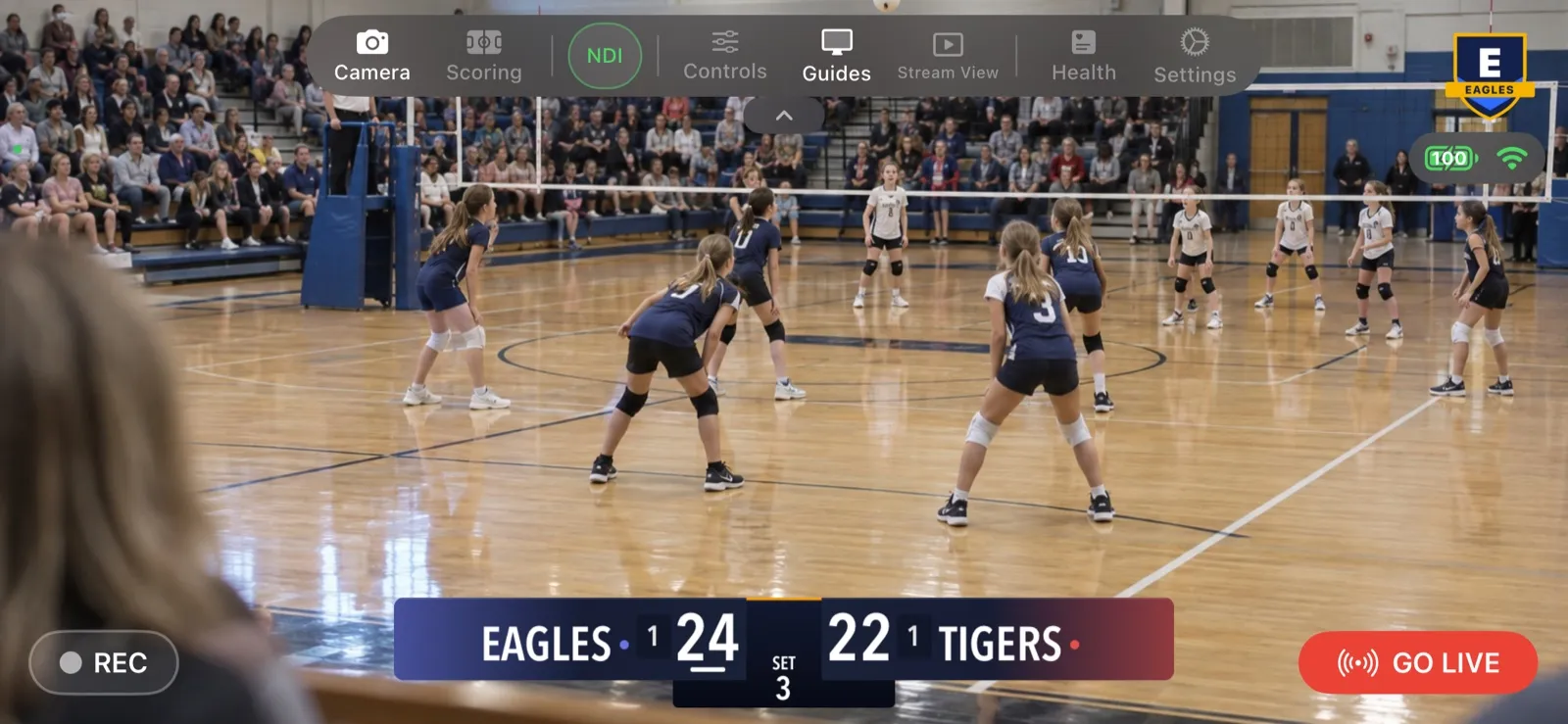
NDI lets video software on the same network pick up a camera with no cable. In 2.6.1 every CineSportCam user can send it. OBS, vMix, NDI Studio Monitor or any NDI app on the same Wi‑Fi finds your phone as CineSportCam (Camera 1), scoreboard and all.
That opens up a lot for a club or a school. Put the phone into an OBS production as a wireless camera. Add it as a second angle next to your main camera. Hand it to a school’s production class and let them mix the game.
Free sends 720p at 30 fps with the scoreboard and the CineSportCam logo. Pro sends up to 1080p at 60 fps, never more than the camera captures, and can send a clean feed with no overlays. NDI runs at the same time as your stream and your recording.
To start, open Settings → NDI and turn on NDI Output. The first time, iOS asks for Local Network access: allow it, or NDI apps can’t find the phone. Give the phone a Camera Name and it shows up under that name; with two phones, name each one and you have two cameras. NDI Button in Toolbar adds an on and off switch to the camera screen.
Standard NDI is full quality, which makes it a high-bandwidth signal. Use a strong Wi‑Fi network, ideally 5 GHz, and keep the phone and the computer close to the router. The NDI setup guide walks through OBS, vMix and Studio Monitor step by step.
Your logo on stream (Pro)
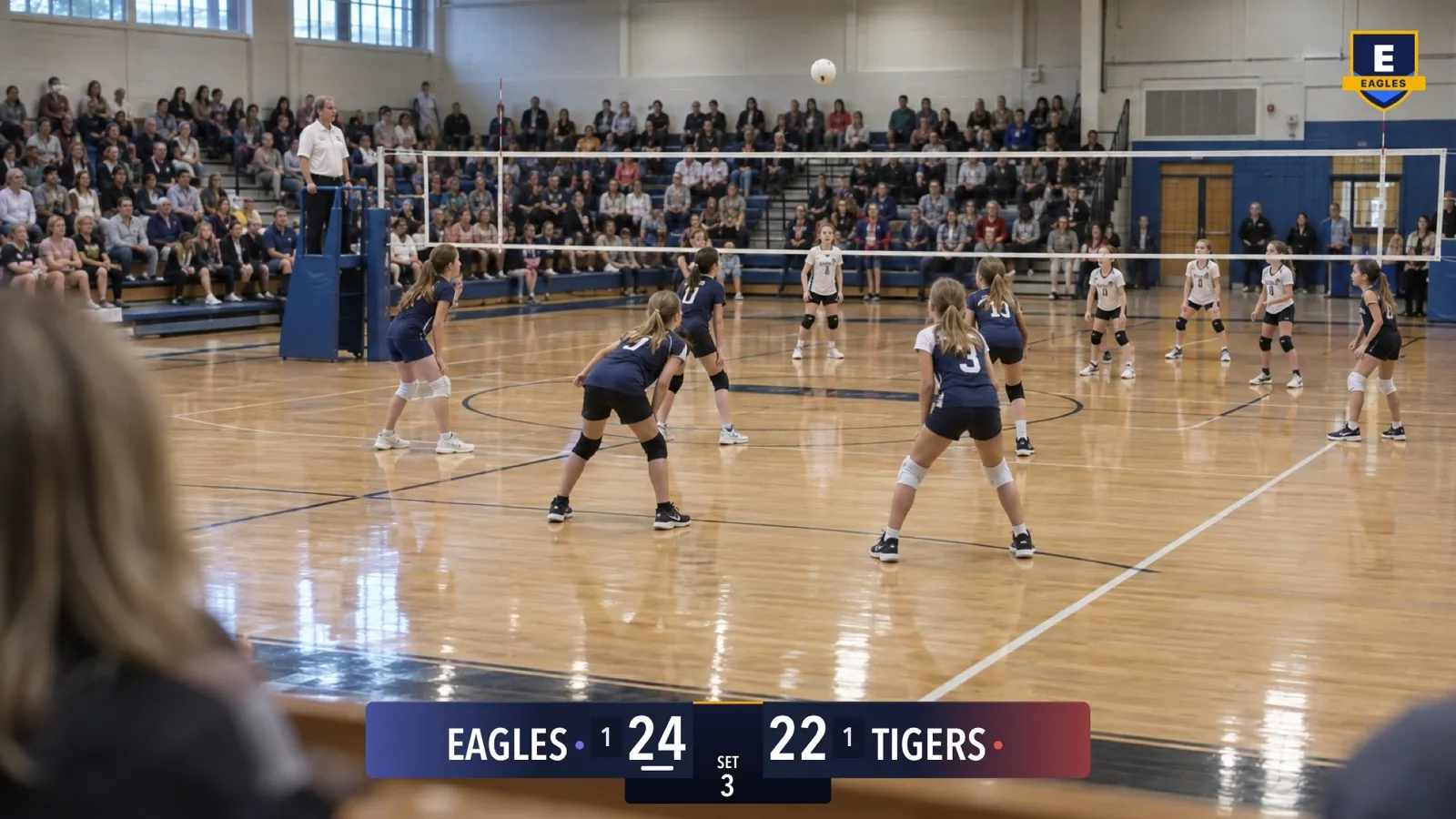
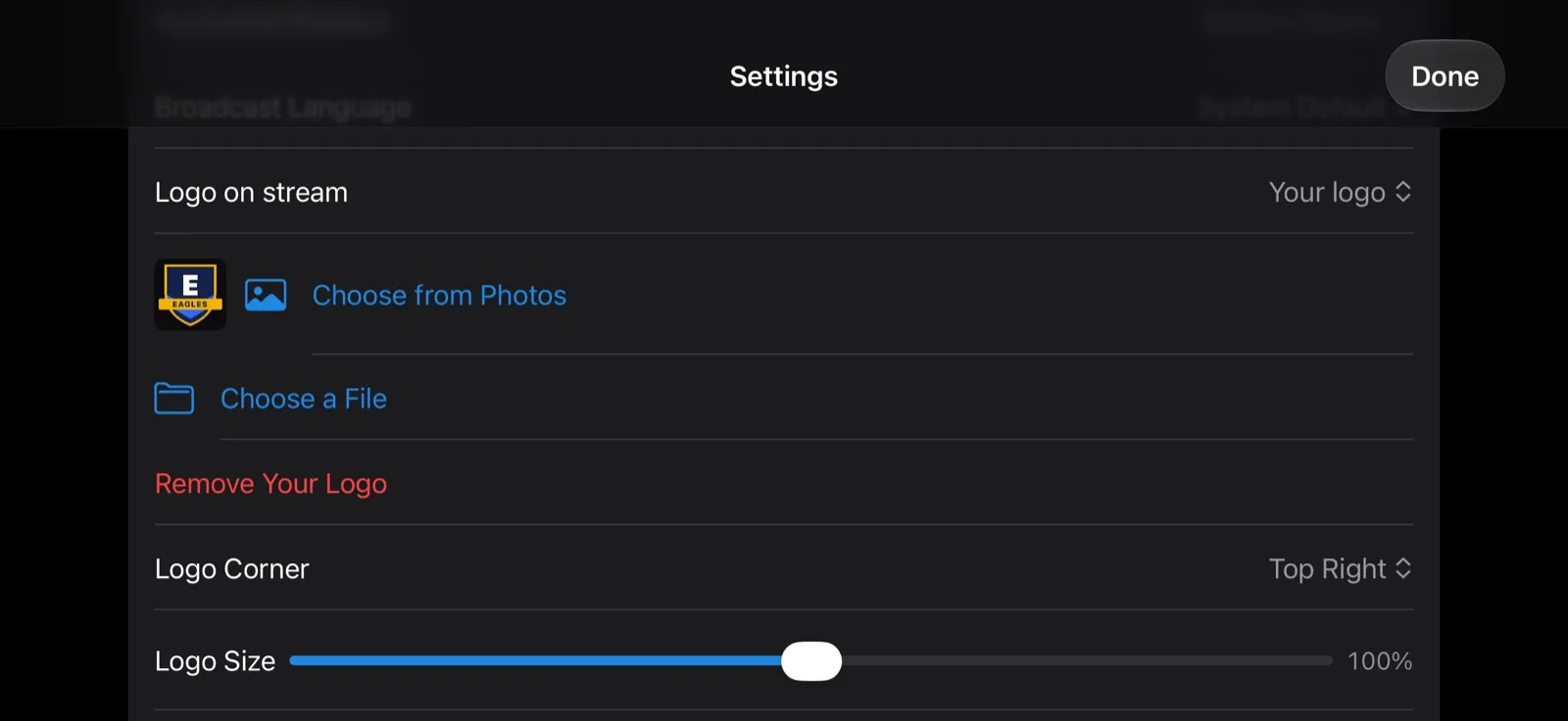
Pro streams can now carry your own logo. Open Settings → Display → Logo on stream and choose Your logo, then pick a PNG, JPEG or HEIC (up to 5 MB) from Photos or Files. Choose the corner and a size from 50% to 150%. The logo shows on the stream, the recording and the NDI output, and it moves out of the scoreboard’s way.
The logo in use is set when you go live and stays put until you stop, so viewers never see it change mid-game. You can also choose None for no logo at all, or keep ours. The logo guide covers preparing the file, placing it, and what to do when an image won’t load.
Share it
The final score, as a card. When the game ends, tap Share on the recap. CineSportCam sends a 1080 × 1080 score card with the text “Final: … Watch the replay:” and your replay link. The card shows FINAL, the teams and the score, the date and how long you were on air, a viewer count with its time, where the replay is, and a small “Streamed with CineSportCam” credit. Set sports show sets won, with the set scores underneath.
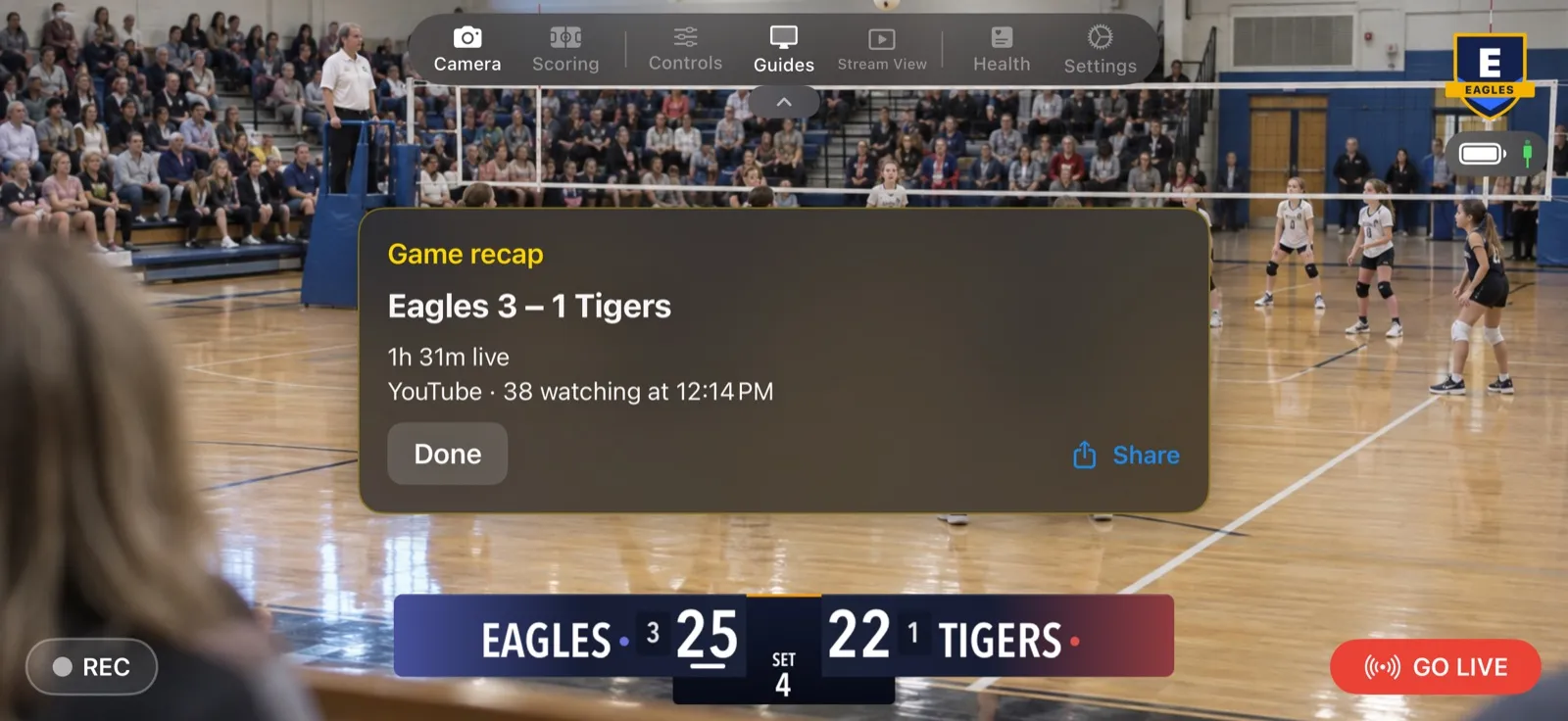
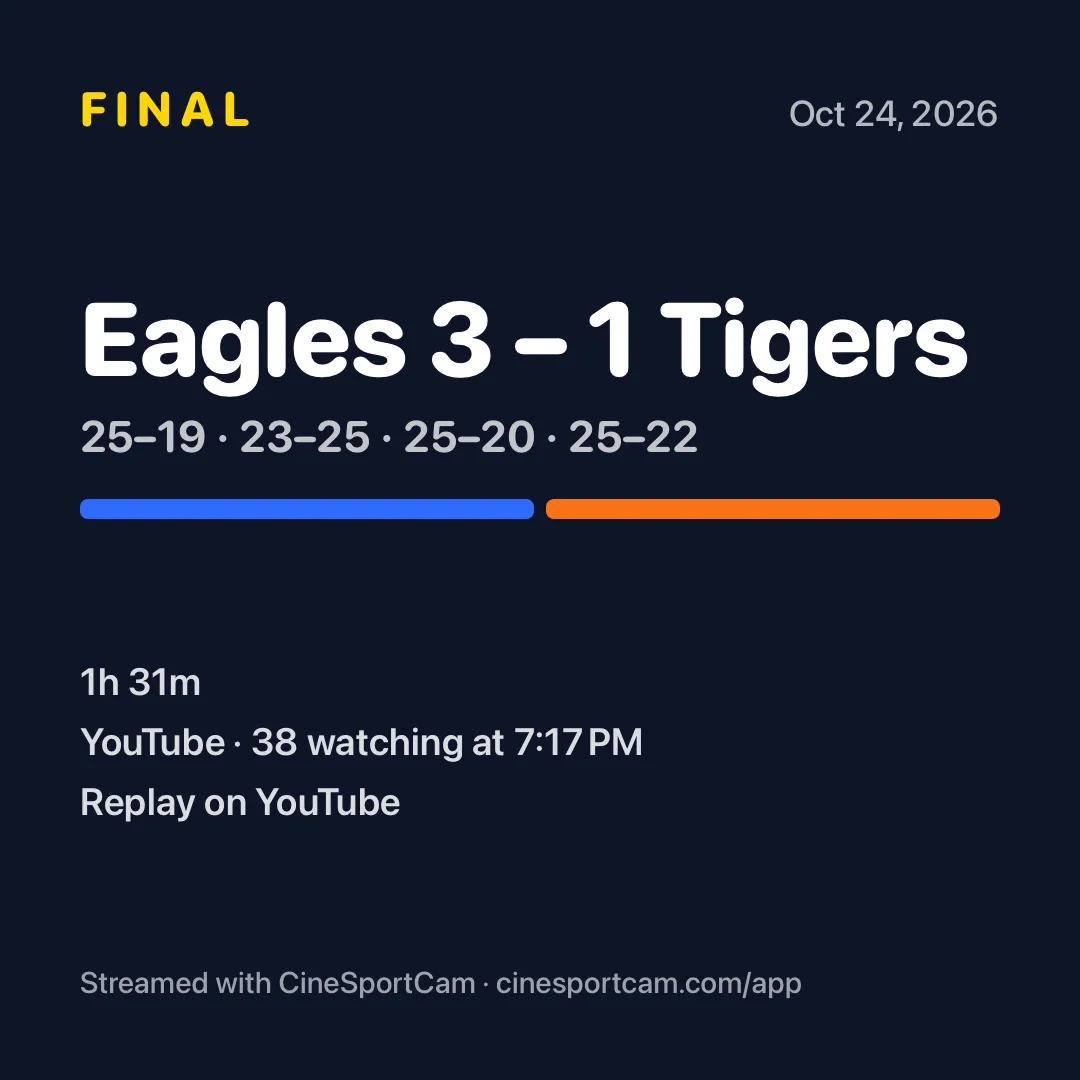
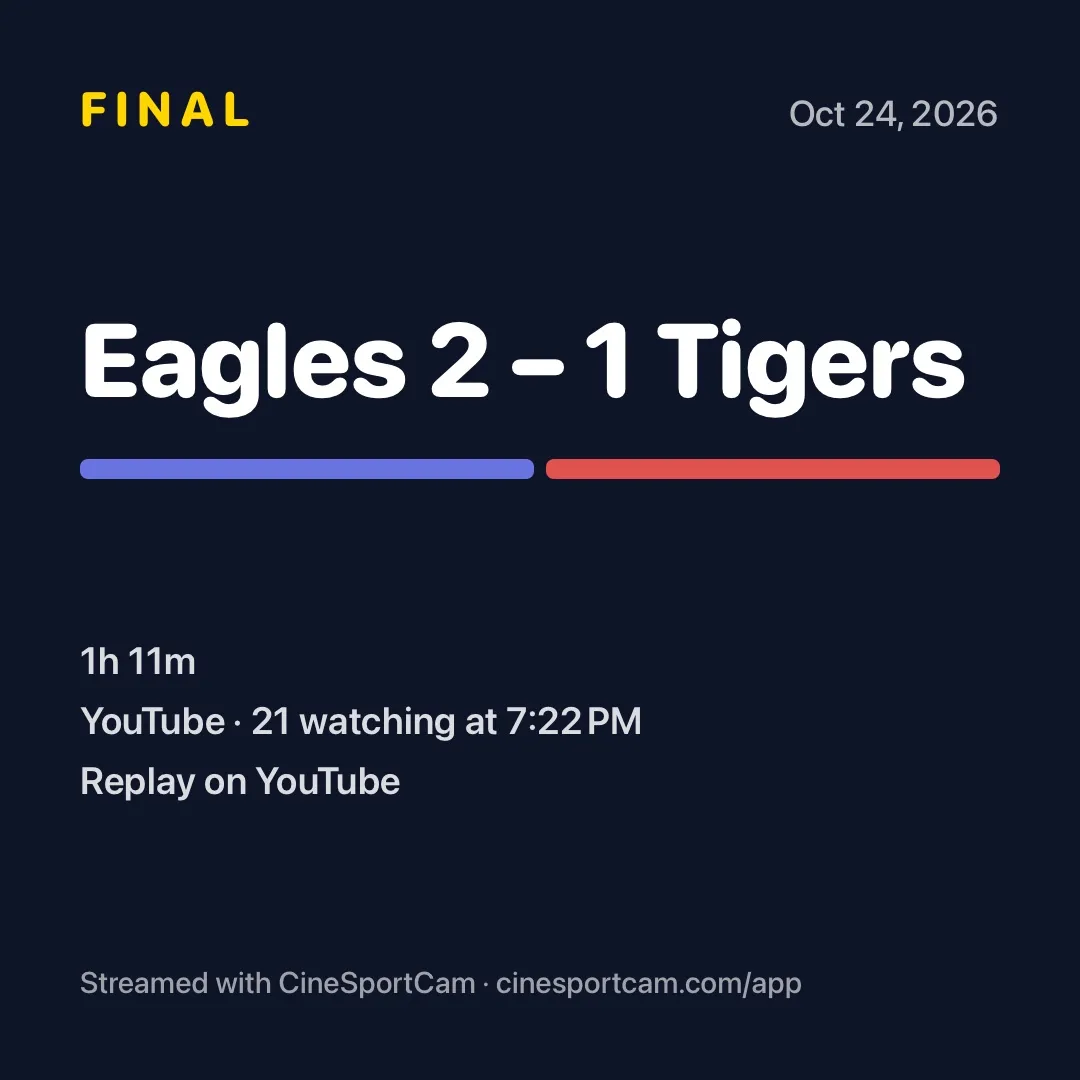
The replay link is YouTube’s when you streamed there, then Facebook’s, then Twitch’s. A game that ended with no score shares the plain replay link instead.
Tell them you’re live. In Scoring mode, a Share button now sits beside QR while you’re live on YouTube, Facebook or Twitch. It sends “Watch my live stream!” and your viewer link, so you can post it to the team chat without leaving the score.
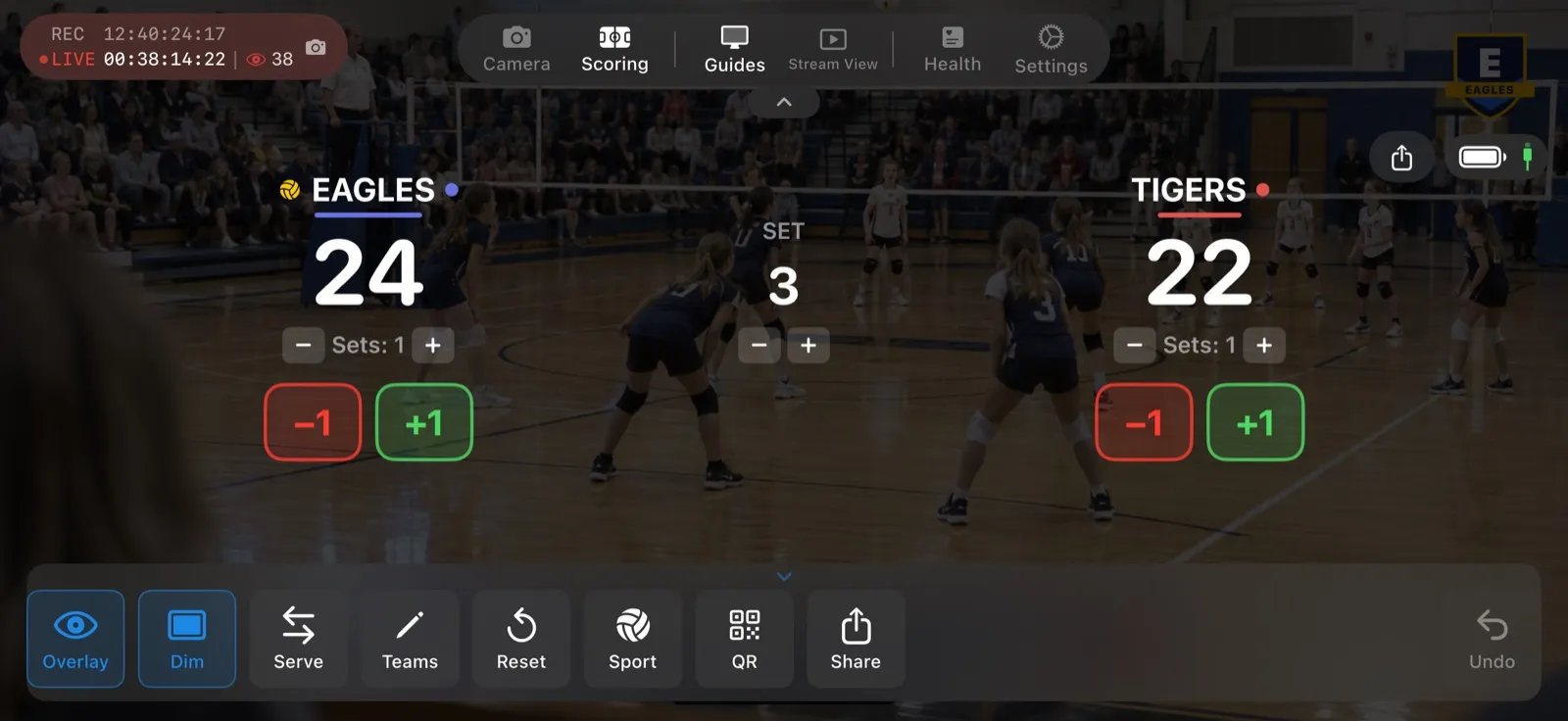
Invite your scorer. Share on the QR screen now sends a proper invite: “Join my CineSportCam scoring session! Open this link or enter code:”, the code and the link. In Mail, the subject reads “Join my scoring session”.
YouTube housekeeping
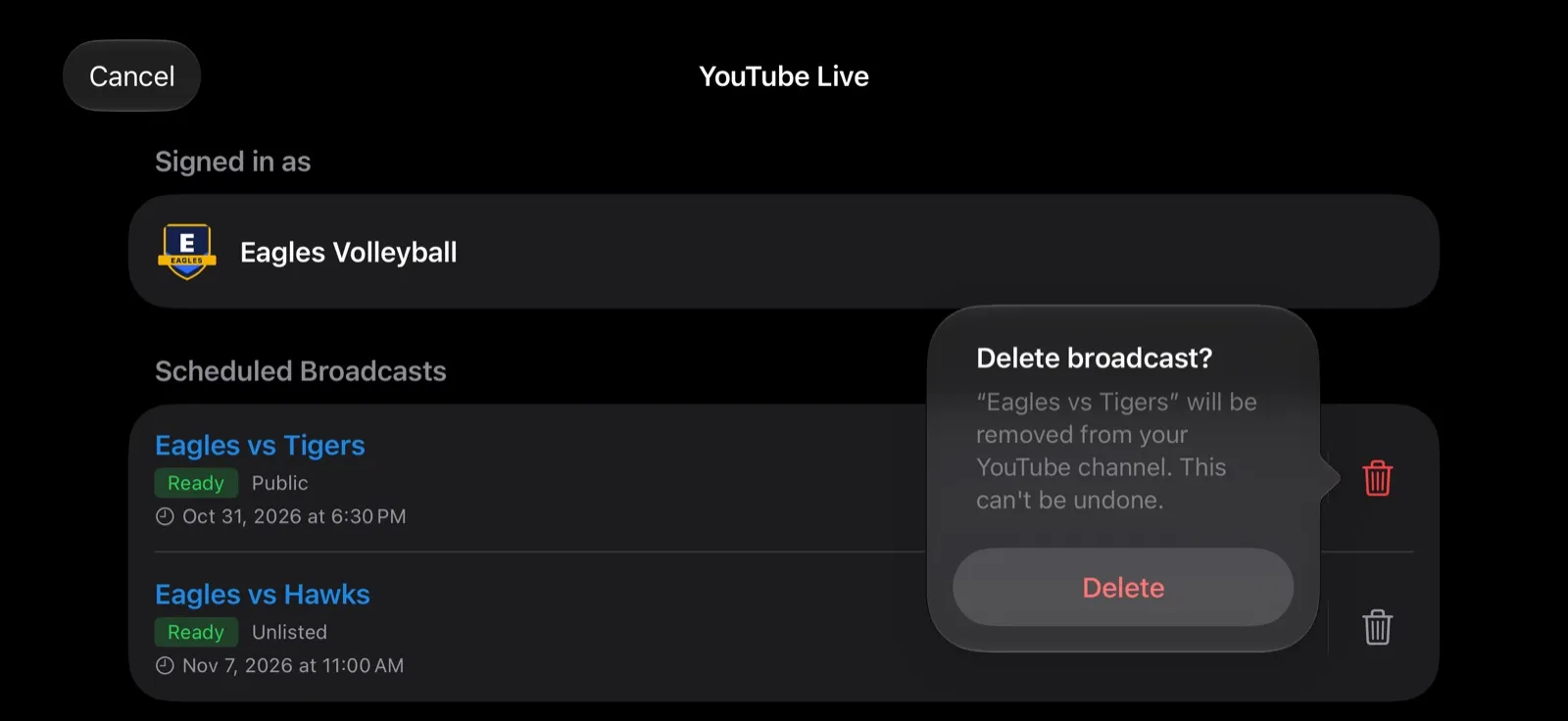
Scheduled a broadcast you no longer need? In the YouTube sheet, swipe left on it or tap its trash button, and confirm Delete broadcast? to remove it from your channel. Only upcoming broadcasts can be deleted from the app; a live, testing or finished one stays put.
Team Pass in Settings
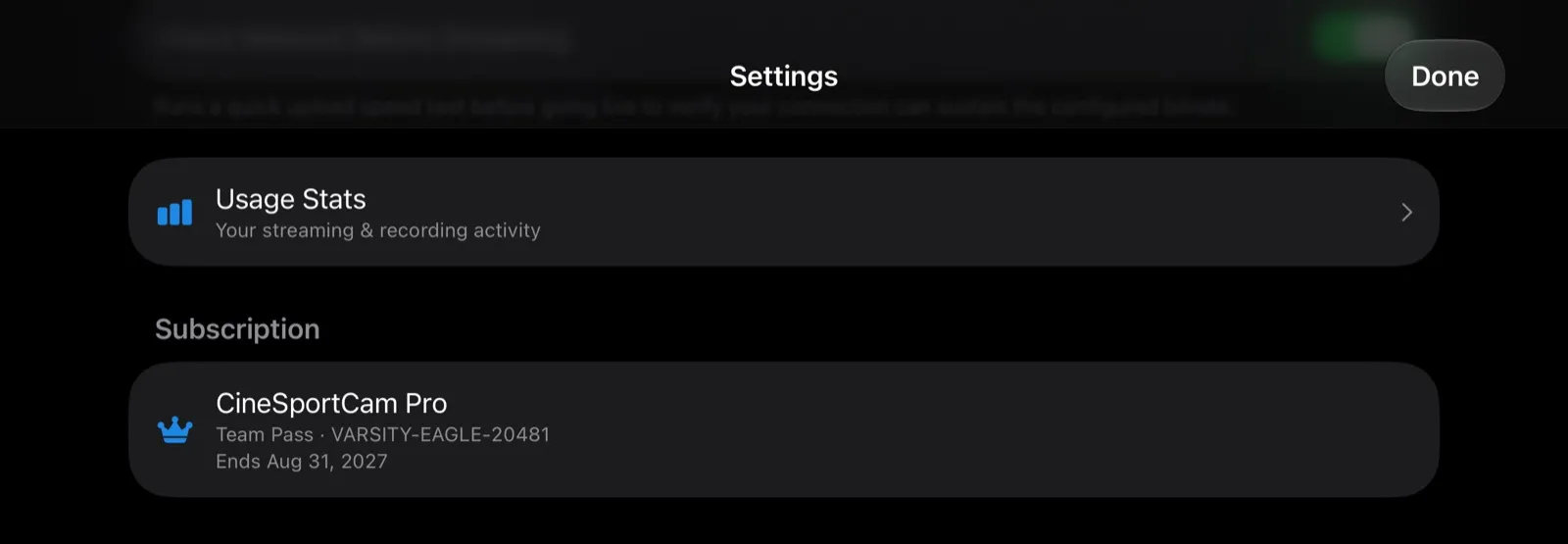
If your club uses a Team Pass or Club edition, Settings → Subscription now shows it, as “Team Pass · CODE” or “Club · CODE” with the day it ends. Codes go in through Redeem Code. When a pass ends, the app tells you once, with a “Your Team Pass Ended” notice.
The Pro preview, explained
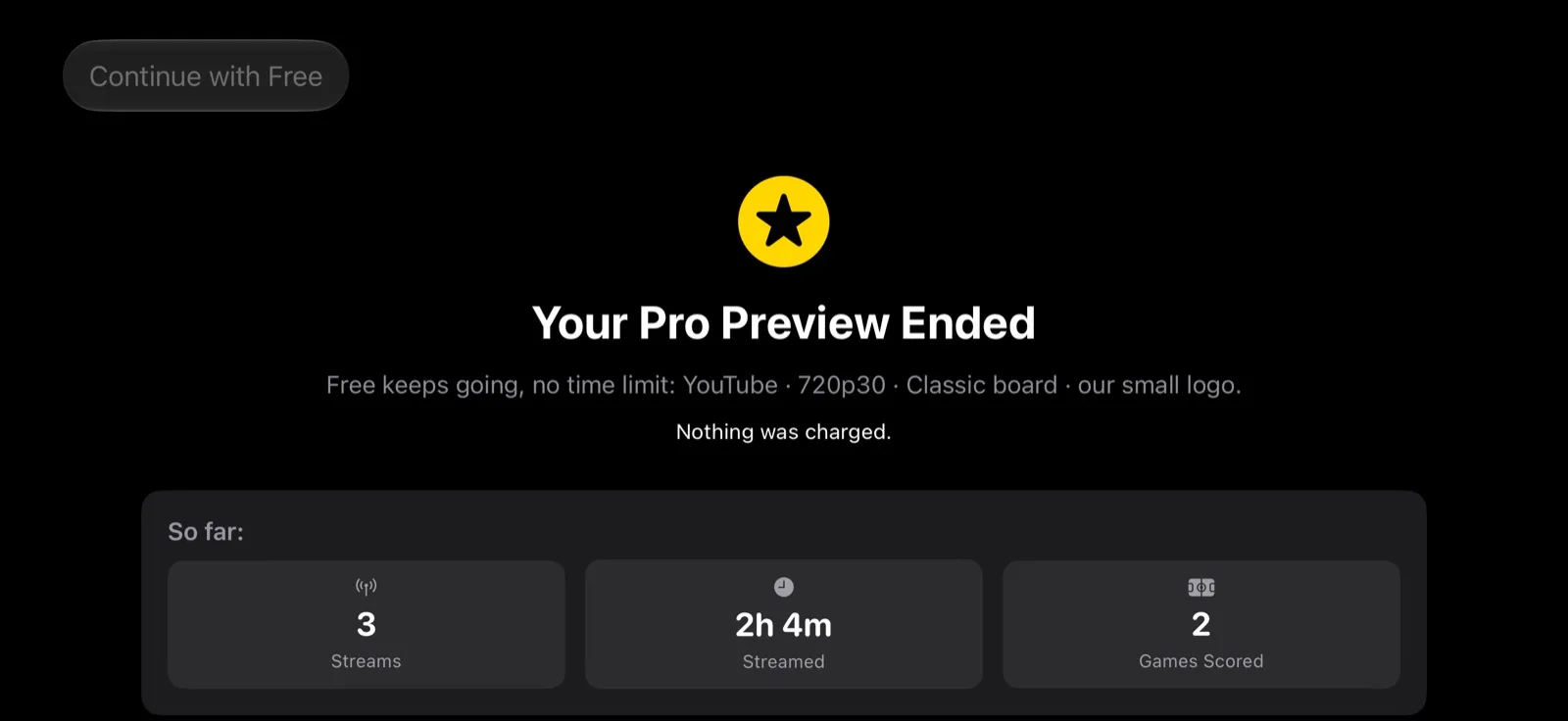
Pro is free for your first game day, within 14 days of installing. After that Free keeps going with no time limit: YouTube only, 720p/30, the Classic Standard board and a small CineSportCam logo.
A game day is a game you stream for 15 minutes or more with a score change, or for 30 minutes or more. The preview ends when that game ends, and 14 days after you install either way. A quick test at home doesn’t use it up.
When the preview ends, you see one notice, once. Choose Continue with Free and the app takes you at your word. If you just use Free, the app doesn’t greet you with offers when it opens.
Two smaller changes in the same spirit. The app asks for a rating only after a game that went smoothly, through Apple’s own prompt, and never during a stream; you can also rate it any time from Settings → About → Rate CineSportCam. And Pro subscribers no longer see PRO badges or locked rows for a moment while the app starts.
Web scorer
- A greyed control with a PRO or ADVANCED pill now explains itself when you tap it (with a phone on 2.5.0 or later).
- When the phone ends the session, the page says so, with Stream your own games and Join another session.
- Scorer links preview properly when you paste them into a chat.
Also in 2.6.1
- The trial countdown says “1 day left”, not “1 days left”.
- The yearly plan’s saving is worked out from the prices in your own App Store.
- If you’re on Pro but still streaming at 30 fps, the app mentions once that 60 fps is included, and what it costs in bandwidth and battery. 30 fps stays the default.
- Opening the scoreboard picker from Settings and tapping Done takes you back to the camera.
- cinesportcam.com now opens securely, and cinesportcam.com/app is a short link to the App Store.
What’s free and what’s Pro
NDI® is a registered trademark of Vizrt NDI AB. ndi.video