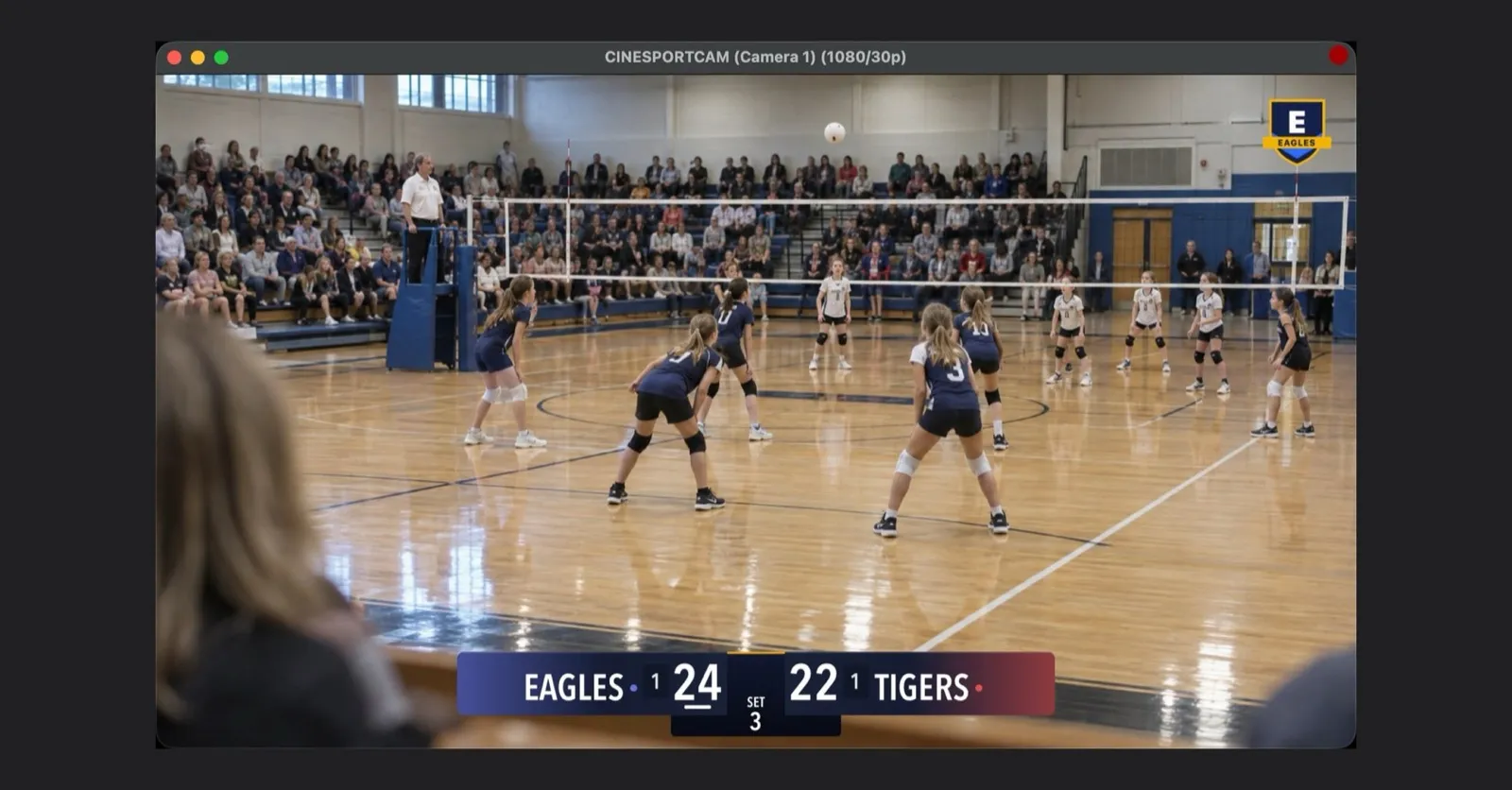
Put Your Team's Logo on Your Live Stream with CineSportCam
Show your club's crest in the corner of every stream, recording and NDI feed. How to prepare the file, turn it on, place it, and what to do when an image won't load.
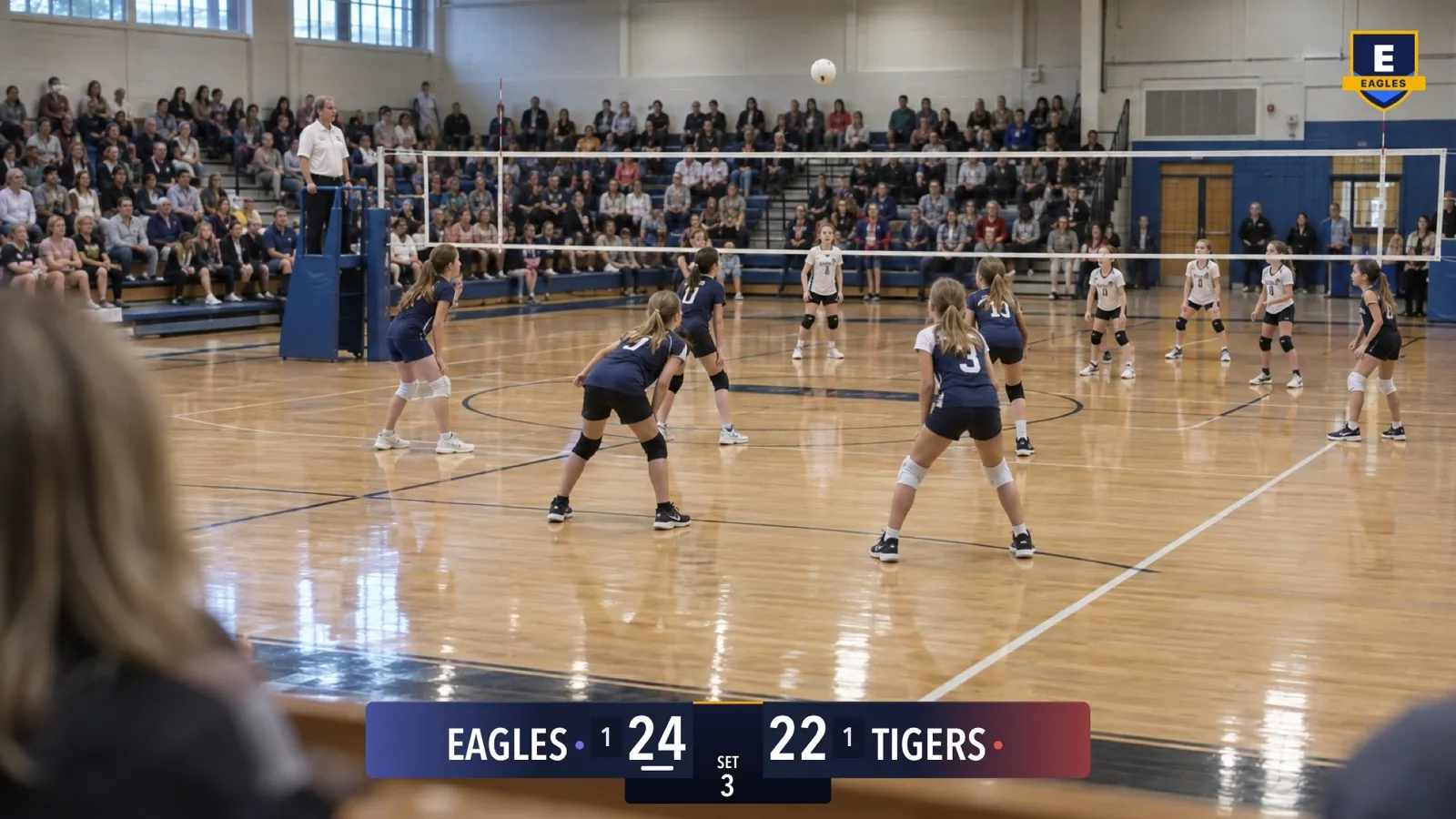
Your stream is the team’s channel, so it should carry the team’s mark. CineSportCam 2.6.1 puts your own logo in the corner of the picture, where every viewer sees it. It takes about ten minutes, and most of that is finding the right file.
What you get
Your logo shows on the live stream, on the recording the phone keeps, and on the NDI output, always in the same corner. Viewers see it wherever they watch.
Prepare the file
Use a PNG with a transparent background. The app trims the empty edges around your logo, so the logo itself floats over the game. A JPEG, or any image with a solid background, shows as a rectangle. That’s fine for a badge that has its own background, but a crest usually looks better without one.
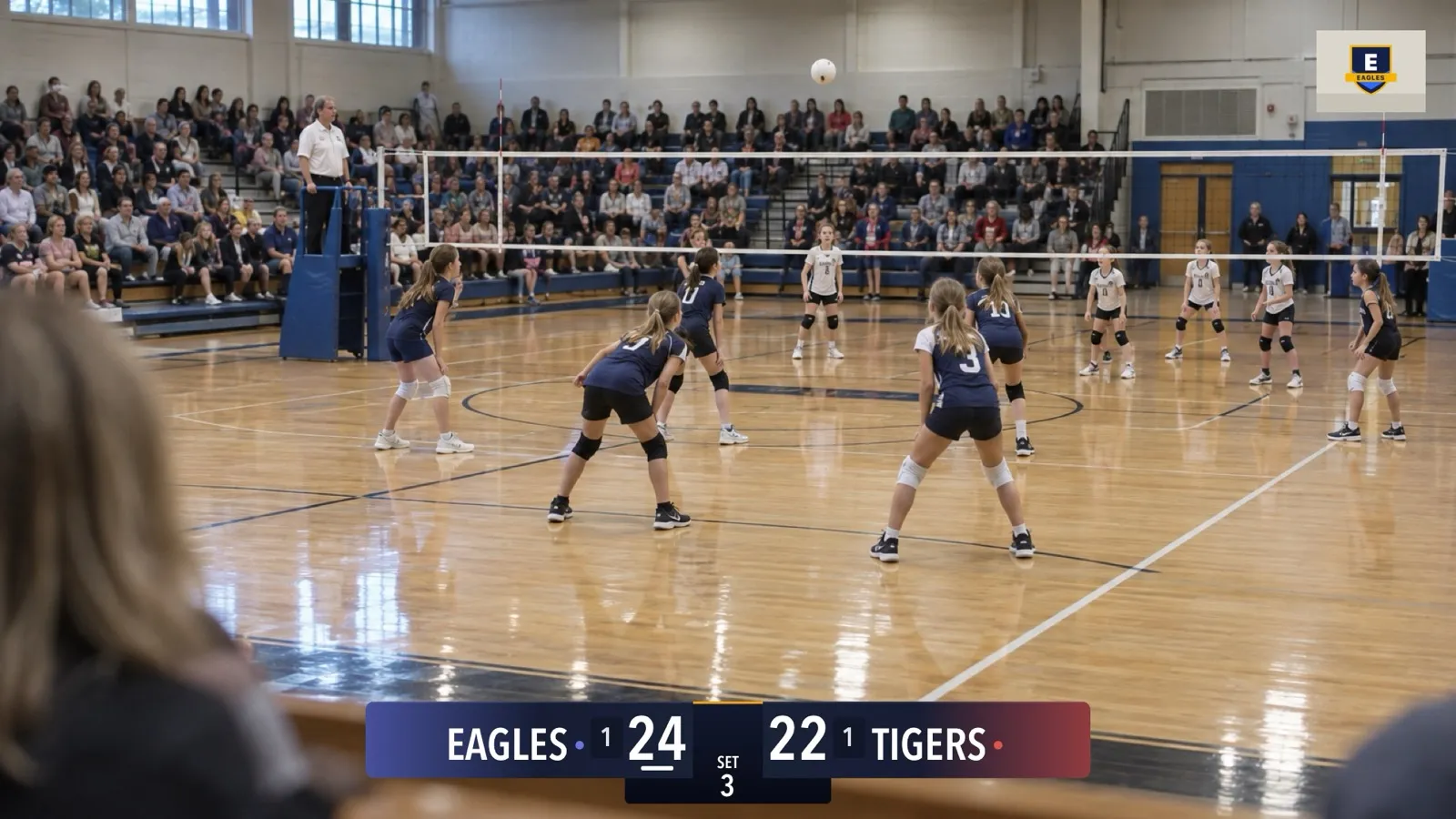
Size and format. The app takes a PNG, JPEG or HEIC up to 5 MB. It keeps a copy no larger than 1024 pixels on its long side, so a bigger file doesn’t look any sharper on air.
Think thumbnail. At the default size, your logo fits in a box about a tenth of the picture’s height: about 108 pixels tall in a 1080p stream. A square crest fills that box. A wide wordmark is limited by the box’s width instead (about 443 pixels at 1080p). Fine print and small mottos won’t be readable, so a bold mark that still reads at thumbnail size works best.
Get it onto the iPhone. AirDrop it to the phone and save it to Photos or Files, save it from an email, or keep it in iCloud Drive, Dropbox or a shared drive that the Files app can open.
Make sure you can use it. As the app says, only use a logo you have the right to broadcast. A club crest needs the club’s OK, and a sponsor’s mark needs the sponsor’s.
Turn it on
-
Open Settings → Display
Find Logo on stream. It has three choices: CineSportCam, Your logo and None.
-
Choose Your logo
Until you pick an image, the row underneath reads “Choose an image to show it on your stream.”
-
Pick your image
Choose from Photos opens your photo library. Choose a File opens the Files app, so iCloud Drive, Dropbox or a shared drive work too. A thumbnail of your logo appears next to the buttons.
Every logo setting
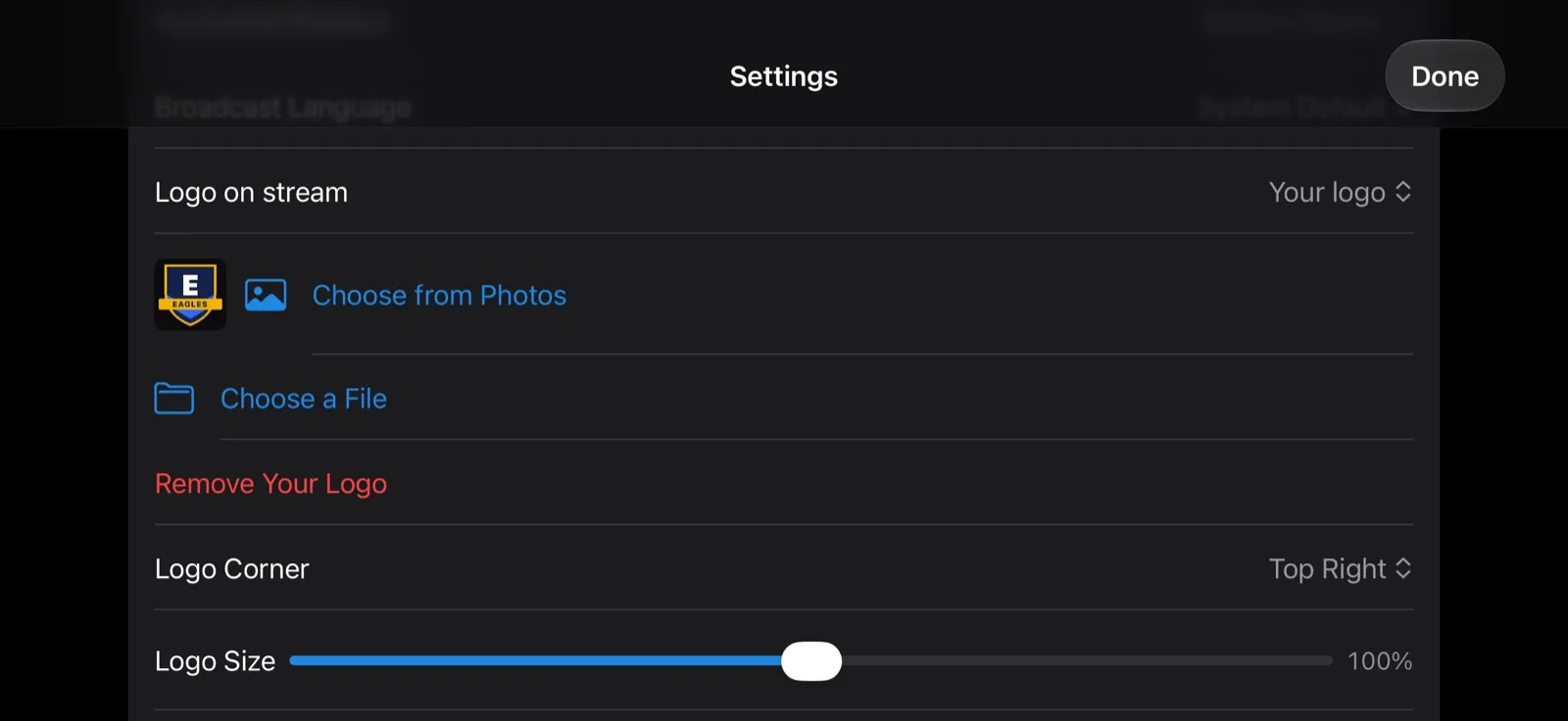
| Setting | What it does |
|---|---|
| Logo on stream | What goes in the corner: CineSportCam (our logo, the default), Your logo, or None for no logo at all. On the Free plan this row is Remove Watermark with a PRO tag instead, and our logo stays on. |
| Choose from Photos | Picks your logo from the photo library. |
| Choose a File | Picks a PNG, JPEG or HEIC from the Files app: iCloud Drive, Dropbox or a shared drive. |
| Remove Your Logo | Deletes your logo from the app, and the setting goes back to CineSportCam. It shows once you’ve chosen an image. |
| Logo Corner | Top Right (the default), Top Left, Bottom Right or Bottom Left. If the scoreboard sits in that corner, the logo moves to the next clear one. |
| Logo Size | 50% to 150% in steps of 10%. 100% fits a box about a tenth of the picture’s height. |
The rows under Logo on stream appear only when Your logo is chosen, and the line under them is a reminder: “Only use a logo you have the right to broadcast.” Every logo setting is greyed out while you’re live, recording or sending NDI.
Place it and size it
Logo Corner puts your logo in the Top Right (the default), Top Left, Bottom Right or Bottom Left, set in a little from the edges.
Logo Size runs from 50% to 150% in steps of 10%. 100% is the box described above.
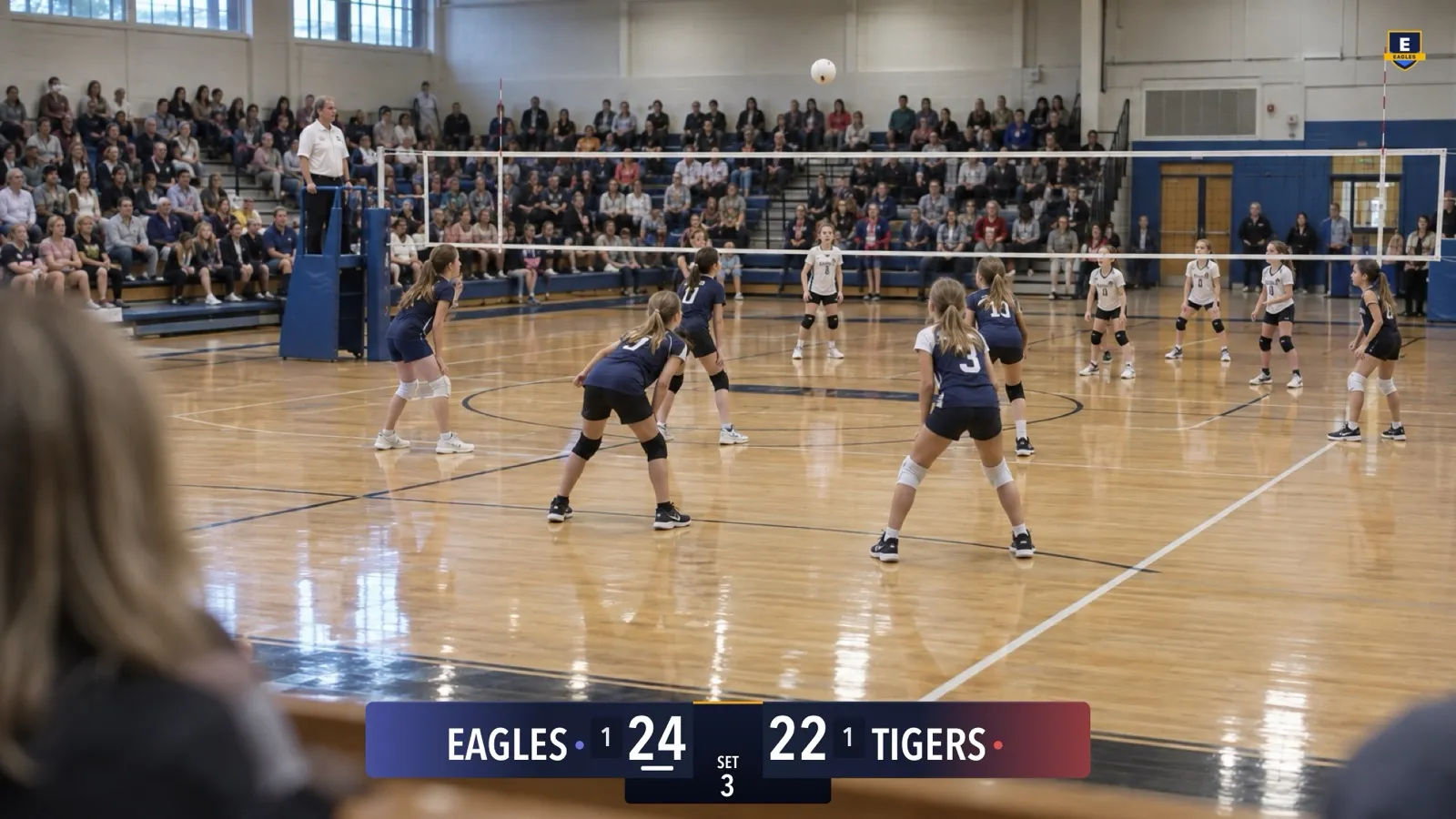
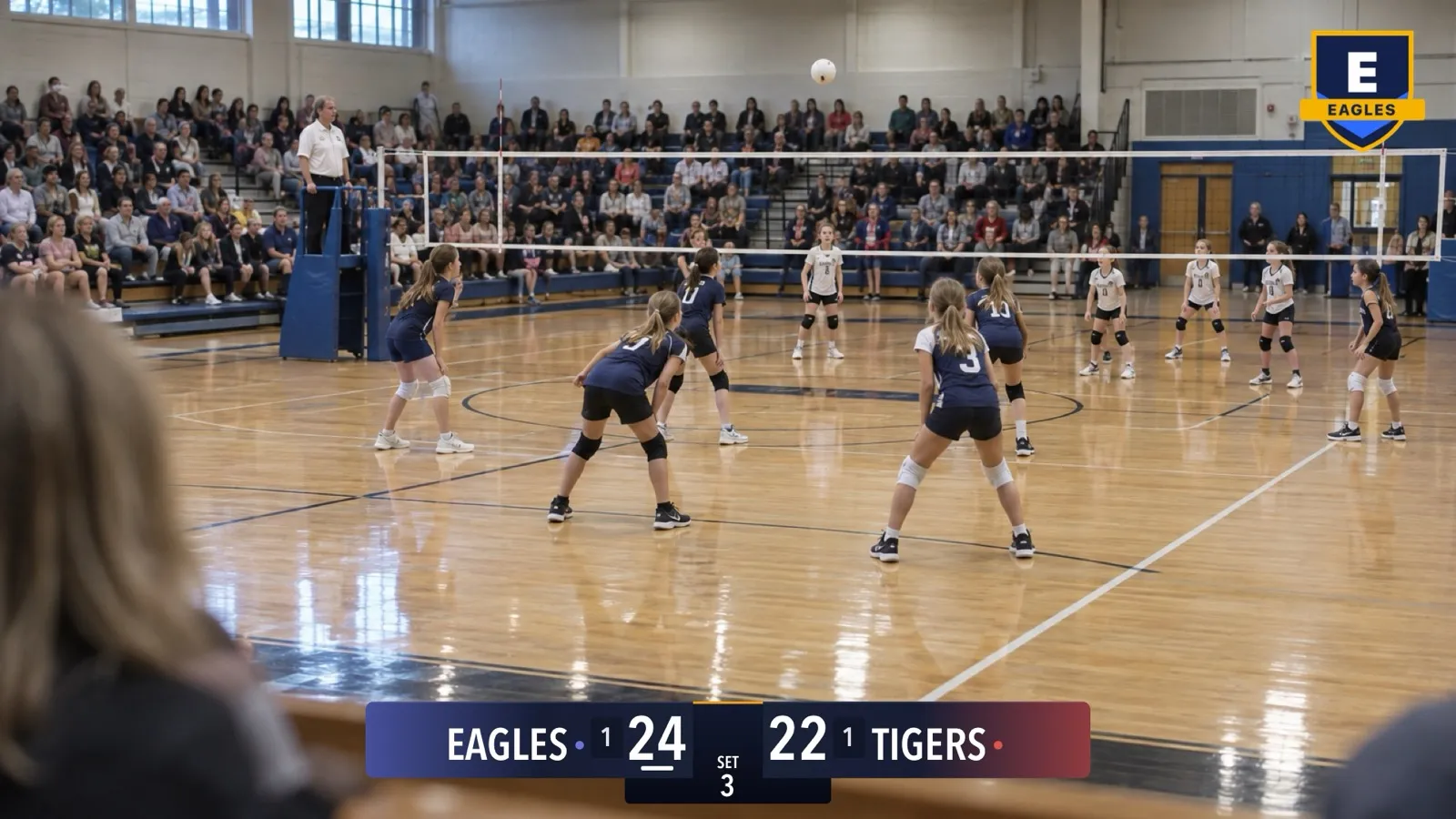
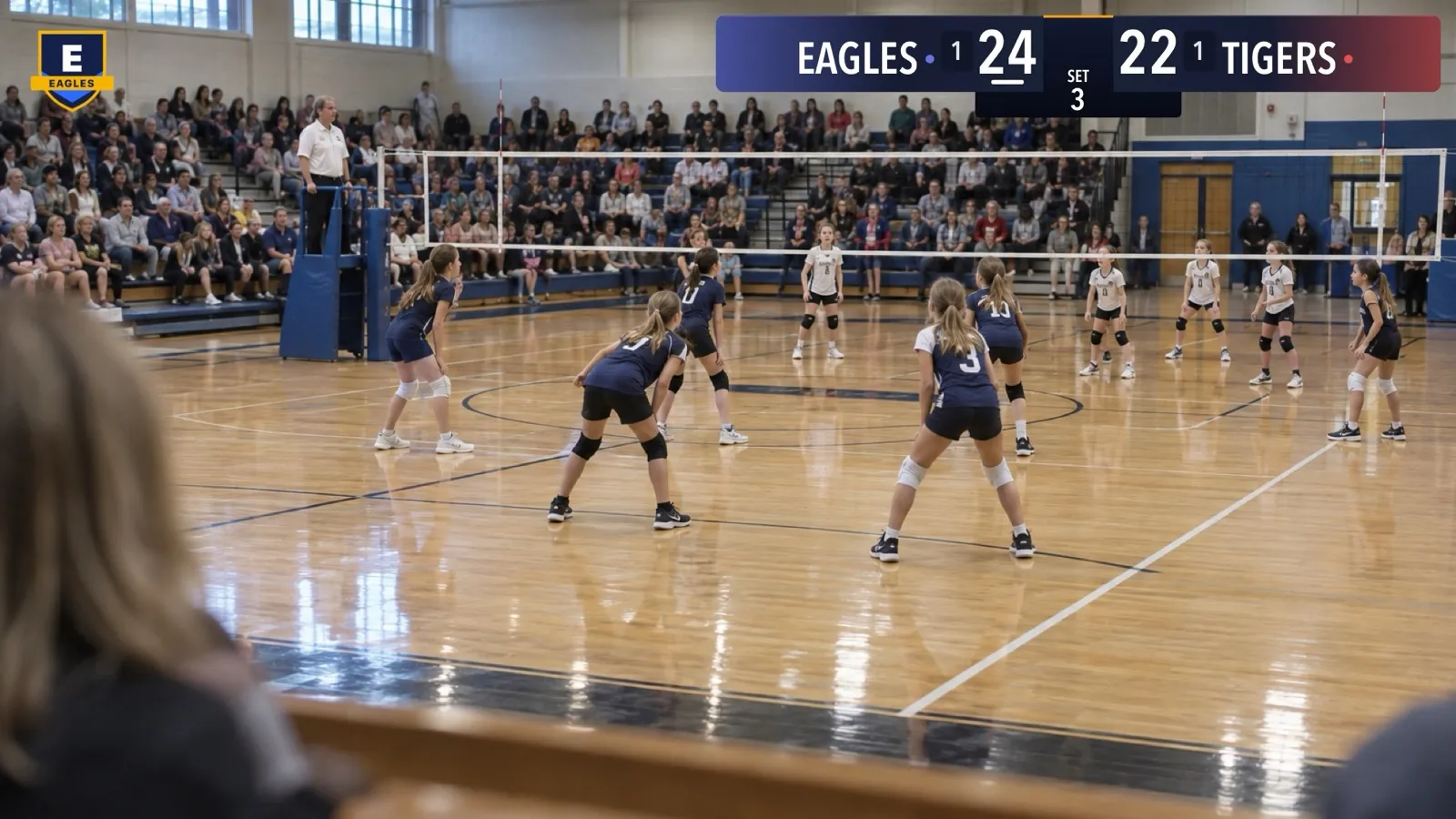
When the scoreboard shares the corner. If the scoreboard is showing and sits in your logo’s corner, the logo moves to the next clear corner, keeping a small gap from the board. The order runs top right, top left, bottom right, bottom left, starting from the corner you chose. Hide the scoreboard and the logo goes back to your corner. If the board somehow covers every corner, the logo stays in yours.
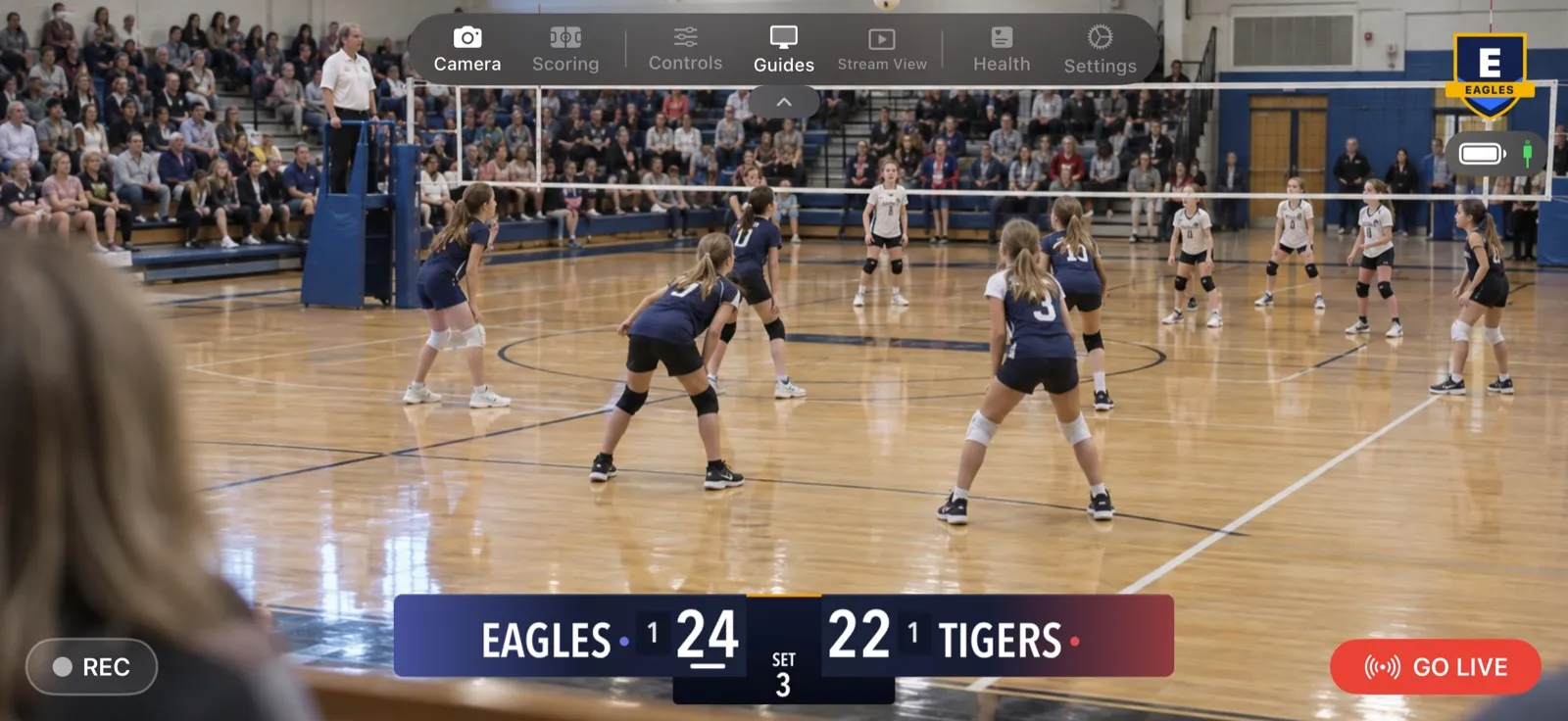
Check it before the game. The camera view shows your logo where it will be on air. Stream View shows exactly the 16:9 frame your viewers get, and the scoreboard picker’s preview shows your logo next to the board.
Go live
It stays put while you’re live. The logo in use is set when you start the first capture: Go Live, REC or NDI. From then on every logo control is greyed out until everything stops, so nothing changes under your viewers mid-game. A change you make between games shows up the next time you start.
Recordings and NDI carry it too. The recording on the phone and the NDI output show the same logo in the same corner. If you send NDI with Clean Feed (No Overlays) on, the logo comes off that feed along with the scoreboard.
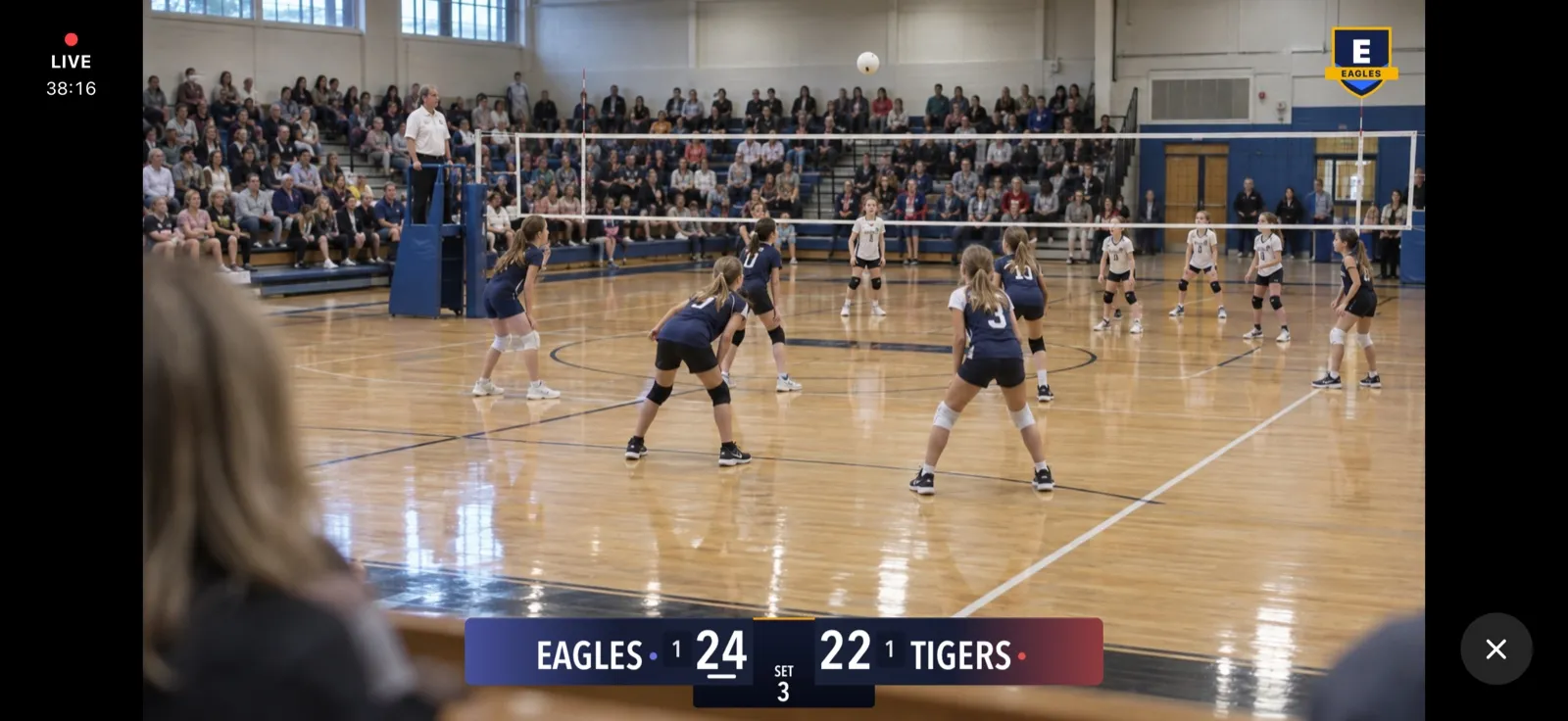
Switch it off, or back
- None shows no logo at all.
- CineSportCam shows our logo again.
- Remove Your Logo deletes your file from the app. The setting goes back to CineSportCam, and you can choose a new image any time.
Free, Pro and Team Pass
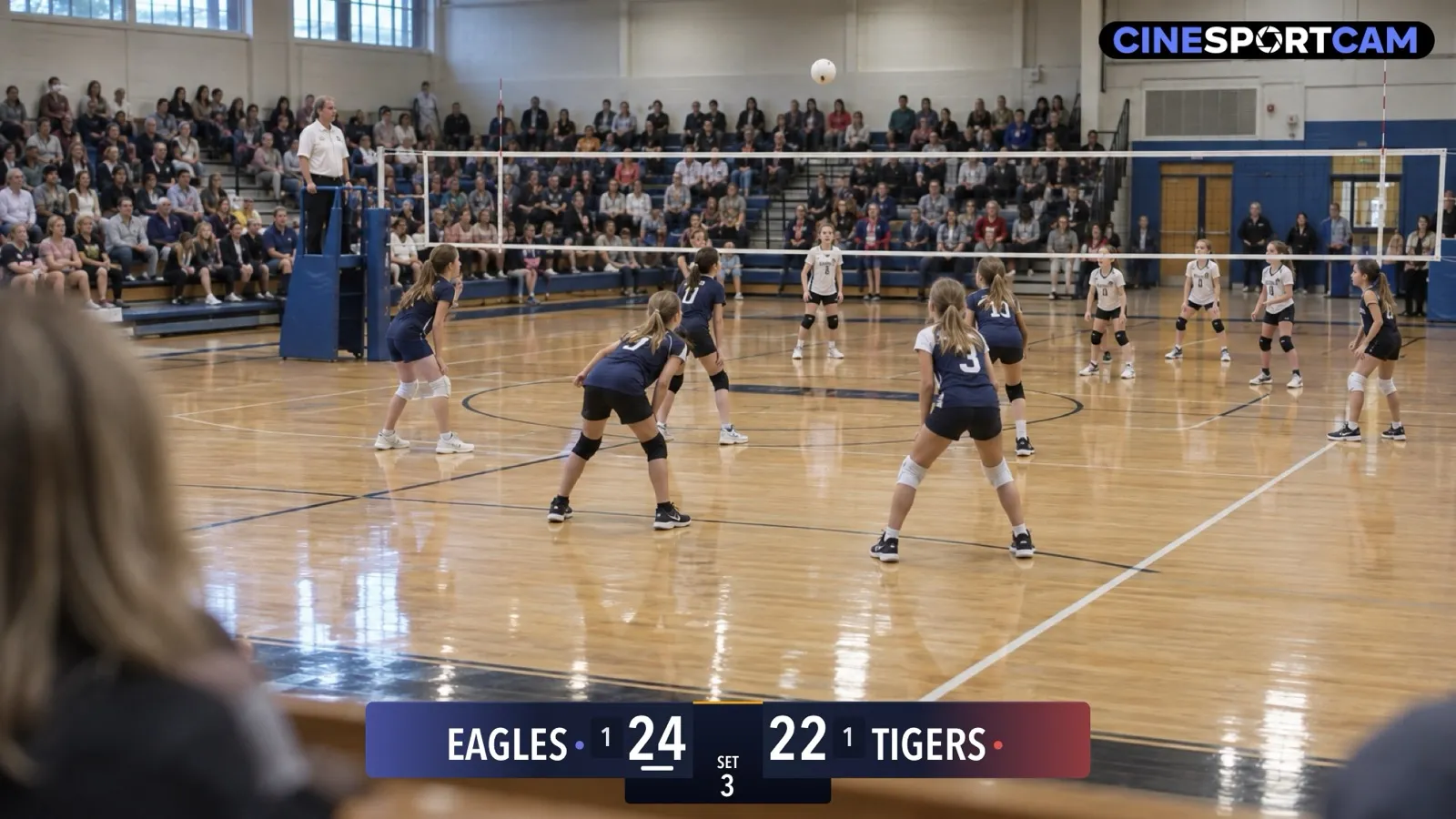
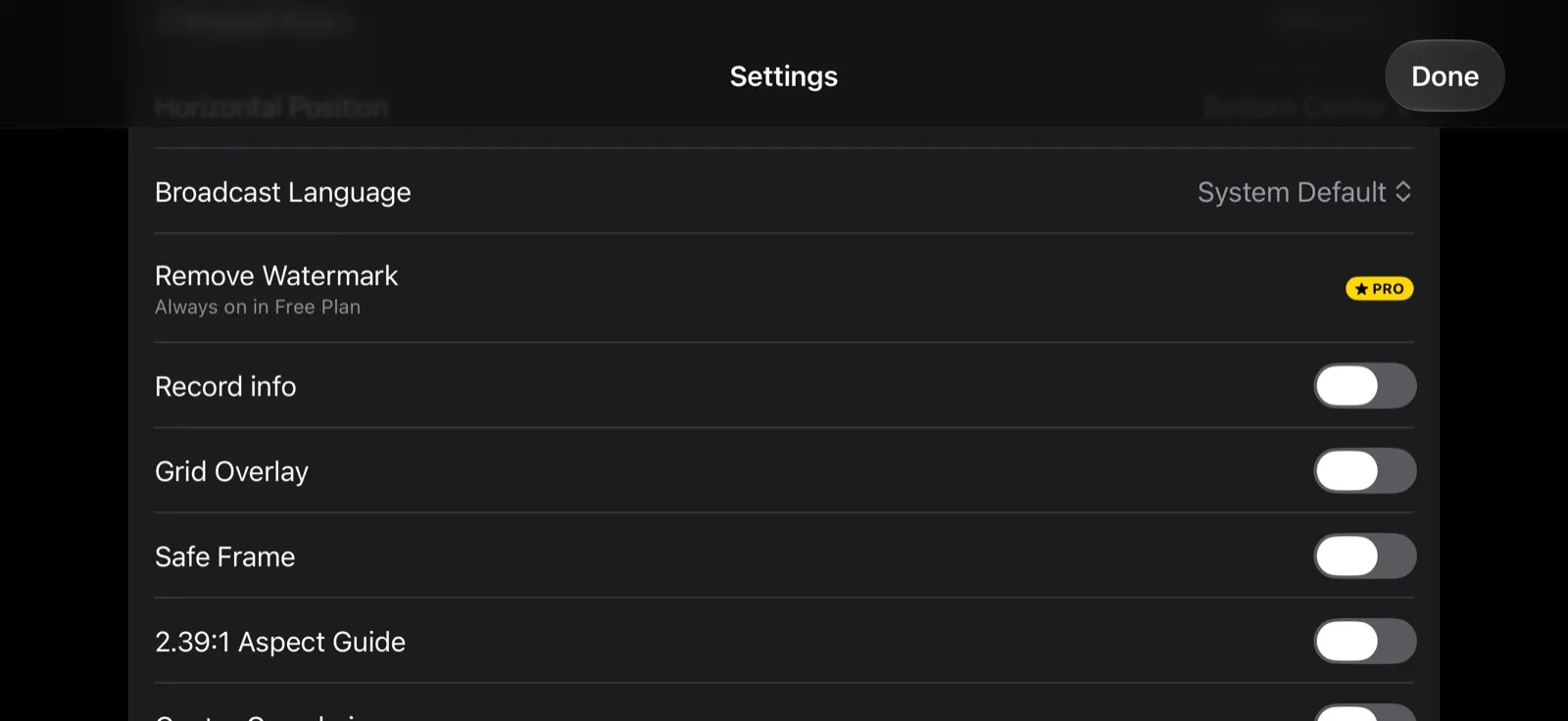
On Free, the stream, the recording and the NDI output carry a small CineSportCam logo. Settings → Display shows Remove Watermark with a PRO tag and “Always on in Free Plan”, and the camera view has a Remove logo · PRO button while nothing is streaming, recording or sending NDI.
On Pro, with a subscription or a Team Pass or Club seat, you choose your logo, our logo, or none. Buying Pro, restoring a purchase or redeeming a code keeps the choice you made.
If Pro ends, the stream shows the CineSportCam logo again. Your choice and your file are kept, so your logo comes back as soon as Pro does.
Troubleshooting
“Couldn’t use that image” with “Choose an image under 5 MB.” The file is too big. Export a smaller copy; 1024 pixels on the long side is plenty.
“Couldn’t use that image” with “Choose a PNG, JPEG or HEIC image.” The file isn’t an image the app can read, like a PDF or a design file. Export it as a PNG.
“Couldn’t use that image” with nothing else. The app couldn’t read the image, or the image has nothing visible in it (a fully transparent export). A photo stored in iCloud may not be downloaded yet: open it in the Photos app first, then pick it again. Your previous logo stays in place until a new one works.
The logo shows as a box. It’s a JPEG or it has a solid background. Export a PNG with a transparent background.
The logo controls are greyed out. You’re live, recording or sending NDI. Stop everything, make the change, and it takes effect the next time you start.
The logo is gone after setting up a phone from a backup. If the backup didn’t include the logo file, nothing shows in its place until you choose the image again. A Pro stream never falls back to our logo.
Questions
Does the logo show on recordings? Yes, in the same corner as on the stream.
And on NDI? Yes, unless you turn on Clean Feed (No Overlays), which sends the picture with no logo and no scoreboard.
Does the web scorer show it? No. The web scorer is a scoring page, not video.
Can the logo be animated? No. The app shows a still image.
Can I show two logos, or a sponsor strip? No. There is one logo, in one corner.
Does the score card carry my logo? No. The score card you share after the game carries the “Streamed with CineSportCam” credit line.
Does a logo use more bandwidth? No. It’s part of the picture the app already sends.