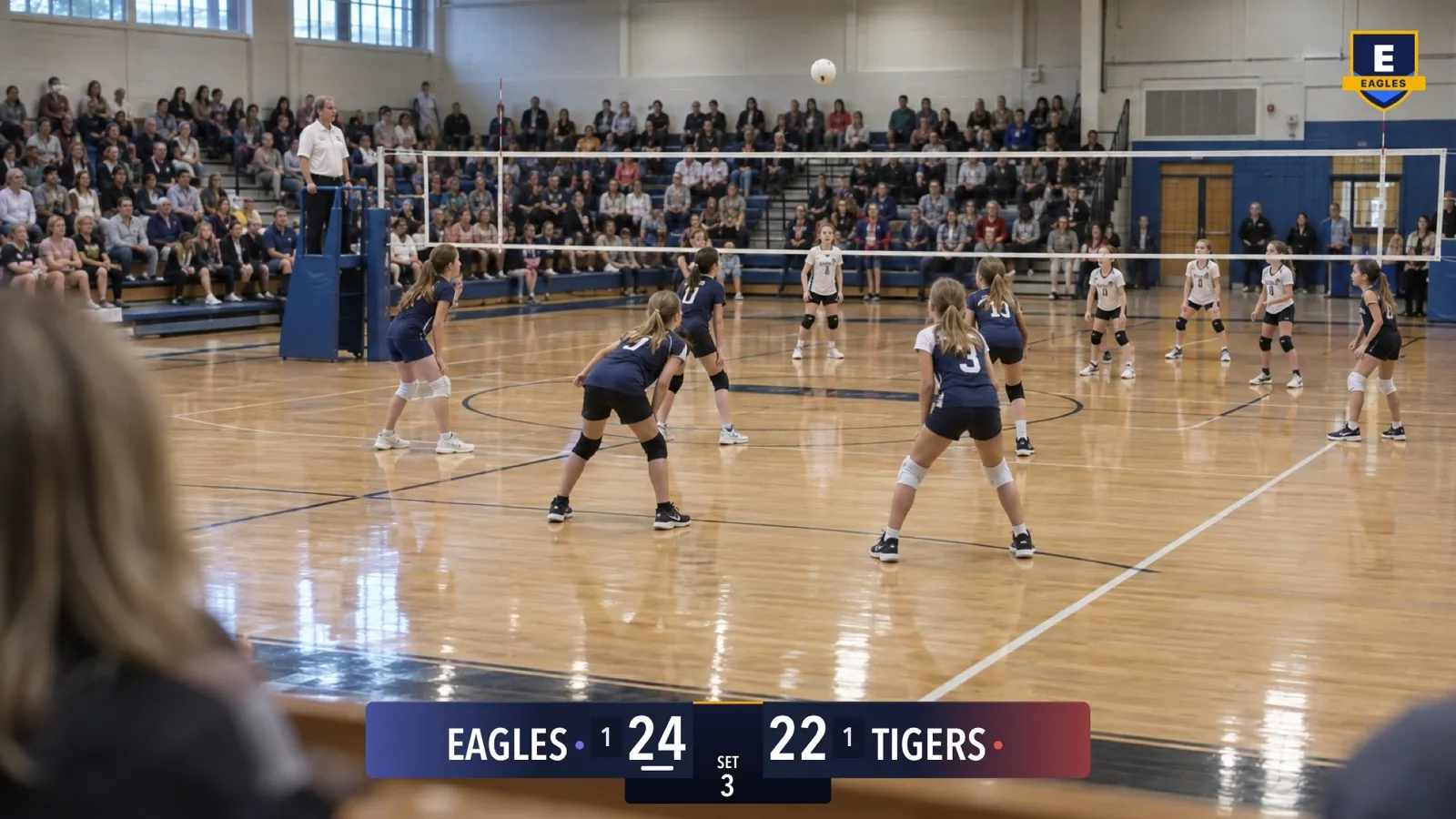
Send Your iPhone Camera to OBS or vMix with NDI
CineSportCam sends standard NDI over Wi-Fi. How to turn it on, find the phone in OBS, vMix or NDI Studio Monitor, run two phones as two cameras, and fix a source that won't show up.
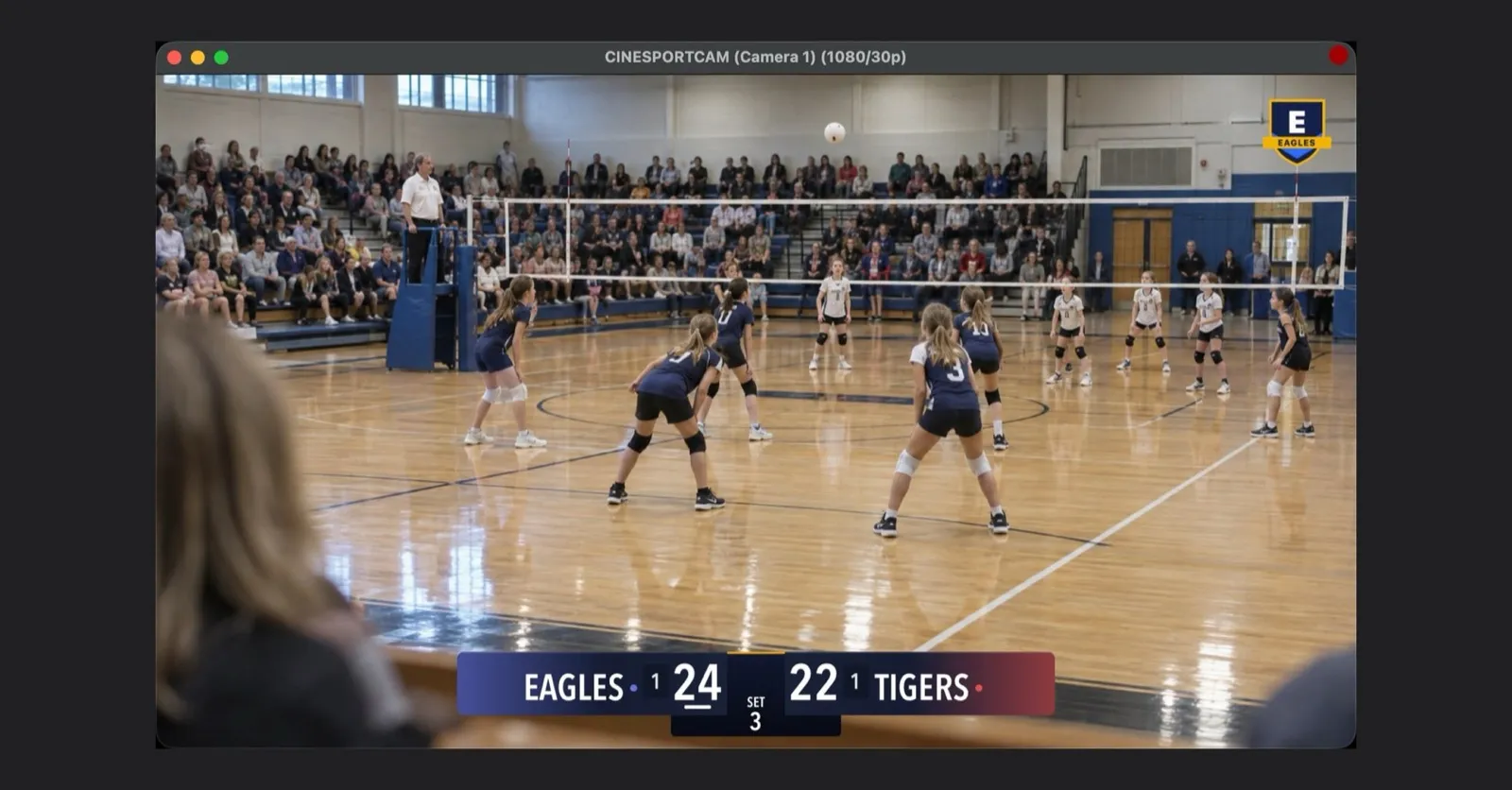
If someone at your gym runs a laptop with OBS or vMix, CineSportCam can be one of their cameras, with no cable. From 2.6.1, every CineSportCam user can send the camera over Wi‑Fi as an NDI source, scoreboard included.
What NDI is
NDI is a standard way to send live video between devices on the same network. Production software lists every NDI source it can see, and you pick one the way you’d pick a camera plugged into the computer.
What you need
- An iPhone with CineSportCam 2.6.1.
- A computer on the same Wi‑Fi network, with an NDI app:
- A strong Wi‑Fi network that the phone and the computer share. More on that below.
Turn it on
-
Open Settings → NDI
Turn on NDI Output. The line under it shows what’s happening: “Waiting for a receiver” until an NDI app connects.
-
Allow Local Network access
The first time, iOS asks whether CineSportCam may find devices on your local network. Allow it: without it, NDI apps can’t see the phone.
-
Name the camera
Camera Name is what your NDI app shows, in brackets after CineSportCam. It starts as “Camera 1”. Give each phone its own name, like “Court Left”.
Every NDI setting
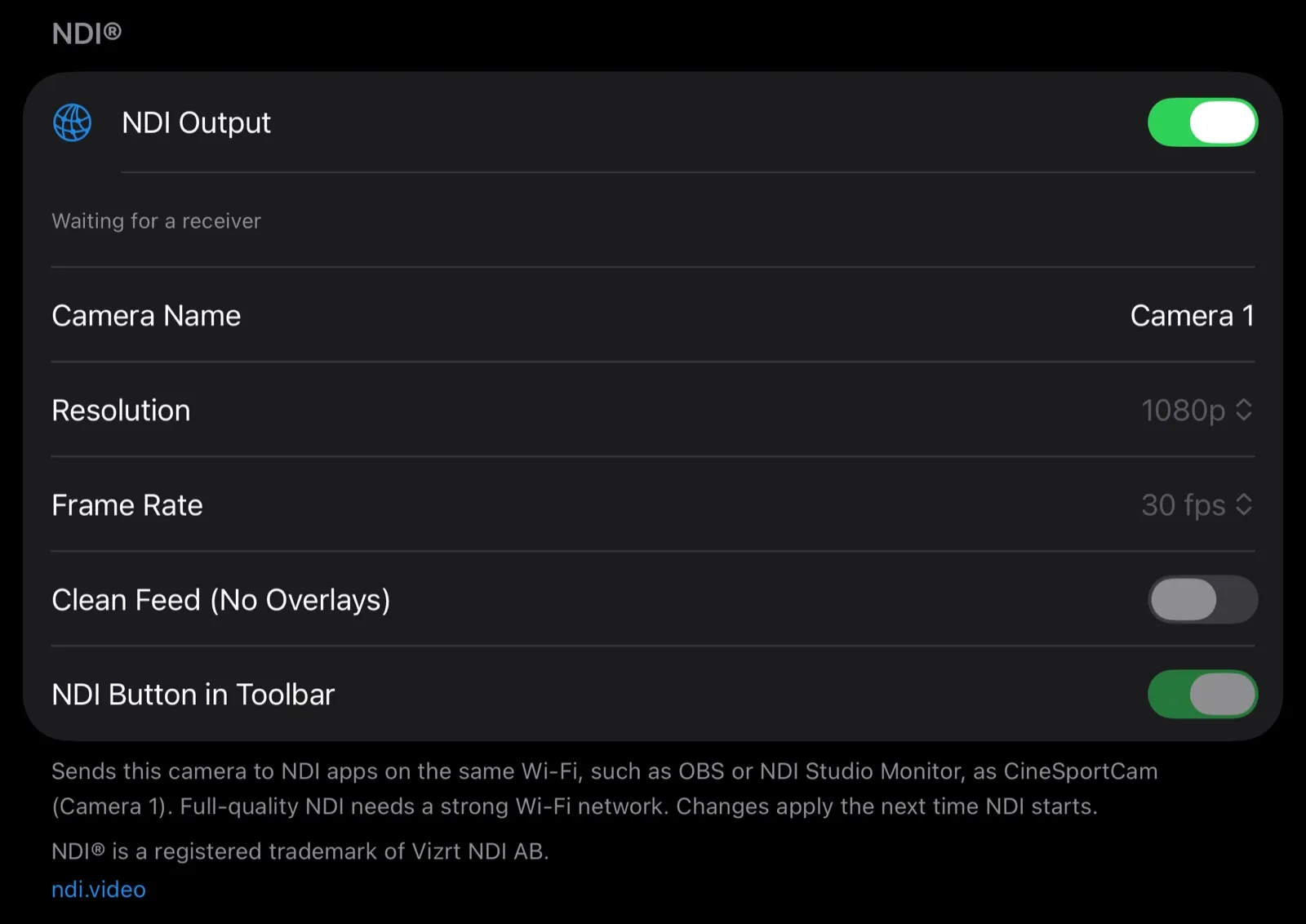
| Setting | What it does |
|---|---|
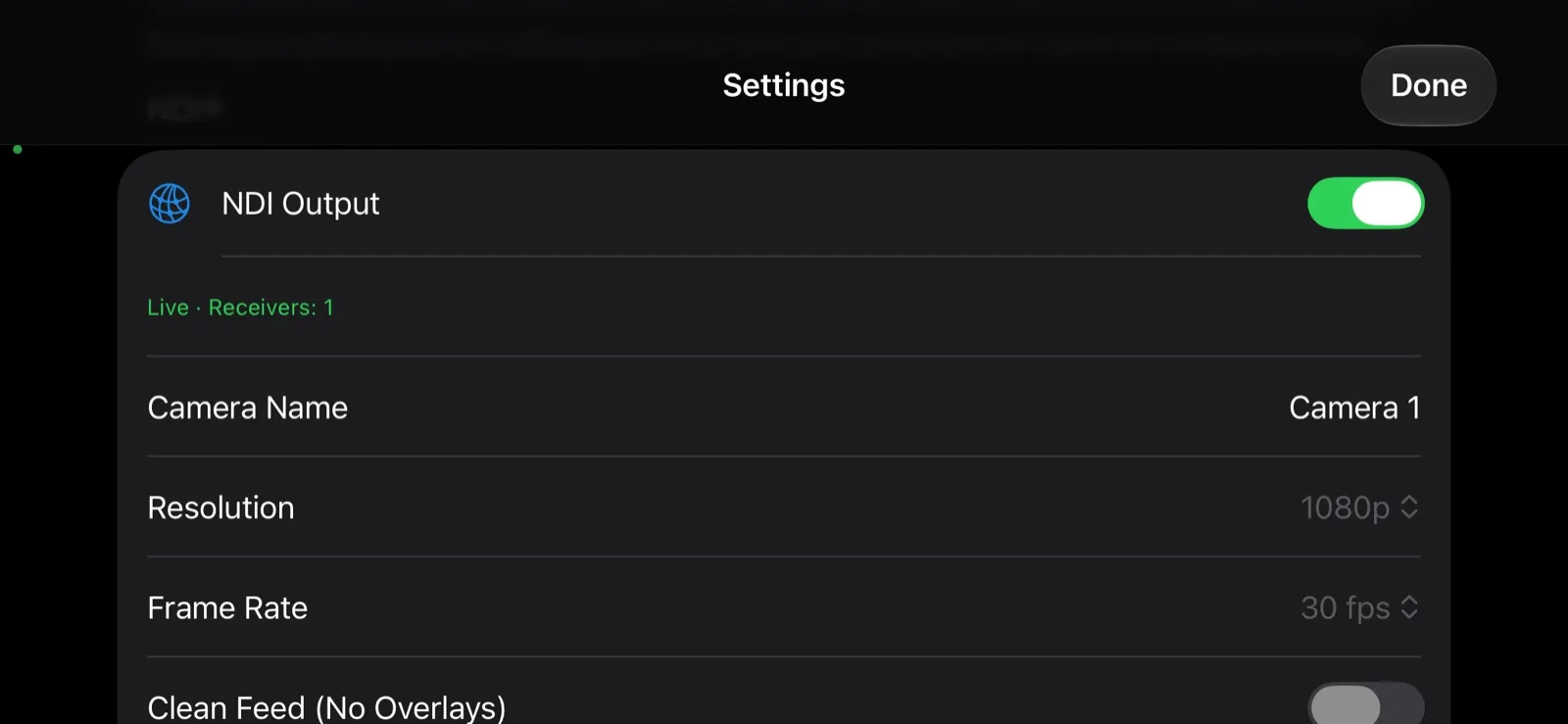
| NDI Output | Starts and stops sending. It’s the one NDI control you can use while you’re live or recording. The line under it shows the status: “Live · Receivers: 2” (how many NDI apps are watching), “Waiting for a receiver”, “Reconnecting…”, or “Local Network access is off, so NDI apps can’t find this camera.” with an Open Settings button. |
| Camera Name | The name in brackets after CineSportCam, as in CineSportCam (Camera 1). Up to 40 characters; leave it empty and it goes back to “Camera 1”. Give every phone a different name. |
| Resolution | 720p or 1080p. 1080p is Pro, with a PRO badge on Free. NDI never sends more than the camera captures: if your Recording Resolution is 720p, NDI sends 720p, and a note under the picker says so. |
| Frame Rate | 30 fps (the default) or 60 fps. 60 fps is Pro, and NDI never sends faster than the camera’s Frame Rate. |
| Clean Feed (No Overlays) | Pro. Sends the camera alone, without the scoreboard and the logo. Off (the default) sends what your viewers see. |
| NDI Button in Toolbar | Adds an NDI button to the camera screen, so you can start and stop NDI without opening Settings. Off by default. |
Under the section, the app spells out the name it sends, for example “as CineSportCam (Court Left)”. Changes to the name, resolution, frame rate and clean feed apply the next time NDI starts, and while you’re live, recording or sending NDI they’re greyed out.
Find it in your NDI app
The phone appears as CineSportCam (Camera 1), or with the name you gave it. Some apps show the first part in capitals, as CINESPORTCAM (Camera 1).
- NDI Studio Monitor: open the NDI menu at the top and pick the source.
- OBS with DistroAV: add a source, choose NDI Source, and pick CineSportCam in its list.
- vMix and Wirecast: add an NDI input or shot and pick CineSportCam.
When it connects, the line in Settings → NDI reads “Live · Receivers: 1”.
What you get
The picture your viewers see. NDI carries the camera with the scoreboard and the logo, in the same places as on the stream. With Pro, Clean Feed (No Overlays) sends the camera alone, for productions that add their own graphics.
Free sends 720p at 30 fps. Pro sends up to 1080p at 60 fps. If Settings says “NDI sends at most what the camera captures”, raise Recording Resolution or Frame Rate in the camera settings to send more.
Two phones, two cameras
Run CineSportCam on two phones, give each its own Camera Name, and both show up in your NDI app as separate sources. One can follow the play from the stands while the other holds a wide shot of the court.
Alongside your stream and your recording
NDI runs at the same time as Go Live and REC. You can stream to YouTube, keep a recording on the phone, and feed the production laptop all at once.
The toolbar button
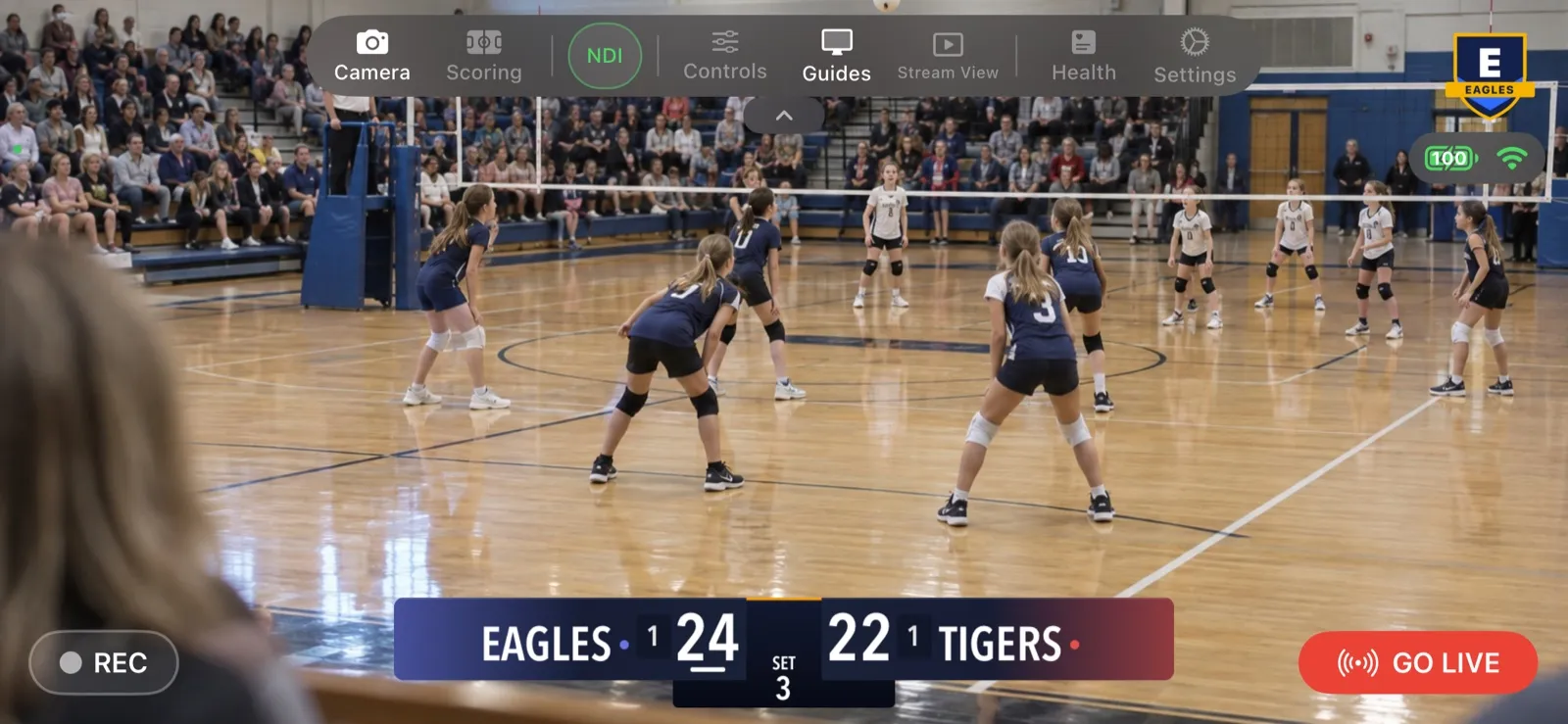
Turn on NDI Button in Toolbar to switch NDI on and off from the camera screen. The button is green when an NDI app is watching, amber while it waits for one, and red when nothing can find the phone, for example when Local Network access is off. Turning it off asks “Stop NDI output?” first.
Wi-Fi matters
Standard NDI is full-quality video, which makes it a high-bandwidth signal. For a steady picture:
- Use a 5 GHz Wi‑Fi network, and keep the phone and the computer close to the router.
- Put both on the same network. A computer on a different network, or a phone on cellular, can’t see the source.
- If your NDI app offers NDI’s low-bandwidth preview, it can help for monitoring on a busy network.
- If the picture stutters, drop the NDI Resolution to 720p.
Troubleshooting
The phone doesn’t show up at all. Check the line in Settings → NDI. If it says “Local Network access is off, so NDI apps can’t find this camera.”, open the iPhone’s Settings → CineSportCam and turn on Local Network.
Still nothing. Guest networks and some school or venue networks keep devices from seeing each other. Try a network that allows it, or a travel router of your own.
“Waiting for a receiver.” That’s normal until an NDI app connects to the phone.
“Reconnecting…” The Wi‑Fi connection is struggling. Move the phone or the router closer, or lower the resolution.
The source disappears when I leave the app. iOS closes an app’s network connections in the background, so the source goes away while you’re in another app. NDI stays on, and the source comes back when you return to CineSportCam.
NDI® is a registered trademark of Vizrt NDI AB. ndi.video